
Signing in to the PriApps CloudPrint Console
Open the PriApps CloudPrint Console, where you manage PriApps CloudPrint, and sign in with your organization's Microsoft account.
You manage PriApps CloudPrint in the PriApps CloudPrint Console, a website you open in your browser. You sign in with your organization's Microsoft account.
Before you begin
- You need an account with an administrator role in your organization's Microsoft Entra ID.
- You need your organization's PriApps CloudPrint Console address. It depends on where your organization's PriApps CloudPrint service is hosted.
- Your organization's onboarding with PriApps must be complete.
Steps
Open the PriApps CloudPrint Console
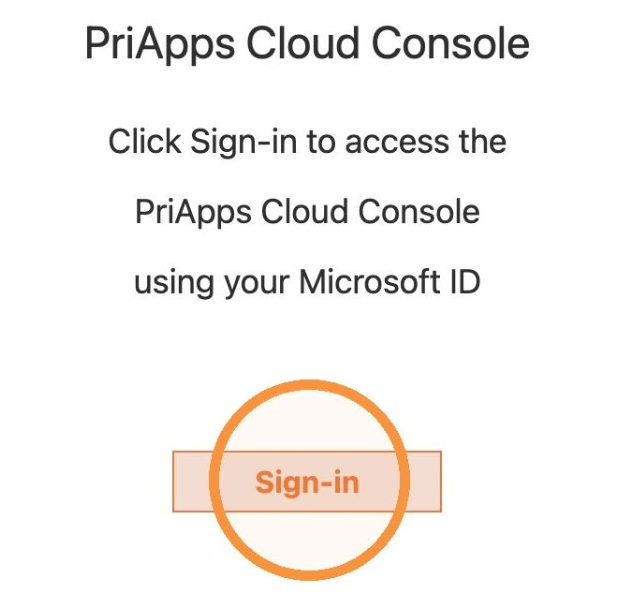
In your browser, go to your organization's PriApps CloudPrint Console address, then select Sign-in. The page is currently titled PriApps Cloud Console.
Choose your Microsoft account
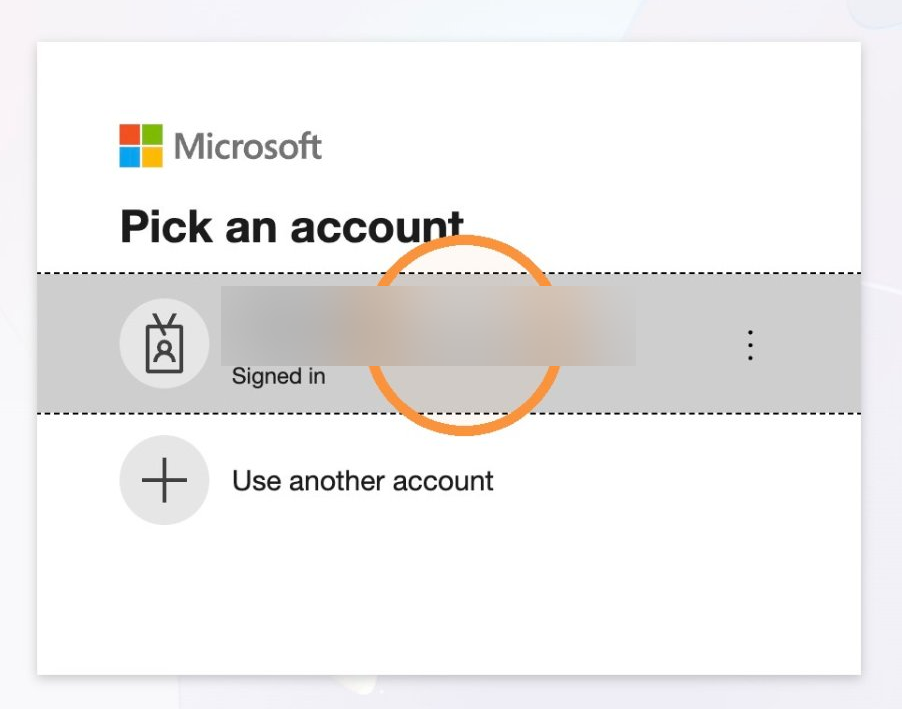
Select your account. If it isn't listed, select Use another account and sign in with your organizational credentials. Your organization's sign-in requirements, such as multifactor authentication, apply as usual.
Check that it worked
The PriApps CloudPrint Console opens on its Overview page. It summarizes your printers, users, Hold Queues, accounts, reporting groups and jobs, and each line's manage... link opens that area. The menu on the left gives you every part of the console, grouped under Reporting & Analytics, Manage, Accounts and Costs, Jobs, Groups, Tenant Administration and About PriApps CloudPrint.
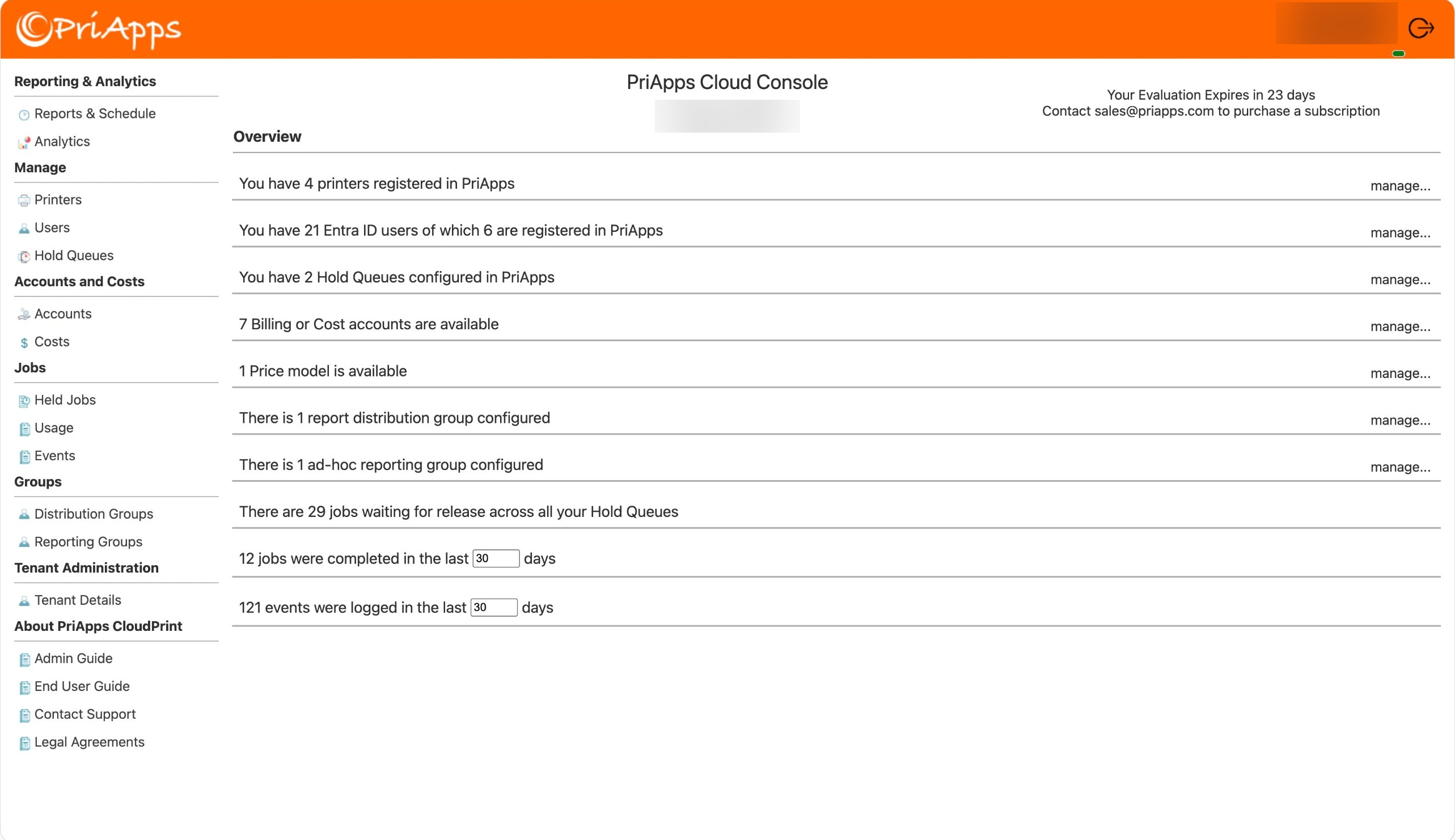
To sign out, select the sign-out icon at the top right of the console.