
Registering users
Register users from Microsoft Entra ID so they can sign in at the printers, copiers and MFPs that PriApps CloudPrint manages.
PriApps CloudPrint synchronizes with your organization's Microsoft Entra ID, so your users appear in the PriApps CloudPrint Console automatically. Registering a user lets them authenticate at the MFPs, copiers and printers that PriApps CloudPrint manages.
PriApps CloudPrint is licensed by device, not by user, so registering users doesn't change your subscription.
Before you begin
- Sign in to the PriApps CloudPrint Console. See Signing in to the PriApps CloudPrint Console.
- The users you want to register must be in your organization's Microsoft Entra ID.
Steps
Open Users
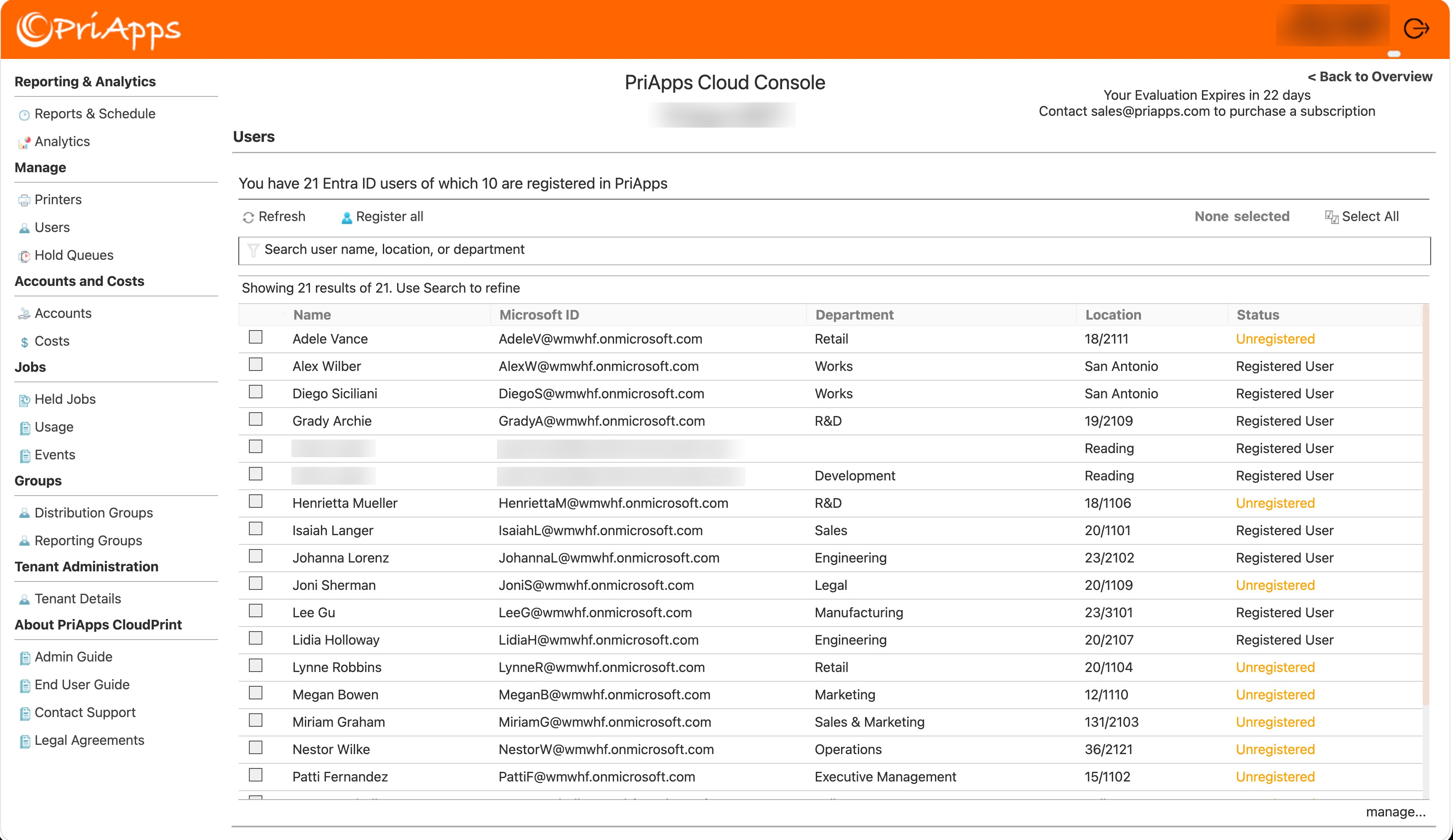
In the menu, under Manage, select Users. The list shows every user synchronized from Microsoft Entra ID. The Status column shows whether each one is registered.
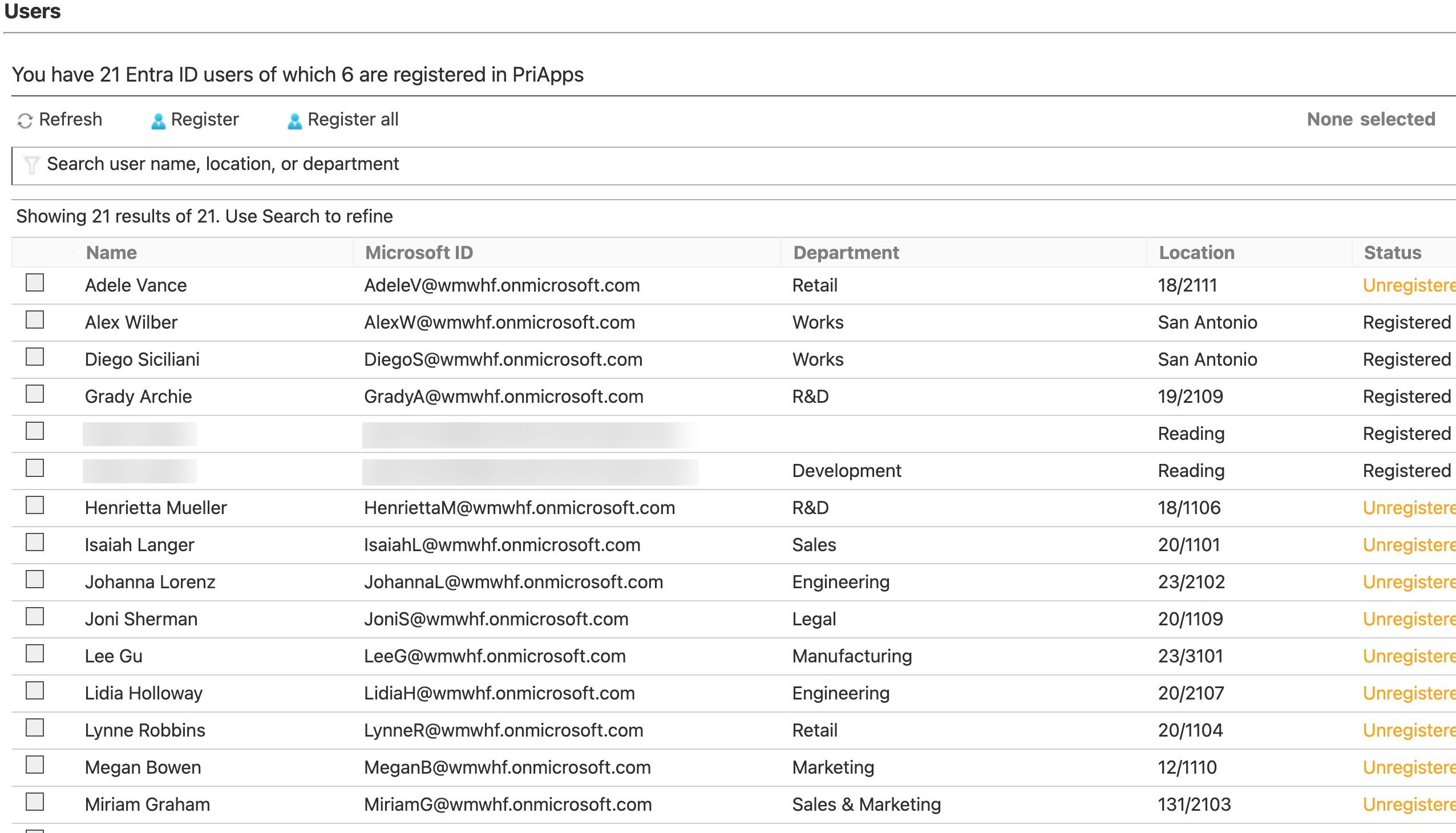
Select the users
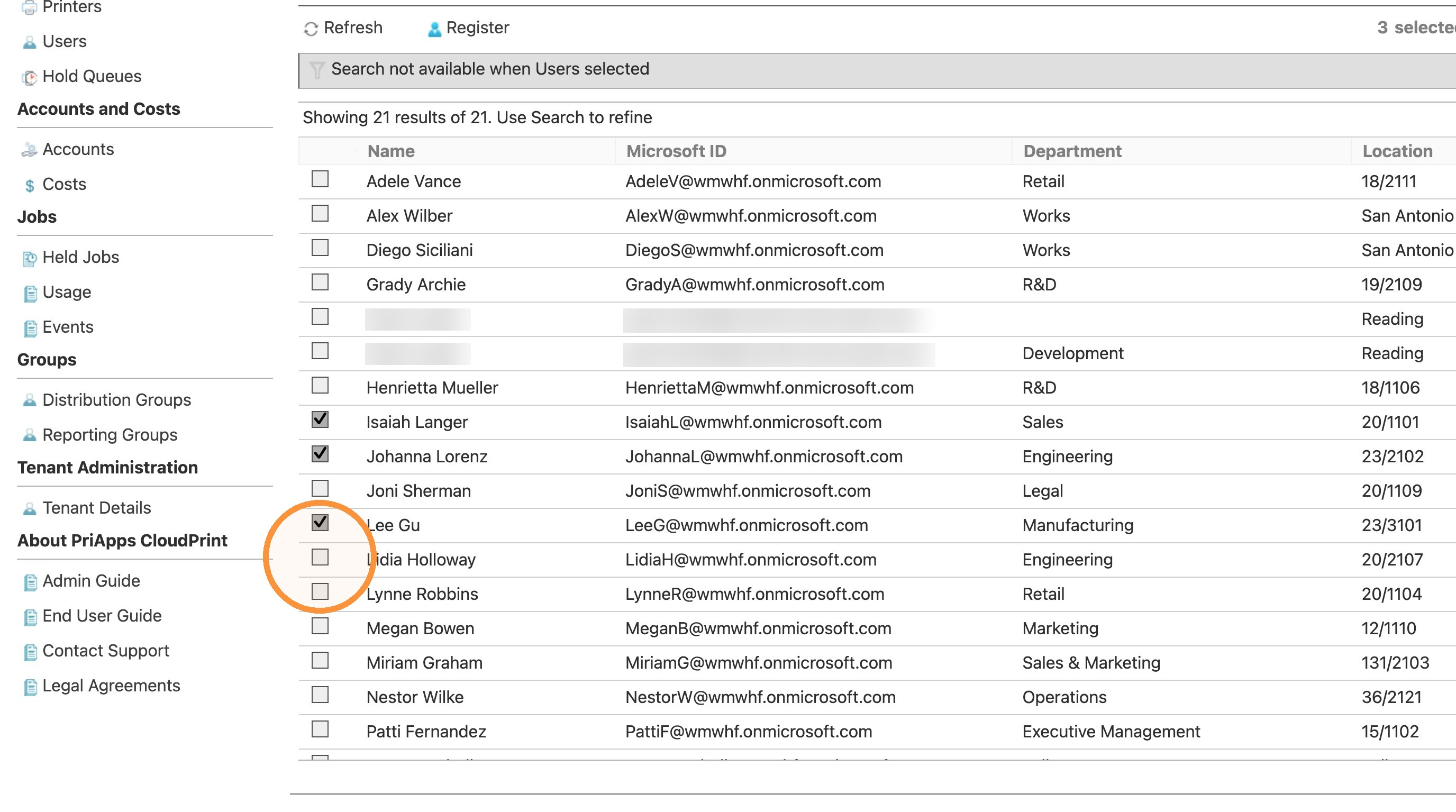
Select the check box next to each user you want to register. The number selected is shown at the top right of the list.
To register every unregistered user at once, select Register all instead of selecting users.
Search isn't available while users are selected, so search for a user first, then select them.
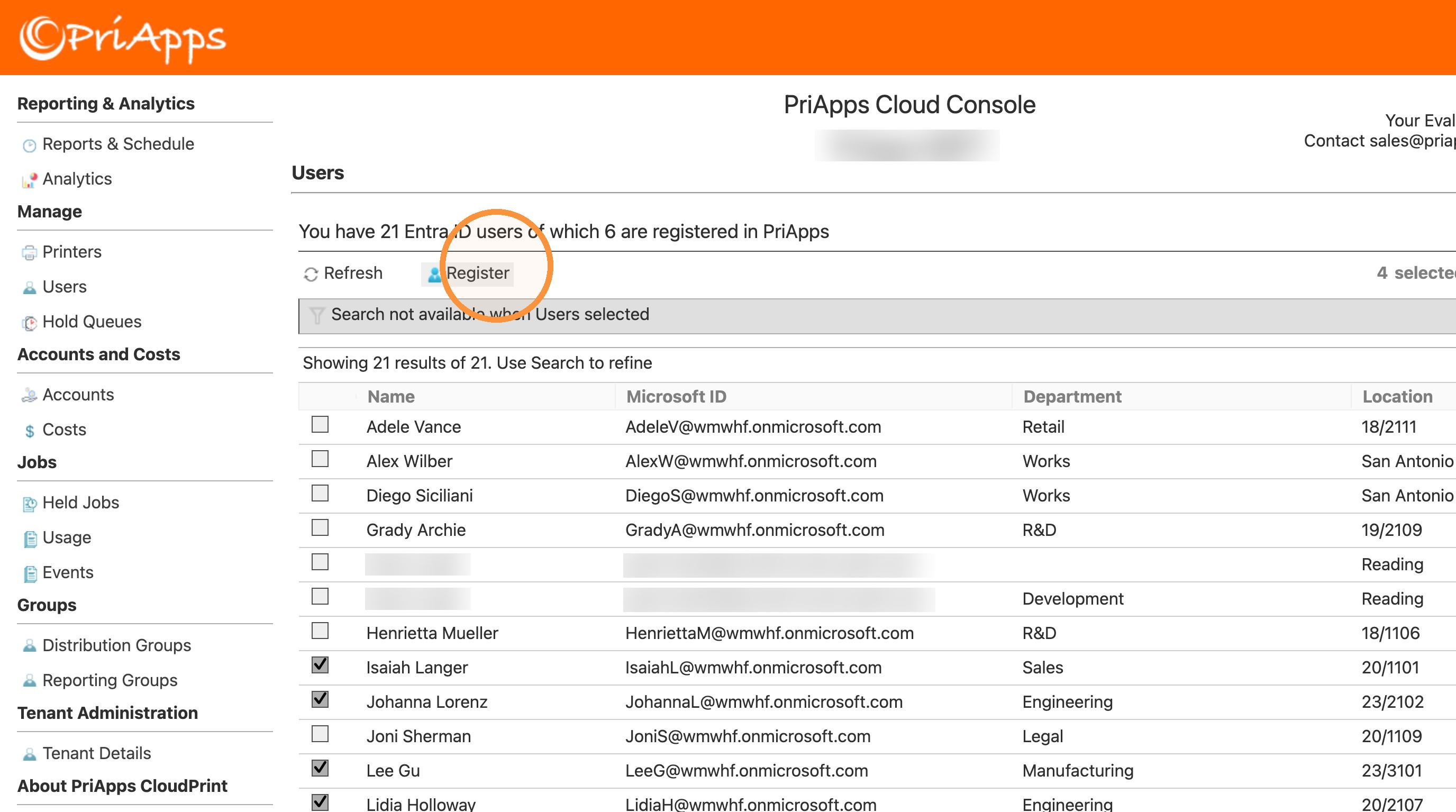
Select Register
Above the list, select Register.
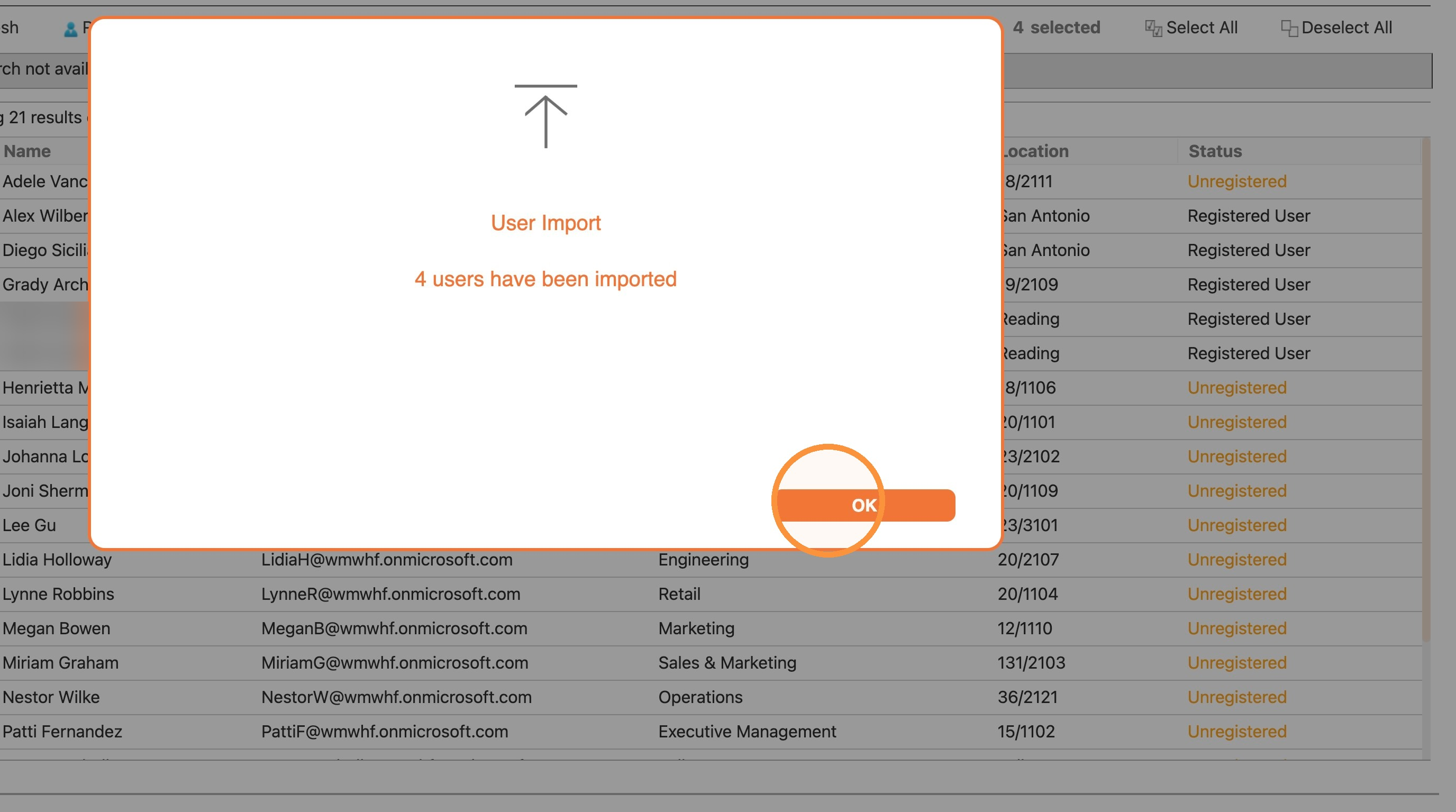
Confirm
A User Import message shows how many users were registered. Select OK.
Check that it worked
The users you registered show Registered User in the Status column, and the number of registered users at the top of the page has gone up.
Related articles
Unregistering users
Unregister users so they can no longer sign in at the printers, copiers and MFPs that PriApps CloudPrint manages.
Configuring users
Change a registered user's details, default cost account, role and sign-in settings in the PriApps CloudPrint Console.
Signing in to the PriApps CloudPrint Console
Open the PriApps CloudPrint Console and sign in with your organization's Microsoft account.
Overview of the Admin Guide
What this guide covers, and how PriApps CloudPrint works with your own cloud storage.