
Viewing held jobs
See the print jobs waiting for release in your hold queues, and open a job's details, such as its copies, color, paper and hold queue.
Held Jobs lists the print jobs waiting for release in all your hold queues. You can open any job to see its details, which is especially useful when you're troubleshooting a printing problem.
Before you begin
- Sign in to the PriApps CloudPrint Console. See Signing in to the PriApps CloudPrint Console.
Steps
Open Held Jobs
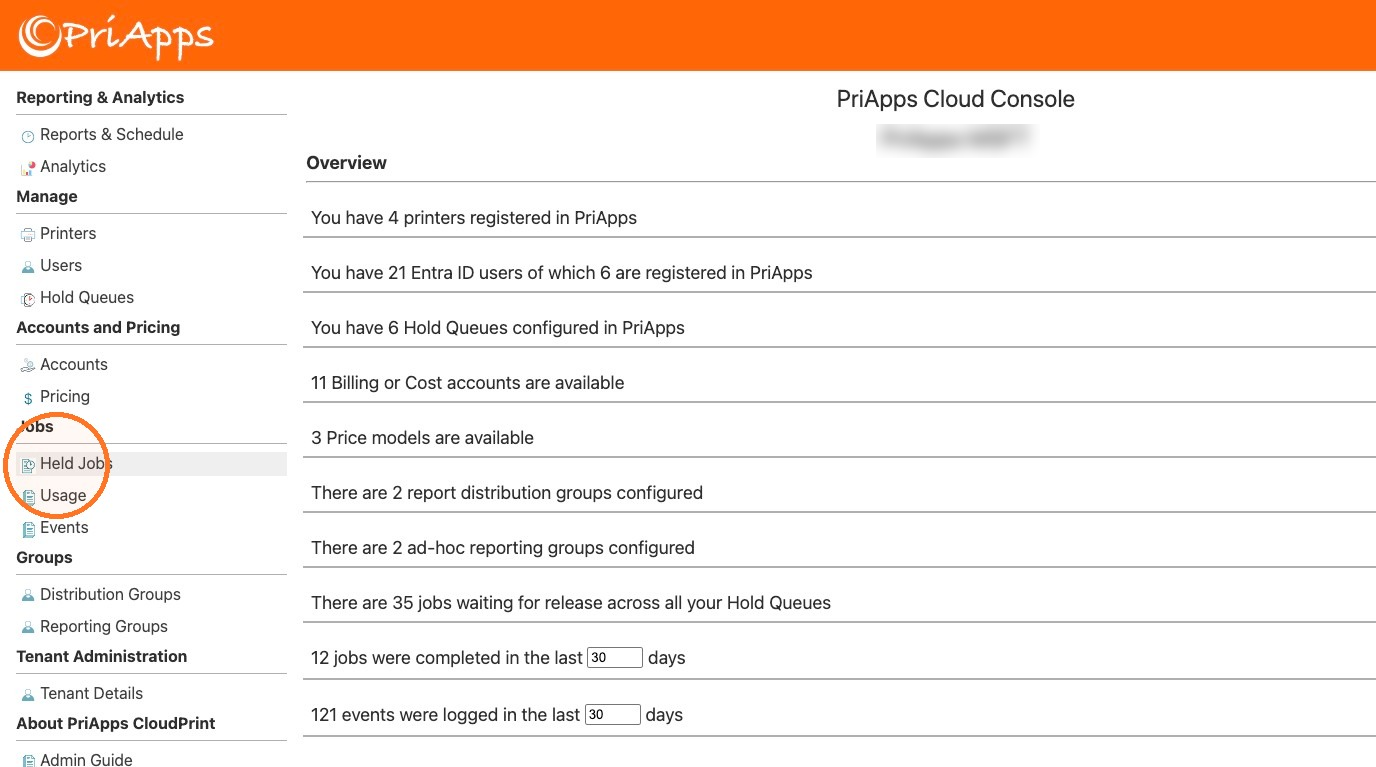
In the menu, under Jobs, select Held Jobs.
Choose a job
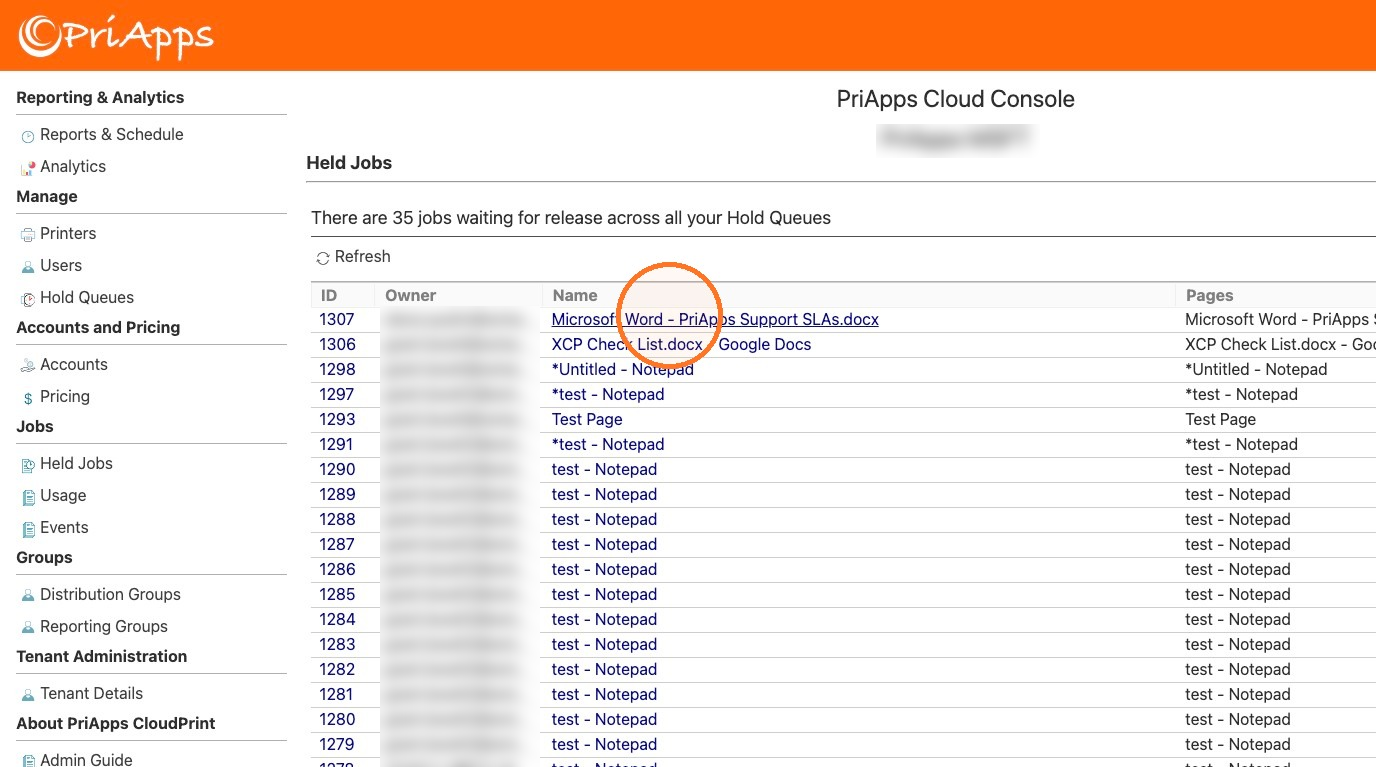
The page shows how many jobs are waiting for release, and lists each job's ID, owner and name, with when it was created. To update the list, select Refresh.
Select the job's ID or Name to open its details.
Read the job details
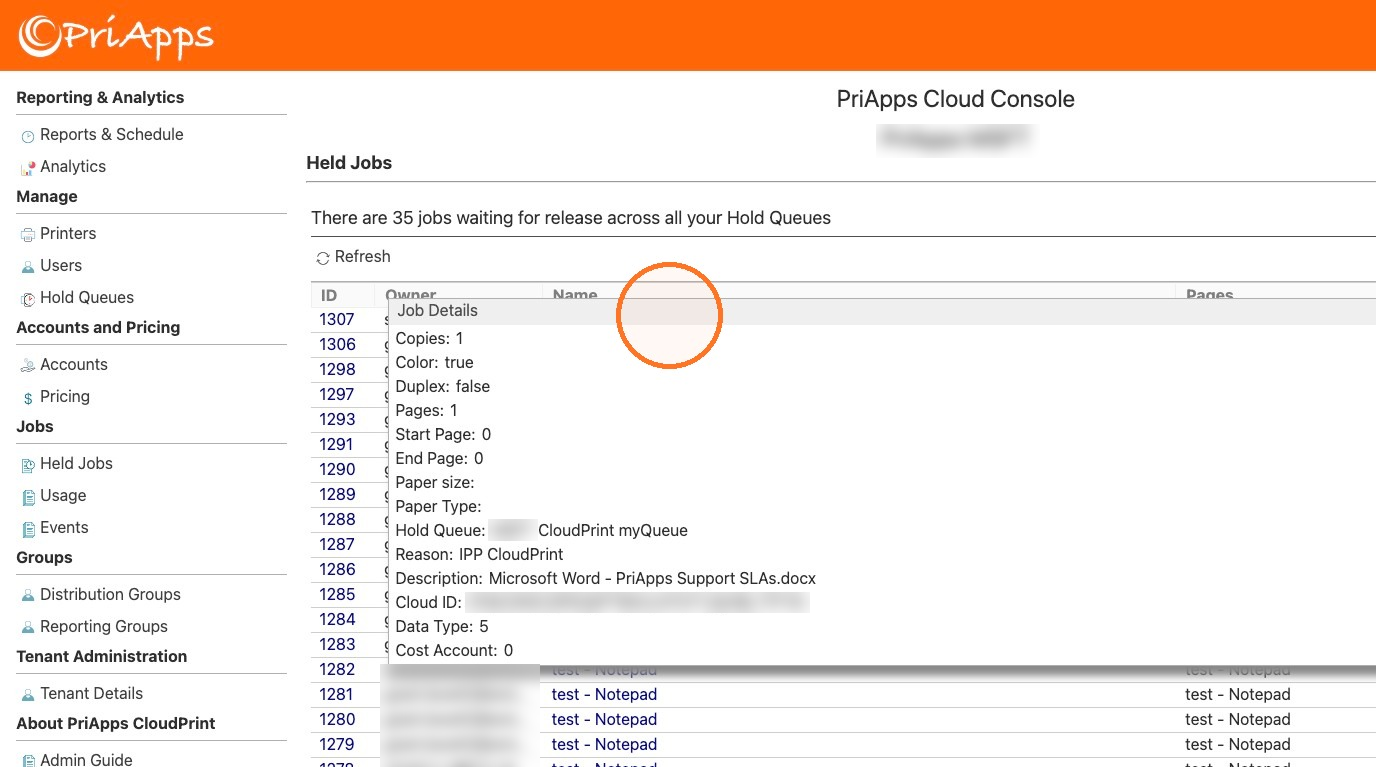
The Job Details box shows the job's details. See Job details.
Close the job details
Select the X at the top right of the box.
Job details
| Detail | What it shows |
|---|---|
| Copies | The number of copies. |
| Color | true for a color job, false for a mono job. |
| Duplex | true for a two-sided (duplex) job, false for a one-sided (simplex) job. |
| Pages | The number of pages. |
| Start Page | The first page to print, when the job prints only part of the document. |
| End Page | The last page to print, when the job prints only part of the document. |
| Paper size | The paper size the job asks for. |
| Paper Type | The paper type the job asks for. |
| Hold Queue | The hold queue the job is waiting in. |
| Reason | How the job was sent to PriApps CloudPrint, for example IPP CloudPrint. |
| Description | The job's description, usually the document's name. |
| Cloud ID | The job's ID in your organization's cloud storage. |
| Data Type | The format of the job's data. |
| Cost Account | The cost account the job is charged to, or 0 if it has none. |
Related articles
Viewing usage
See the print, copy, scan and fax jobs completed recently, with who did each one, where, and how many sides and sheets it used.
Viewing events
See what happened at your printers and MFPs recently, such as users signing in and out, jobs completing and errors.
Billing and cost accounts
Create the billing accounts that usage is charged to, and the cost accounts that track what it costs, for clients, projects, departments, printers and users.