
Viewing usage
See the print, copy, scan and fax jobs completed recently, with who did each one, where, and how many sides and sheets it used.
Usage lists the print, copy, scan and fax jobs completed at your printers and MFPs recently, with who did each one, where, and how many sides and sheets it used. For longer periods and totals, use reports. See Report scheduling.
Before you begin
- Sign in to the PriApps CloudPrint Console. See Signing in to the PriApps CloudPrint Console.
Steps
Open Usage
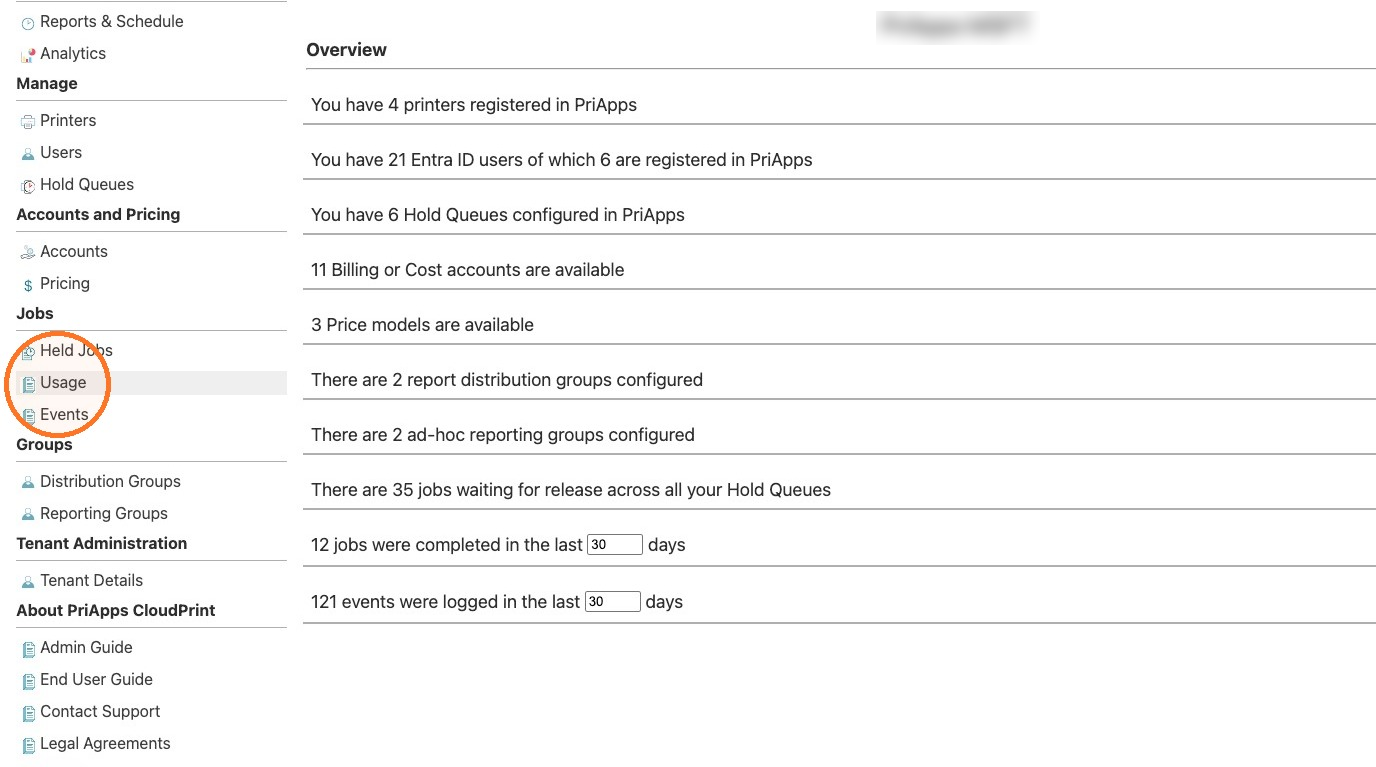
In the menu, under Jobs, select Usage.
Read the list
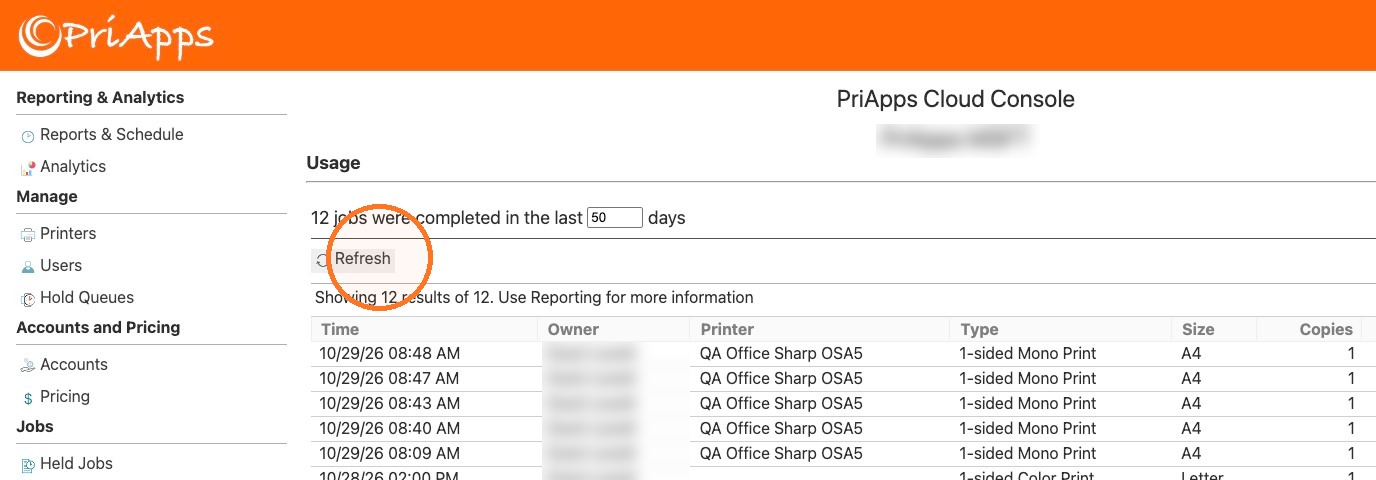
The page shows how many jobs were completed in the last 30 days, and lists them, newest first. See What the list shows.
Change the number of days
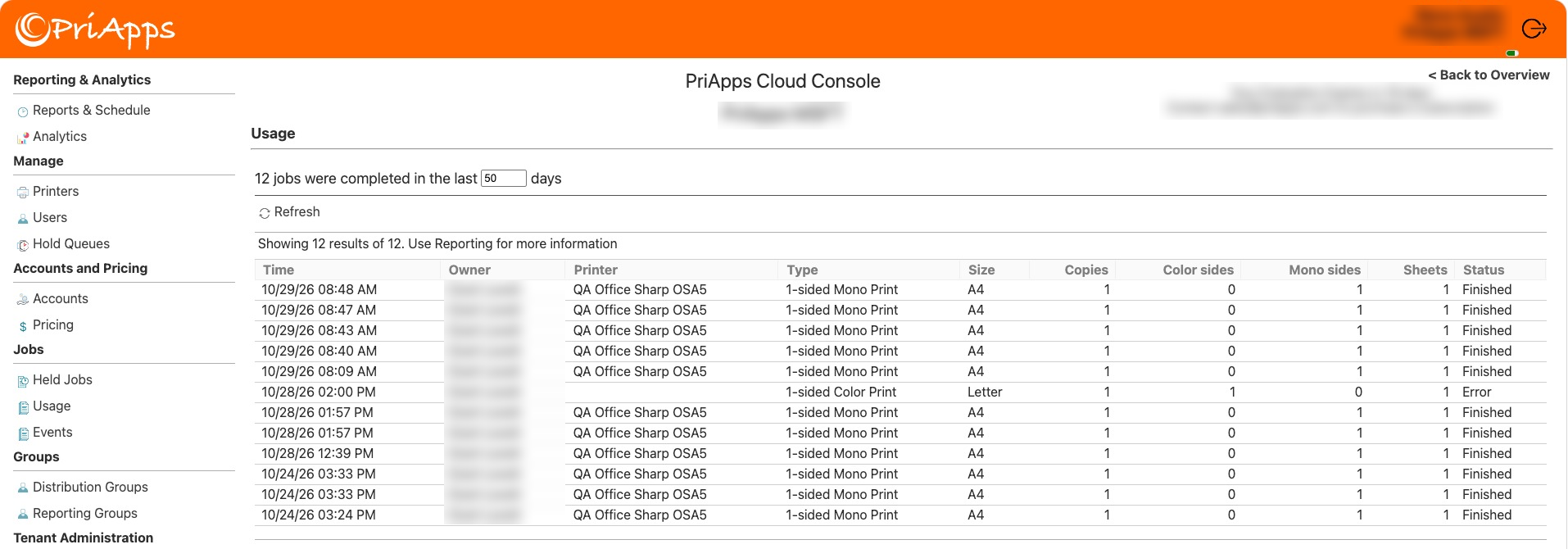
To see a longer or shorter period, enter or choose a number of days in the box.
Select Refresh
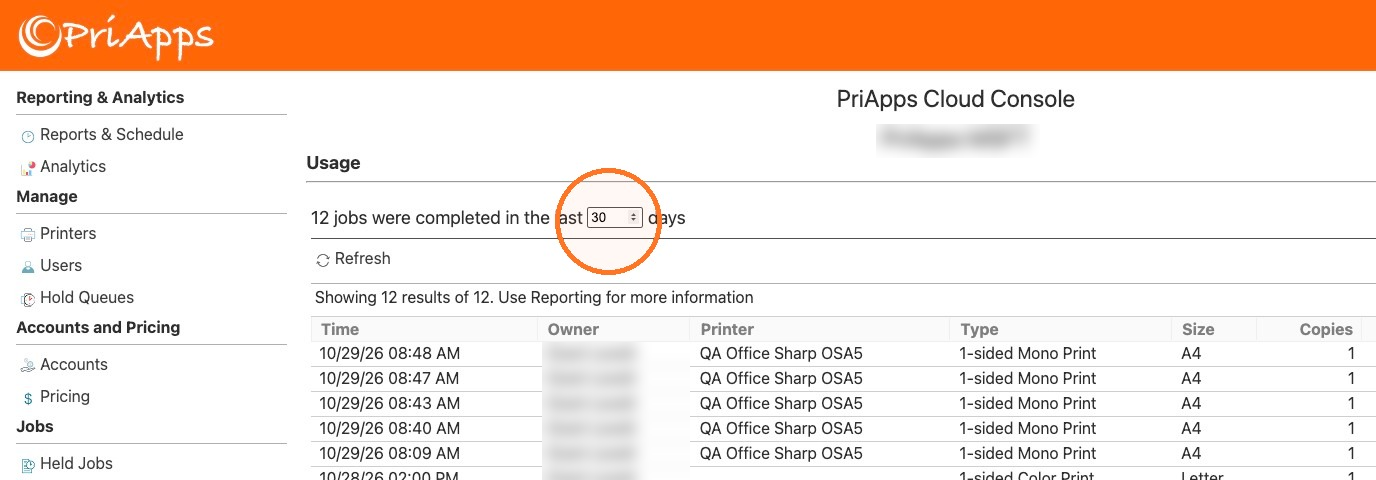
Select Refresh to update the list.
What the list shows
| Column | What it shows |
|---|---|
| Time | When the job was done. |
| Owner | The user who did the job. |
| Printer | The printer or MFP where the job was done. |
| Type | The kind of job (print, copy, scan or fax), whether it was one-sided or two-sided, and whether it was mono or color, for example "1-sided Mono Print". |
| Size | The paper size, for example A4 or Letter. |
| Copies | The number of copies. |
| Color sides | The number of sides in color. |
| Mono sides | The number of sides in mono. |
| Sheets | The number of sheets of paper. |
| Status | Whether the job finished, for example Finished or Error. |
Related articles
Viewing events
See what happened at your printers and MFPs recently, such as users signing in and out, jobs completing and errors.
Viewing held jobs
See the print jobs waiting for release in your hold queues, and open a job's details, such as its copies, color, paper and hold queue.
Viewing analytics
Build a dashboard of charts and usage reports in PriApps CloudPrint, save it to use again, and download usage reports as CSV files.
Report scheduling
Schedule usage and cost reports to be sent to a distribution group as PDF or CSV files, once or on a regular schedule.