myQueue — General Tab
Core configuration properties for a PriApps Hold Queue, including name, driver, and Windows queue creation.
v24.0
Configure the core properties of a Hold Queue from Managed Printing → Hold Queues in the PriApps Admin UI. Select a Hold Queue and edit its General tab.
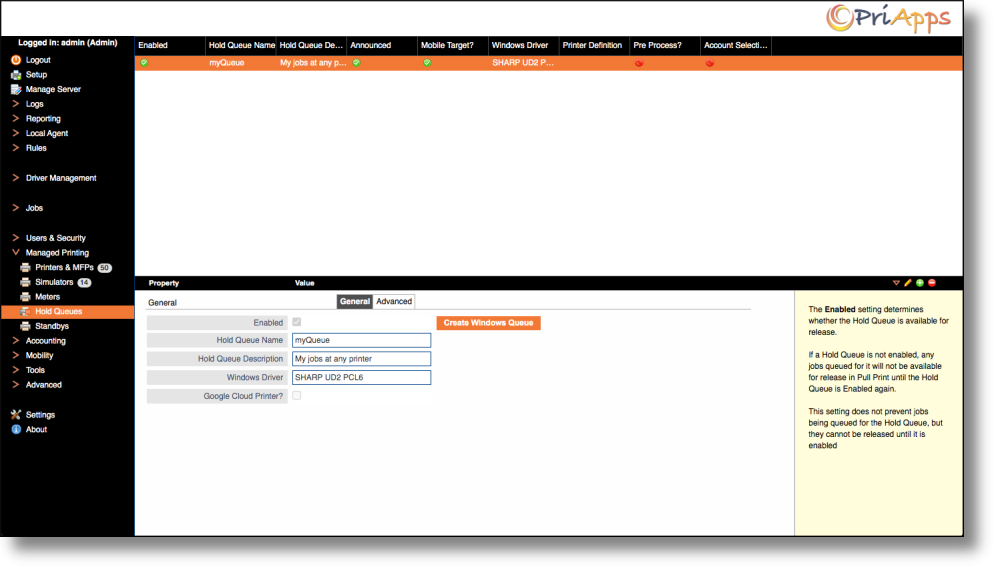
| Field | Description |
|---|---|
| Enabled | Determines whether the Hold Queue is available for job release. If a Hold Queue is disabled, any jobs queued for it will not be available for release in Pull Print until it is re-enabled. Disabling a Hold Queue does not prevent jobs being submitted to it — they will queue and become available once the Hold Queue is enabled again. |
| Hold Queue Name | The user-facing name of this Hold Queue. Must be unique. Used for job submissions and to identify any associated Windows print queue. |
| Hold Queue Description | A description of the Hold Queue. Typically describes the purpose of the queue and the types of job it is intended for. |
| Windows Driver | The Windows print driver to be used by the Hold Queue. If the Hold Queue serves a homogeneous set of printers from a single manufacturer, the Universal Driver for that manufacturer is usually appropriate. In mixed environments, either a common Generic driver or separate Hold Queues per manufacturer will be required. Click the Set Windows Driver button, then Configure, to select from the list of drivers already installed on the PriApps server. |
| Google Cloud Printer? | If Google Cloud Print integration is enabled on this server and this option is checked, the Hold Queue will be published to Google Cloud Print and made available for printing from Google devices such as Chromebooks and Android phones. |
| Create Windows Queue button | Generates a Windows printer on the PriApps Application Server, enabling applications to print through PriApps using this Hold Queue. The printer will be named after the Hold Queue Name and will be automatically shared so any user can connect to it. |
Google Cloud Print (GCP) has been deprecated by Google and will no longer function. The Google Cloud Printer option has no effect.
The print driver for the Hold Queue must be installed on the PriApps Application Server before it can be selected in the Windows Driver field. The driver must also be installed before using the Create Windows Queue button.