Installing PriApps
PriApps is supplied as a standard type executable installer that should be run as an Administrative user on the chosen OS.
PriApps is supplied as a standard type executable installer that should be run as an Administrative user on the chosen OS. An installation wizard will guide you through the initial installation and setup which typically takes less than 5 minutes, assuming all the pre-requisites have been met.
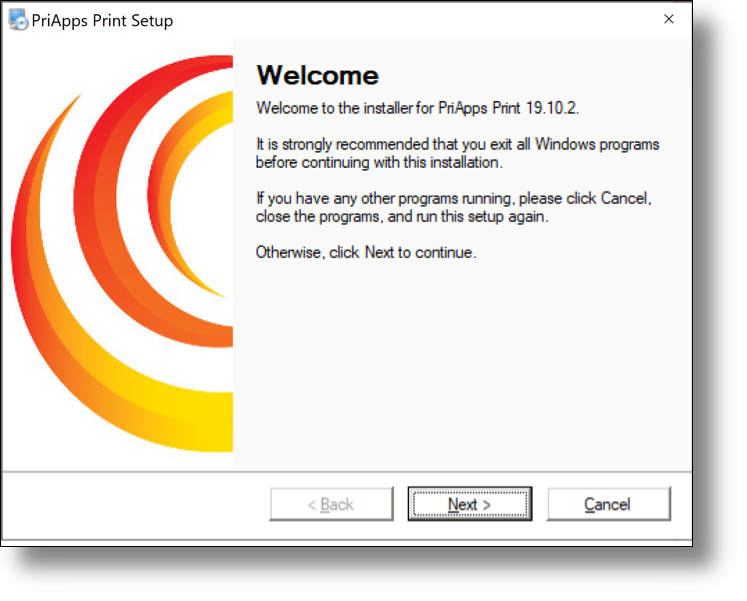
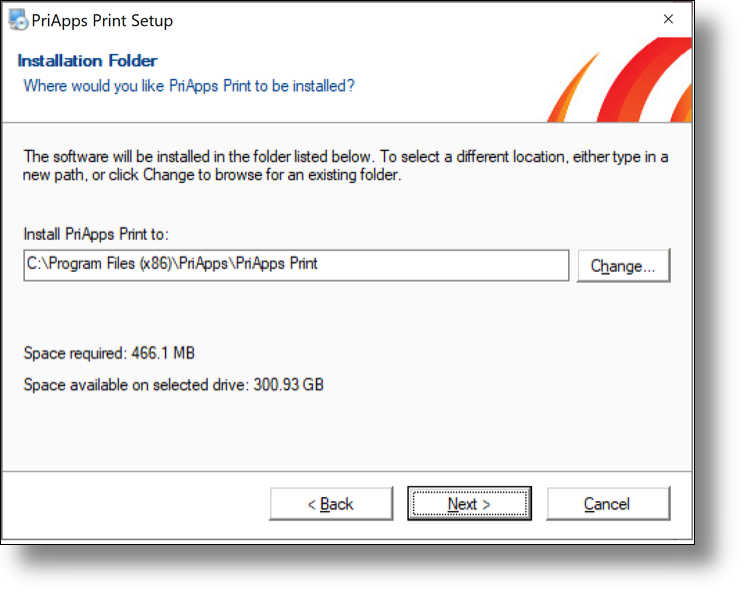
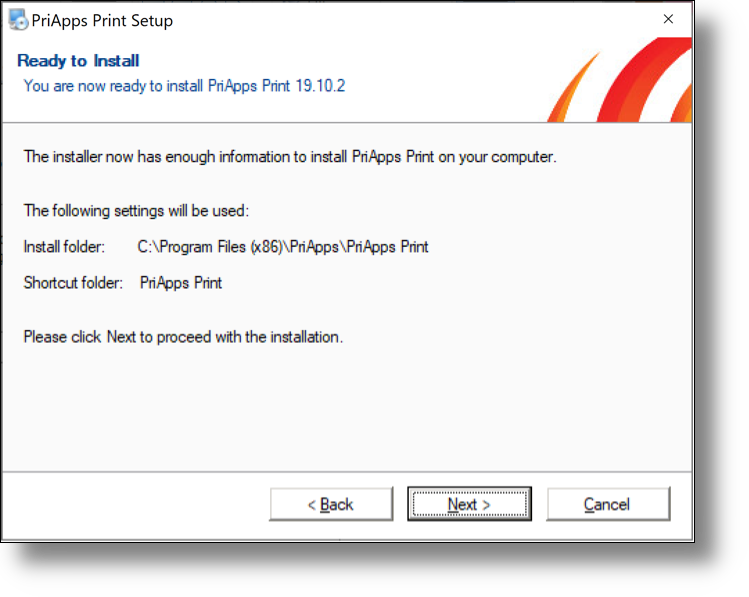
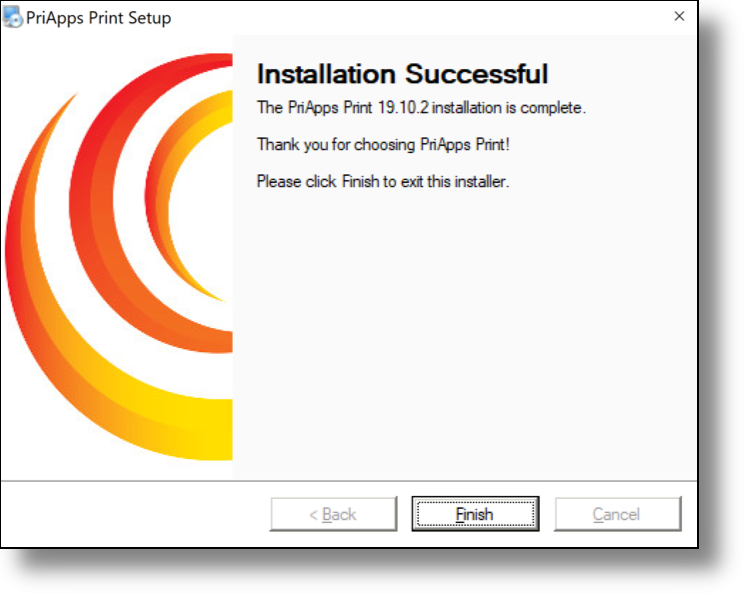
Follow the installation wizard instructions and answer the questions as appropriate as the installation proceeds. Once the installer has finished PriApps will be installed and is now ready for configuration.
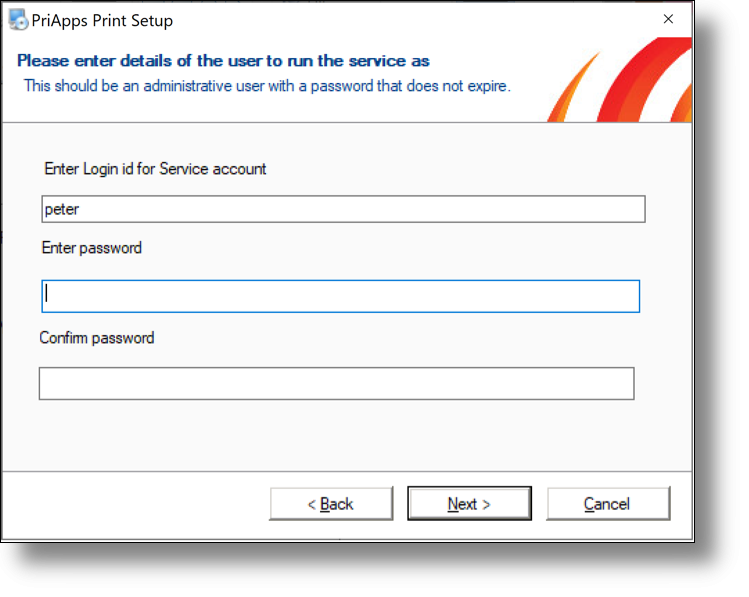
The PriApps Application server service will run as a specific user. Usually this is simply the Administrator user for the server PriApps Print is installed on. Alternatively a specific user for PriApps, with Administrator privileges, should be created before the installation of the software. As a minimum this user will require logon as a service rights, for simplicity an existing administrative user account is often employed for this purpose. The User ID and Password of this user account will be required during the installation process.
PriApps Port Checks
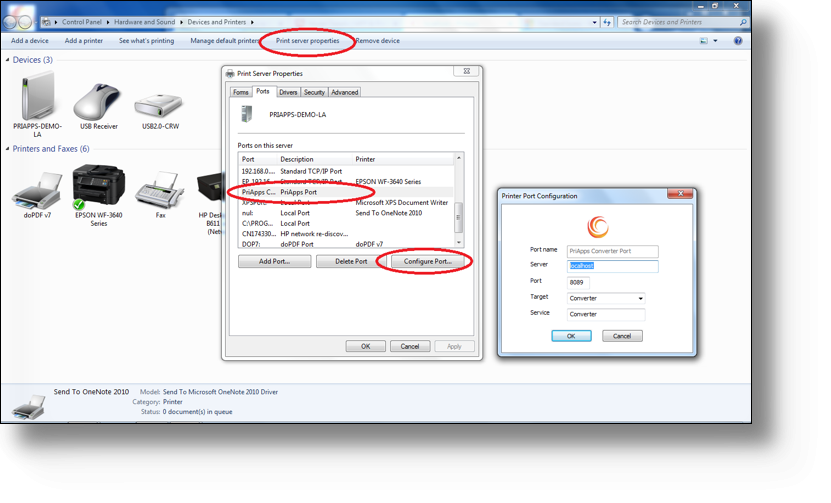
After installation is complete, verify PriApps has been installed correctly by checking the PriApps port. See Port checks.
Login to the PriApps AdminUI
Once PriApps is installed and the port checks have been verified, log in to the PriApps Admin UI. See First login.