Groups
Creating and managing user groups in PriApps for reporting, distribution, delegation, security, and Google sharing.
Groups in PriApps allow administrators to organize users for a variety of purposes, including report distribution, alert routing, job delegation, and access control. Once created, a group is automatically available across all group-related features in the PriApps software.
Group types
PriApps supports the following group sub-types:
| Type | Description |
|---|---|
| Reporting | Members receive system alerts from PriApps notifying them of potential issues. |
| Distribution | Members receive ad hoc or scheduled reports by email. |
| Delegate | Members of the group can have their jobs released by a designated delegating user. |
| Security — UserSecurity | Defines groups of users that are either allowed or denied access to specific Managed Printers. |
| Security — PrinterSecurity | Defines groups of users who are allowed to access or download print queues and drivers for specific printers. Used with the Centralized Printer & Driver Management module. |
| Google Share | Members will automatically have specified printers shared with them via Google Cloud Print. The printer becomes available to them immediately upon publication. |
Creating a group
Navigate to Groups
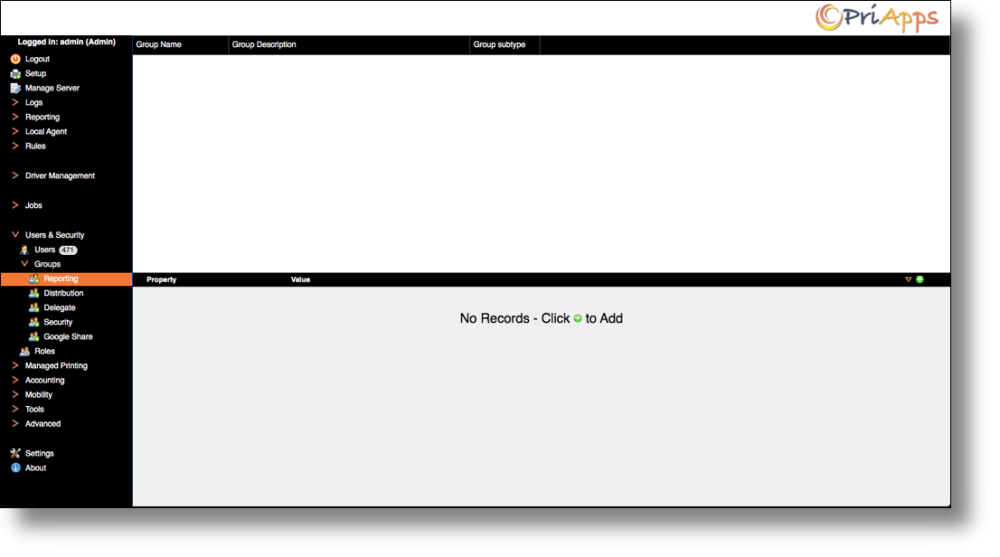
Select Users & Security from the main PriApps menu, then select Groups.
Select the group type
Select the type of group you wish to create from the available sub-types.
Add the group
Click the Add button on the right-hand side of the screen.
Enter group details
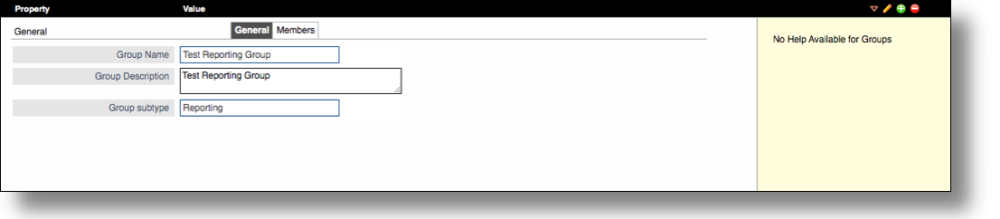
Provide a friendly name and description for the group, and confirm the sub-type.
Save the group
Click the Save / Confirm button on the right-hand side of the screen to save the group.
Add members
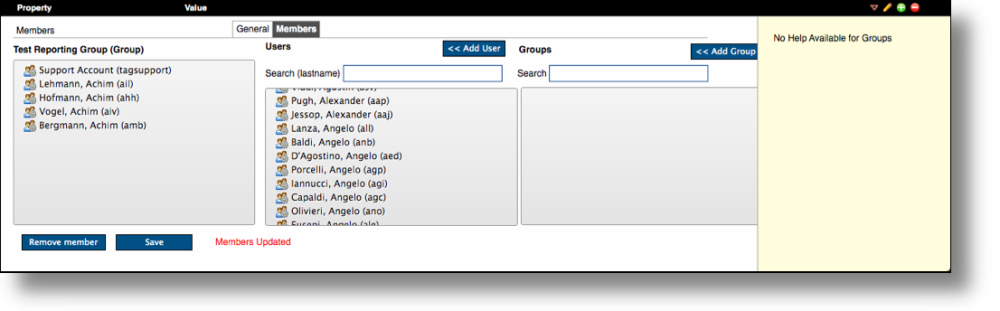
Select the Members tab. Search for users by last name, and click Add User to add them to the group. Repeat until all desired members have been added. You can also add other previously created groups as members to avoid adding the same users individually.
Save the members list
Click the Save button to save the group membership.