Roles & Permissions
Defining user permissions to MFP services using Roles in PriApps.
User permissions to print, copy, scan, and fax services on MFPs are defined by Roles within PriApps. Roles allow administrators to grant or restrict access to specific device functions on a per-user basis.
PriApps is installed with a range of pre-defined roles. Additional roles can be defined to suit most organizational needs.
Default roles
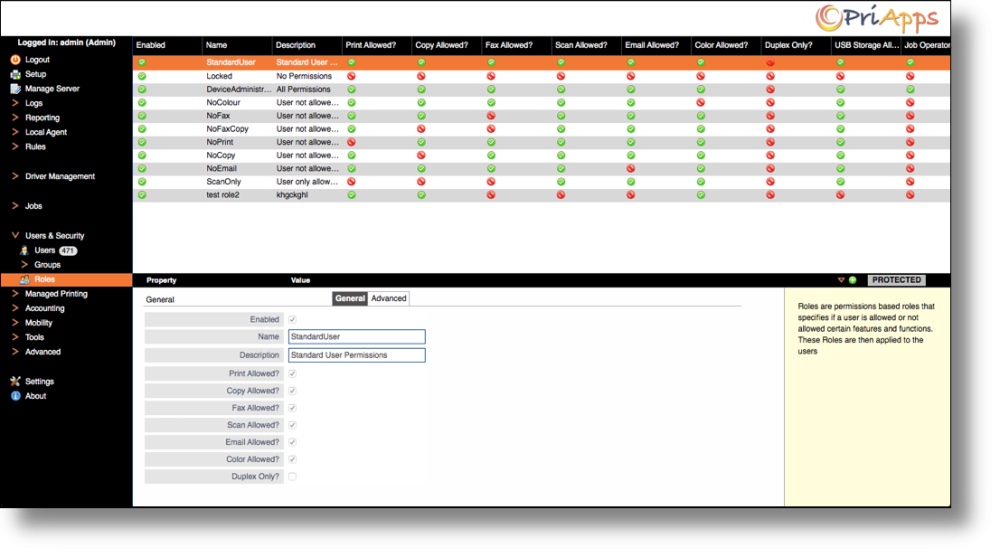
All users are assigned the Standard User role by default. Users can also be assigned the Device Administrator role, which allows them to log into any managed device as an admin to access that device's administrative functions.
Creating a new role
Navigate to Roles
Select Users & Security from the main PriApps menu, then select Roles.
Add a new role
Click the Add button on the right-hand side of the screen.
Configure permissions
Select which MFP functions are allowed or denied for this role. Functions that can be controlled include Print, Copy, Scan, Fax, and Color access.
Save the role
Click the Save / Confirm button on the right-hand side of the screen to save the role definition.
Applying a role to a user
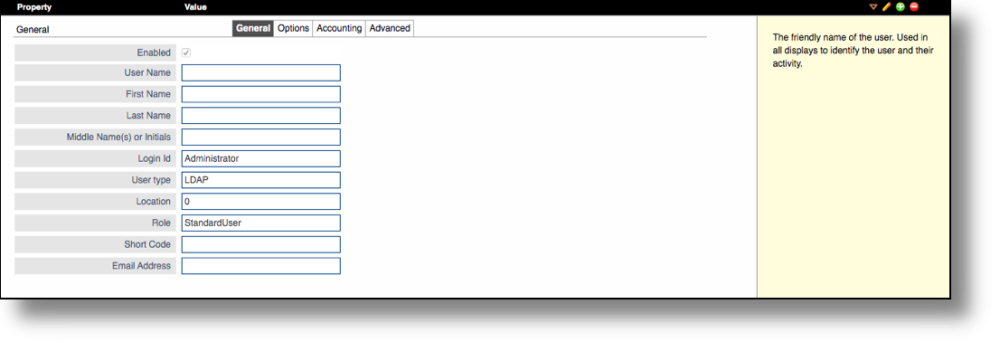
Once a role has been defined, edit the General tab of the user's profile and select the appropriate role from the Role dropdown field. See User Properties for more detail on user fields.