Reporting Overview
PriApps provides a comprehensive reporting capability covering usage, costs, device metering, and more.
PriApps tracks print usage at any network-attached printer or MFP, as well as USB-attached devices. Copy, scan, and fax usage is tracked at any Managed Printer or MFP.
Report categories
Reports cover:
- Usage reporting
- Device metering & utilization
- Departmental chargeback
- Cost Recovery
- Cost Optimization & Savings
- Asset management
- Fraud detection
- Analysis & Analytics
Accessing reports
Reports can be viewed online by Operators and Administrators, or scheduled and distributed automatically on hourly, daily, weekly, or monthly intervals in a range of formats including PDF, DOCX, PPTX, RTF, CSV, and Microsoft Office.
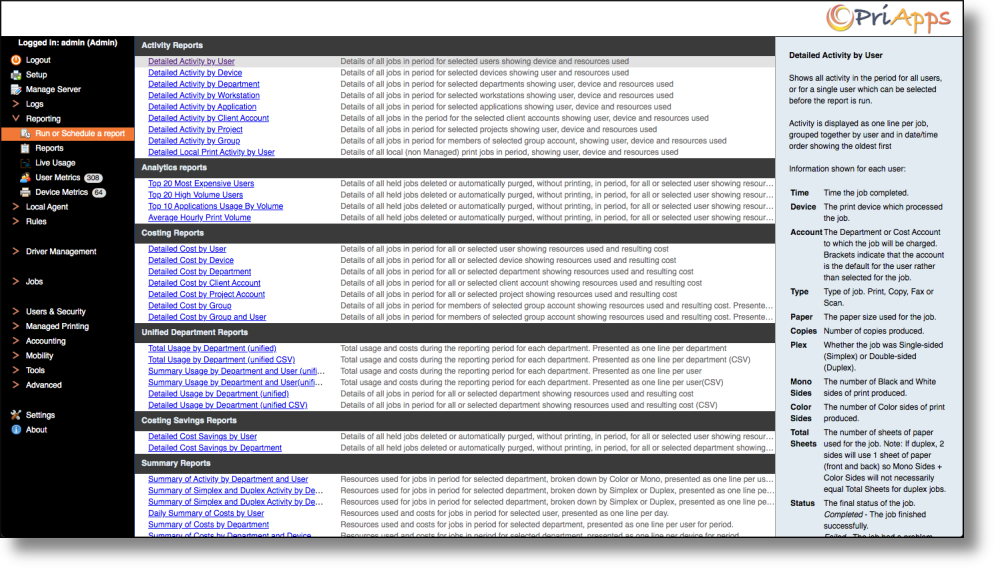
Navigate to Reporting in the Admin UI sidebar to access all available options.
Report sub-categories
Reports are organized into the following sub-categories:
- Activity Reports
- Analytics Reports
- Costing Reports
- Unified Department Reports
- Cost Savings Reports
- Summary Reports
- Total Usage Reports
- Statements
- Miscellaneous Reports
- CSV Reports
Running or scheduling a report
Open the report list
Select Run or Schedule a Report under the Reporting sidebar menu option.
Select a report
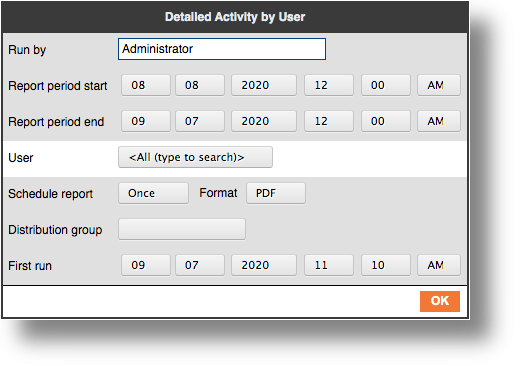
Click on the name of the report you wish to run. This opens the Report Configuration dialog.
Set report options
Configure the report period, user or department filter, schedule frequency, output format, and Distribution Group as required. Options vary slightly depending on the report selected.
Generate the report
Click OK to generate and, if a Distribution Group is selected, distribute the report.
Report configuration options
| Setting | Description |
|---|---|
| Report start and end period | The date/time range the report covers. |
| User / Department | Filters the report to a specific user or department. Defaults to all users or all departments depending on the report type. |
| Schedule Report | Select the frequency: Once (run immediately), Hourly, Daily, Weekly, or Monthly. Scheduled reports use a rolling period — for example, a monthly report initially set for 1–31 July will next run for 1–31 August. |
| Format | Output format: PDF, DOCX, PPTX, RTF, or Text. CSV reports should be run separately from the CSV Reports sub-category. |
| Distribution Group | The group of users who will receive the report by email. All members of the selected Distribution Group will receive the report in the chosen format. |
Available reports
User reports
| Report | Description |
|---|---|
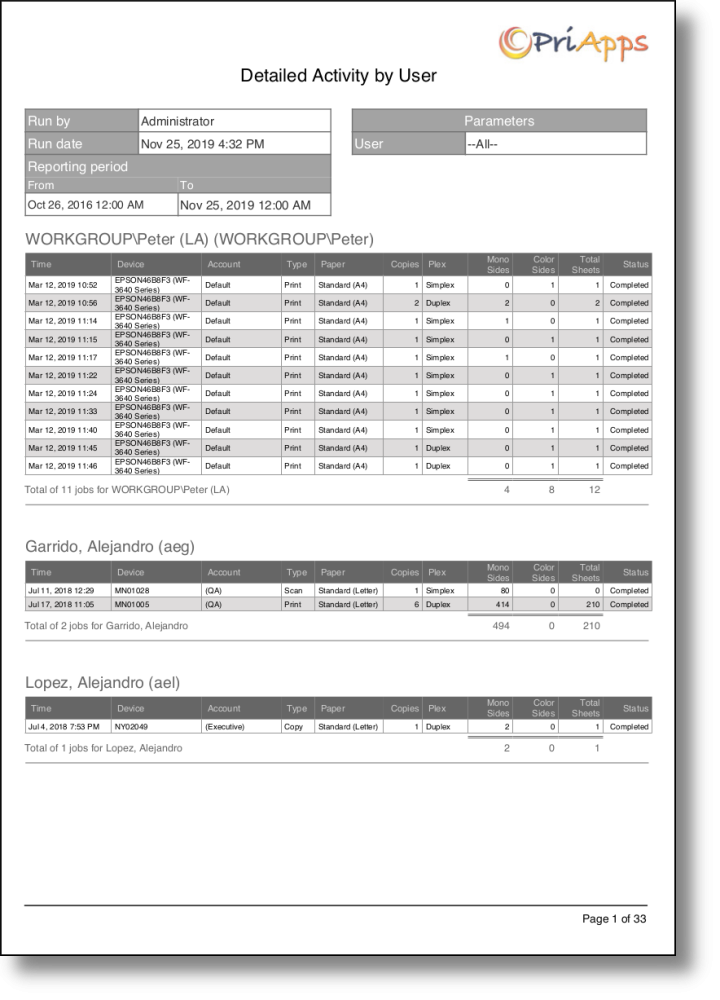
| Detailed Activity By User | Line-by-line print, copy, scan, and fax activity per user. |
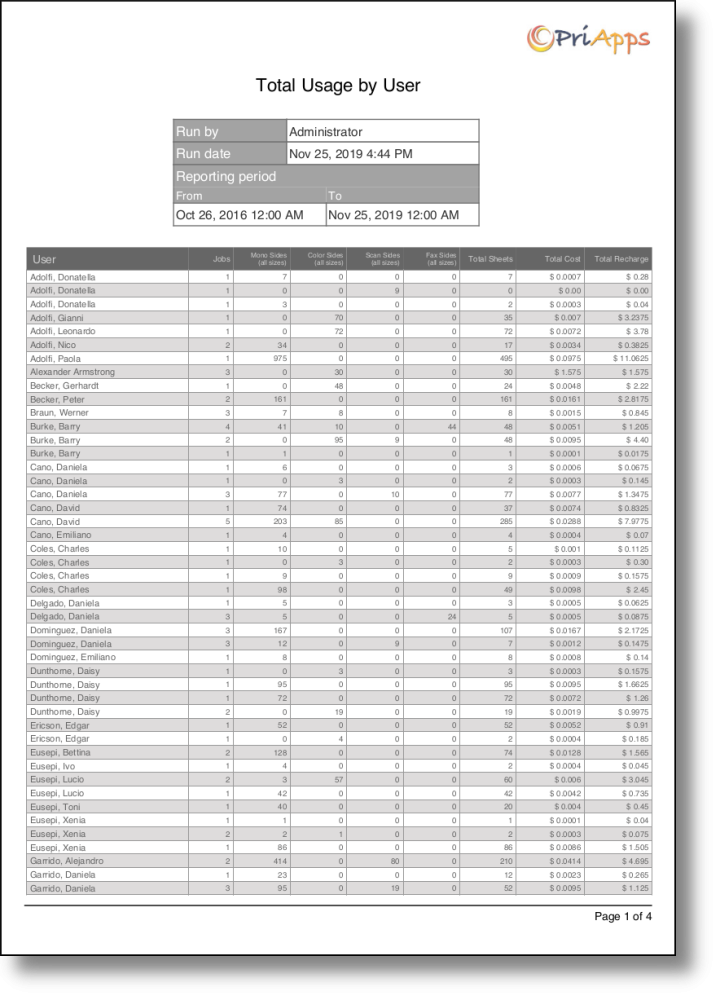
| Total Usage by User | Summarized totals of all usage per user. |
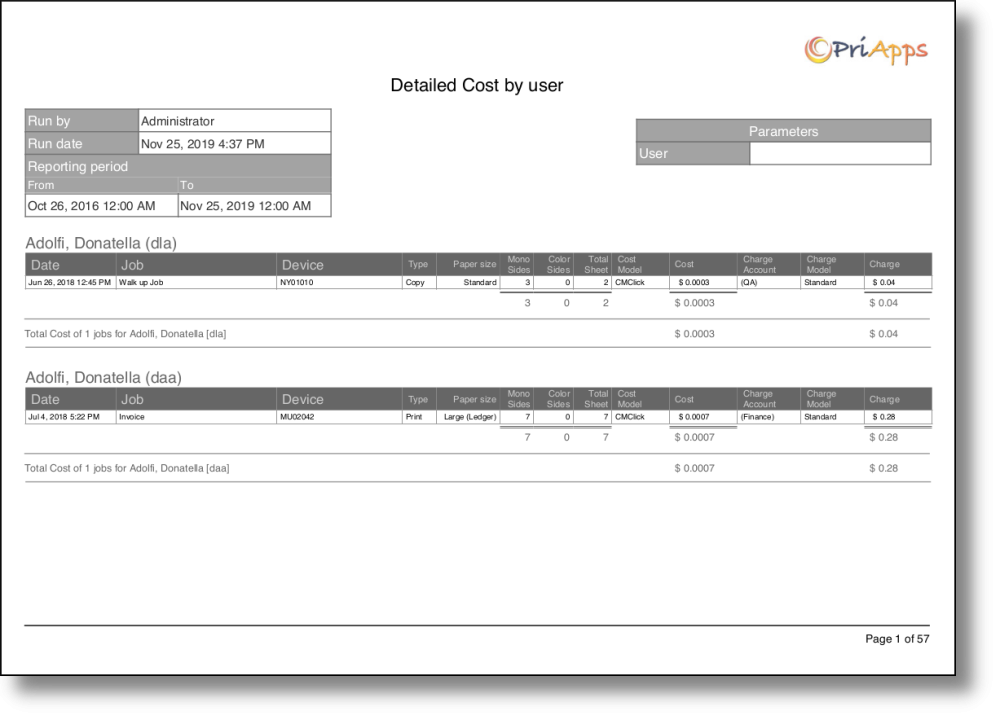
| Detailed Cost by User | Cost breakdown for all jobs per user. |
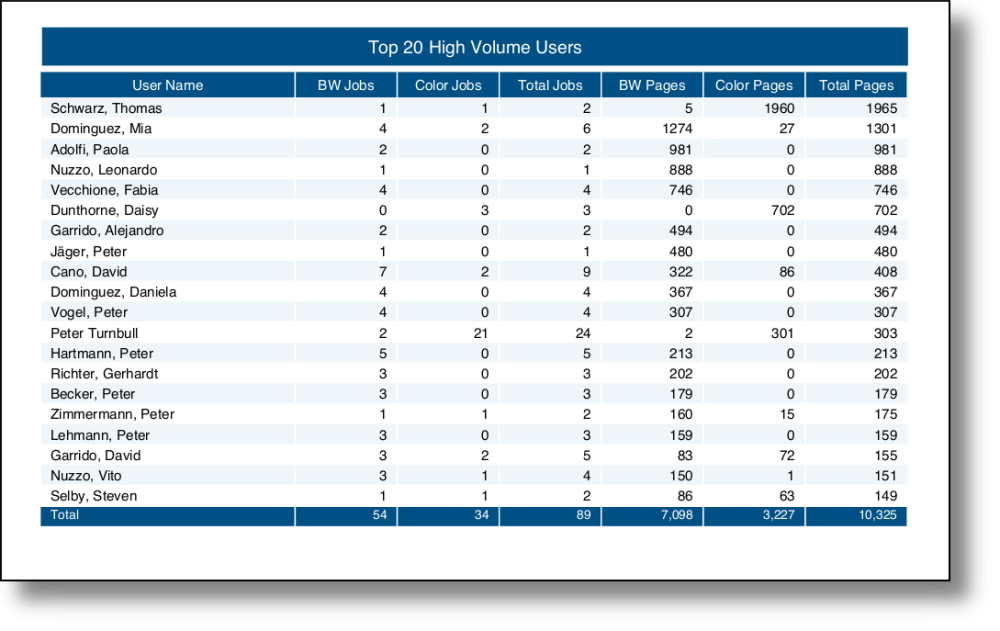
| Top 20 High Volume Users | The 20 users with the highest print and copy volume. |
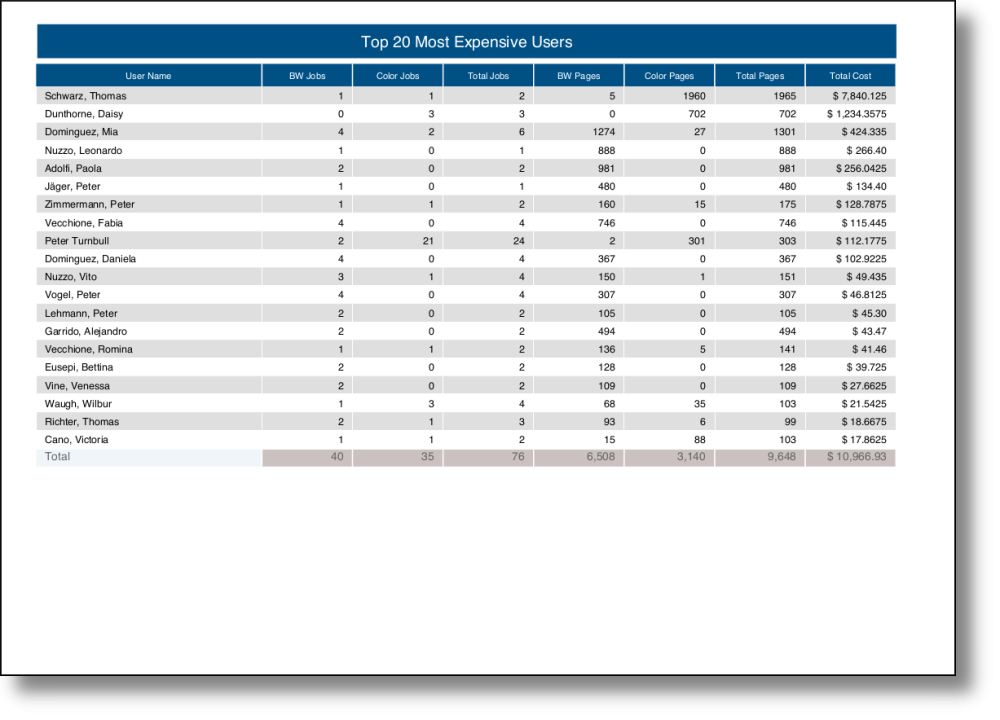
| Top 20 Most Expensive Users | The 20 users generating the highest cost. |
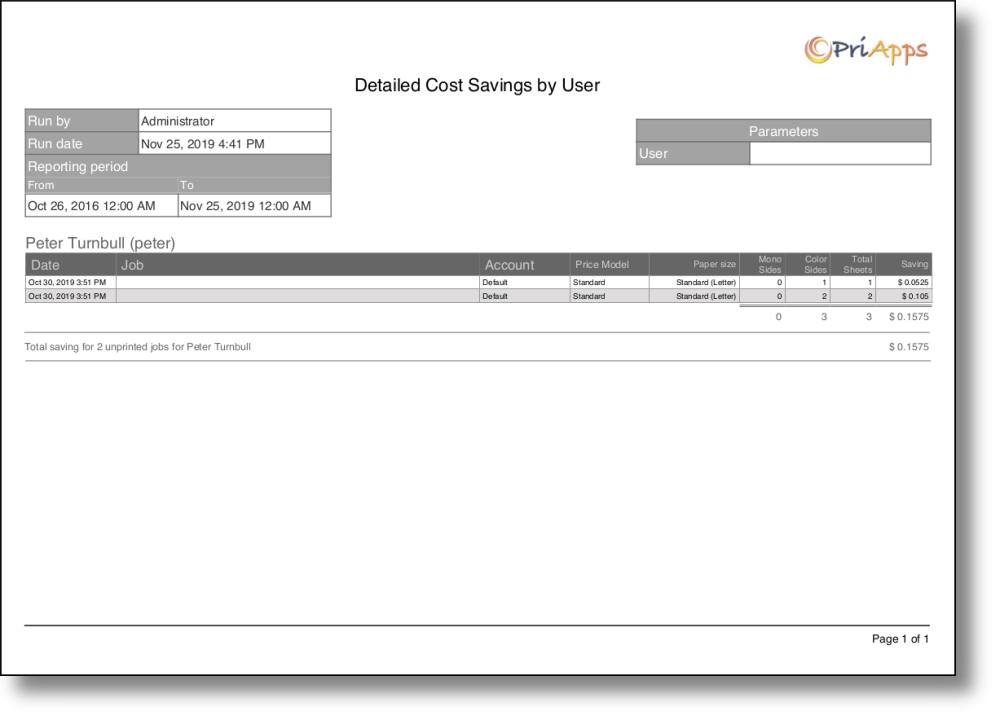
| Detailed Cost Savings by User | Cost savings achieved per user through rules such as duplex and mono enforcement. |
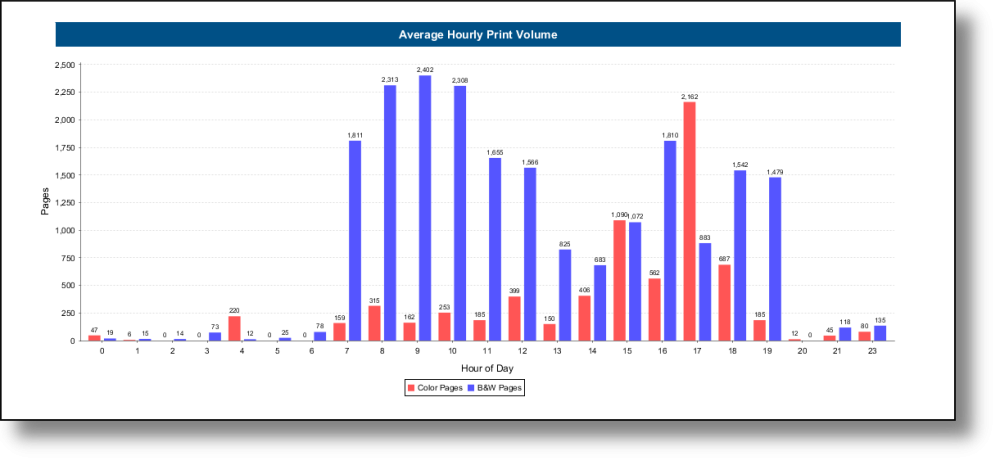
| Average Hourly Print Volume | Average number of jobs per hour across the reporting period. |
Department reports
| Report | Description |
|---|---|
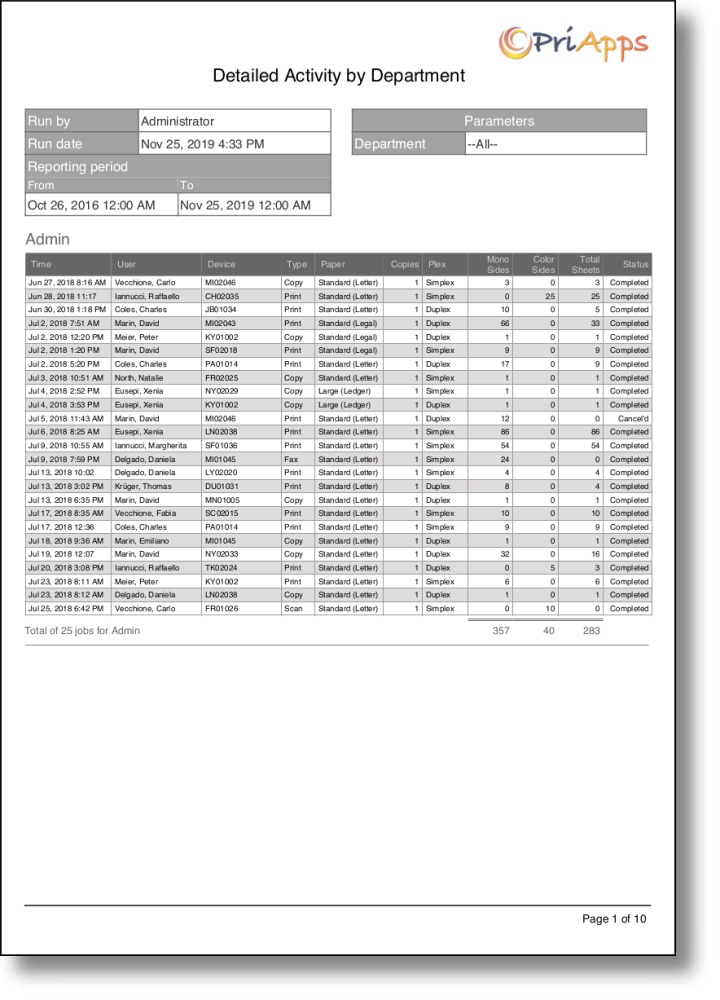
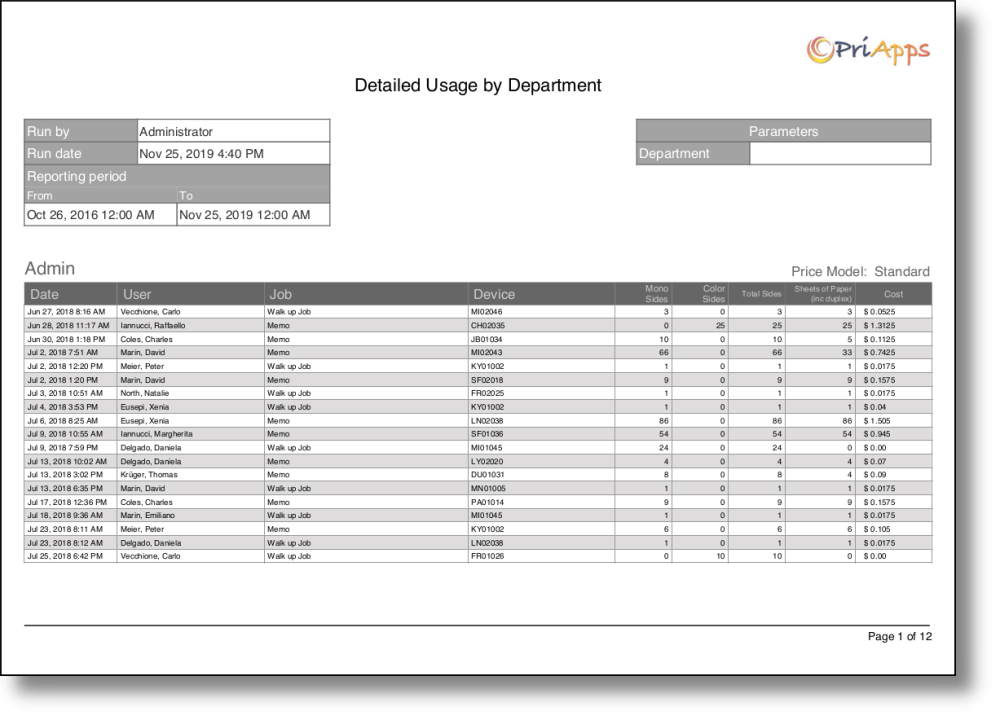
| Detailed Activity by Department | Line-by-line activity broken down by department account. |
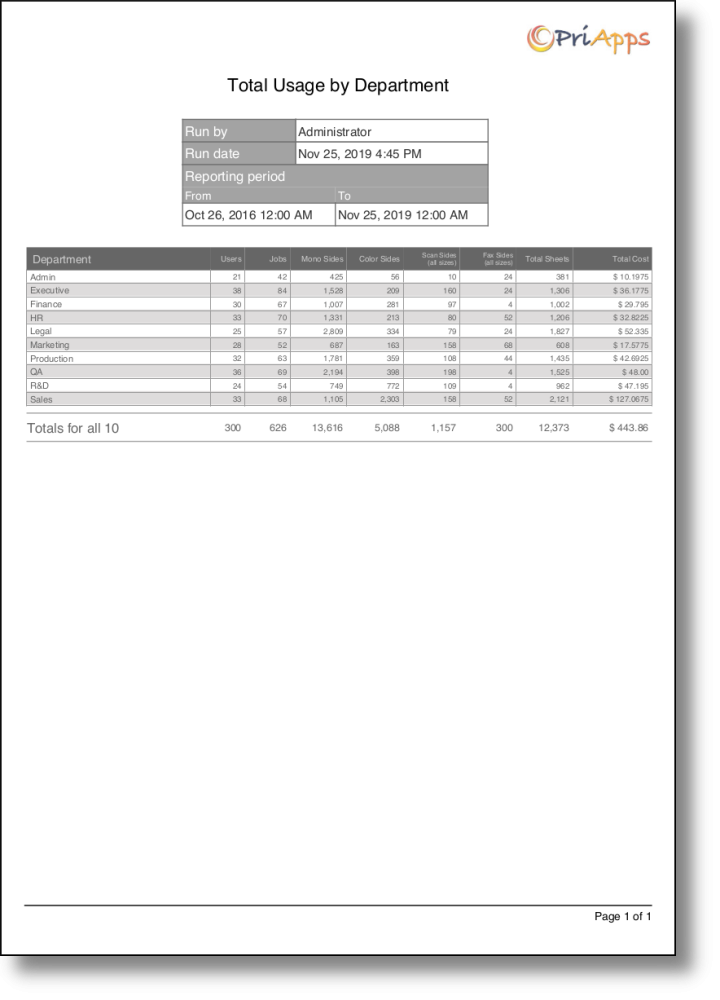
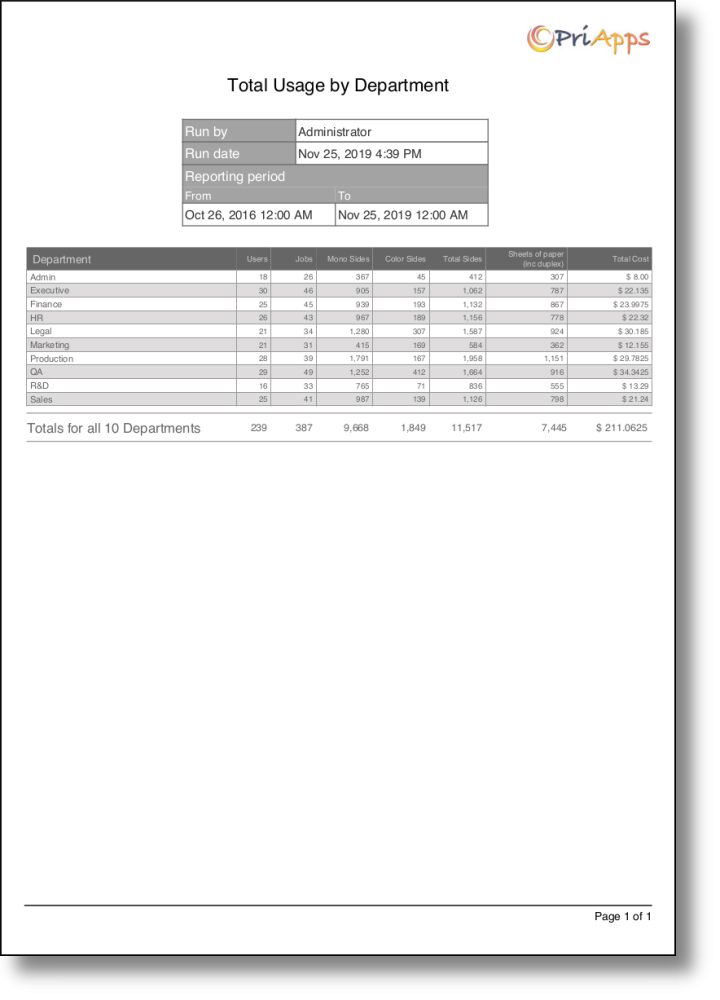
| Total Usage by Department Account | Summarized usage totals per department account. |
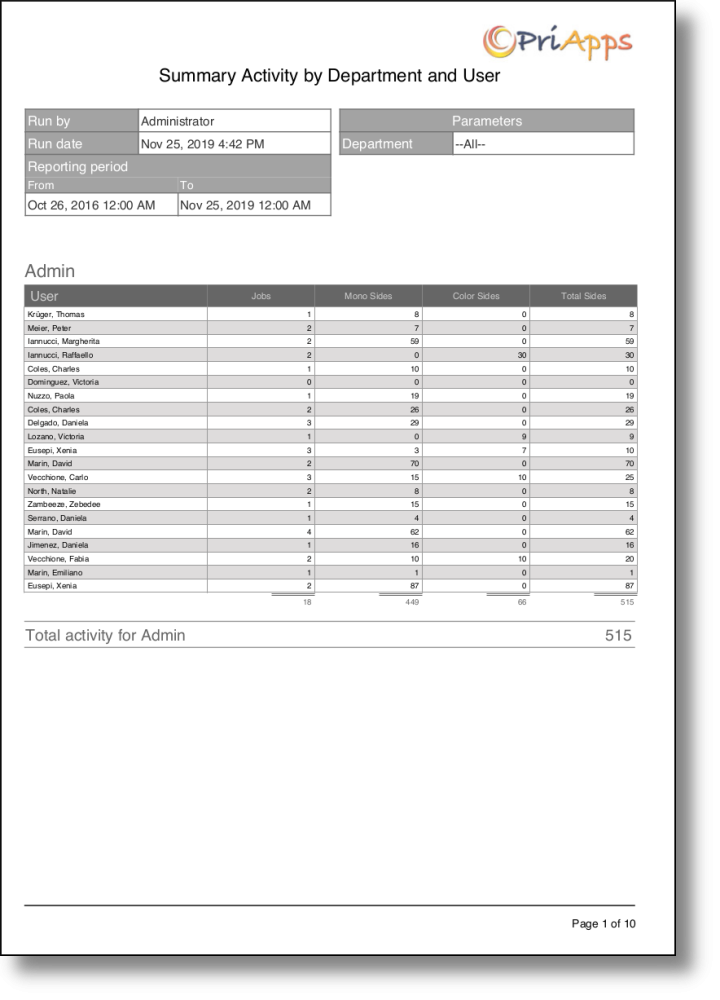
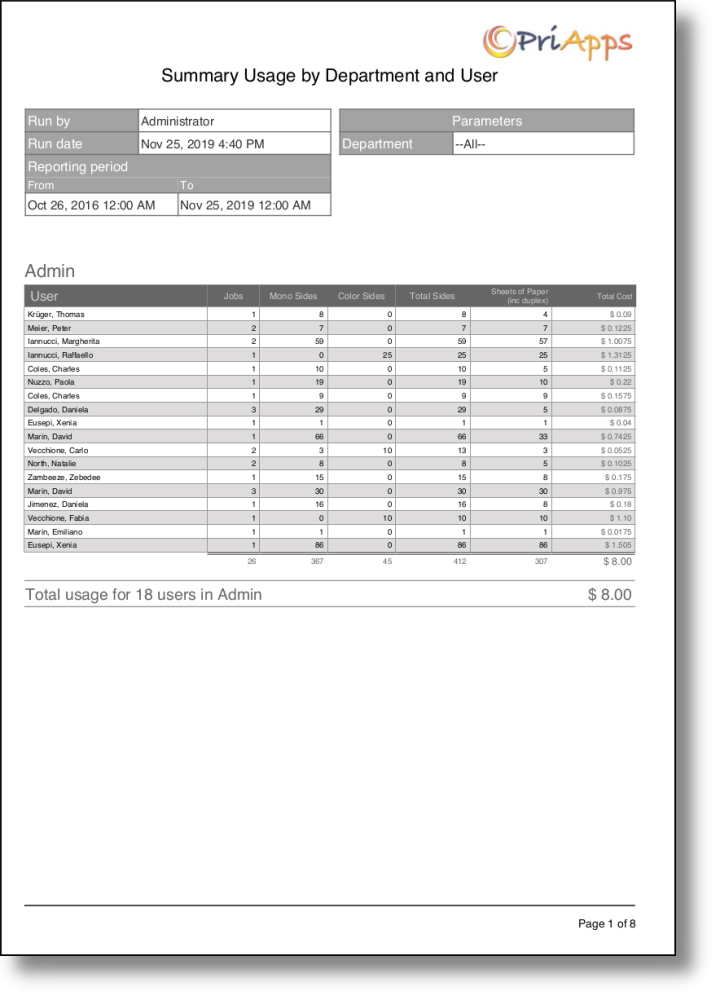
| Summary Activity by Department & User | Summary of activity per department and per user within each department. |
| Summary Usage by Department & User (Unified) | Unified summary combining print and copy usage per department and user. |
| Detailed Usage by Department (Unified) | Detailed unified usage breakdown per department. |
| Total Usage by Department Account (Unified) | Unified total usage per department account. |
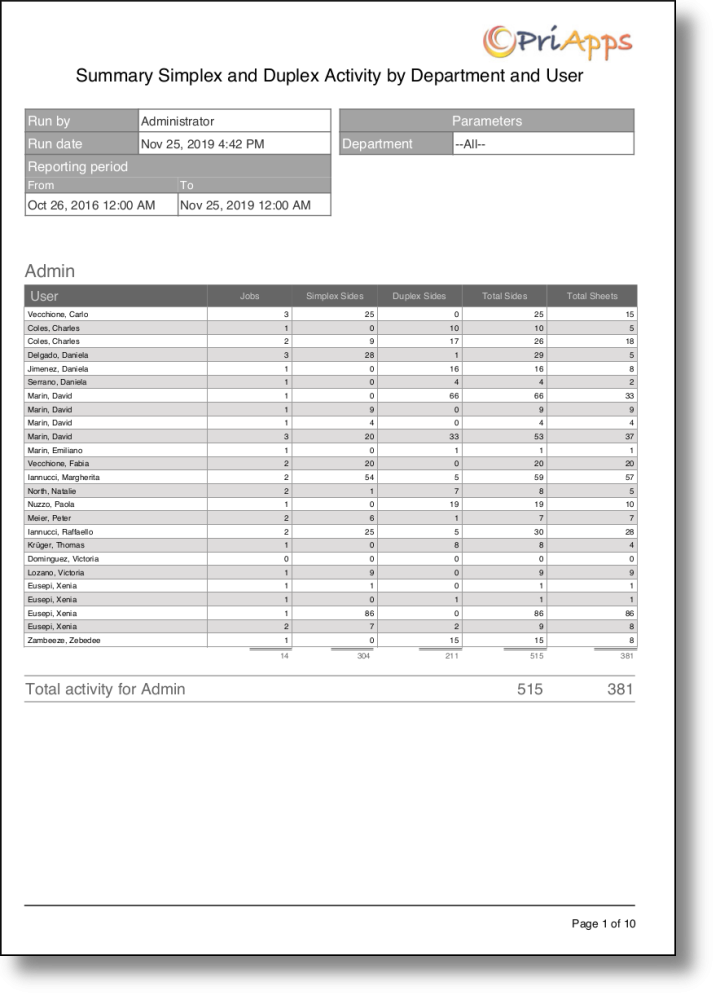
| Summary Simplex/Duplex Activity by Department & User | Simplex vs duplex breakdown per department and user. |
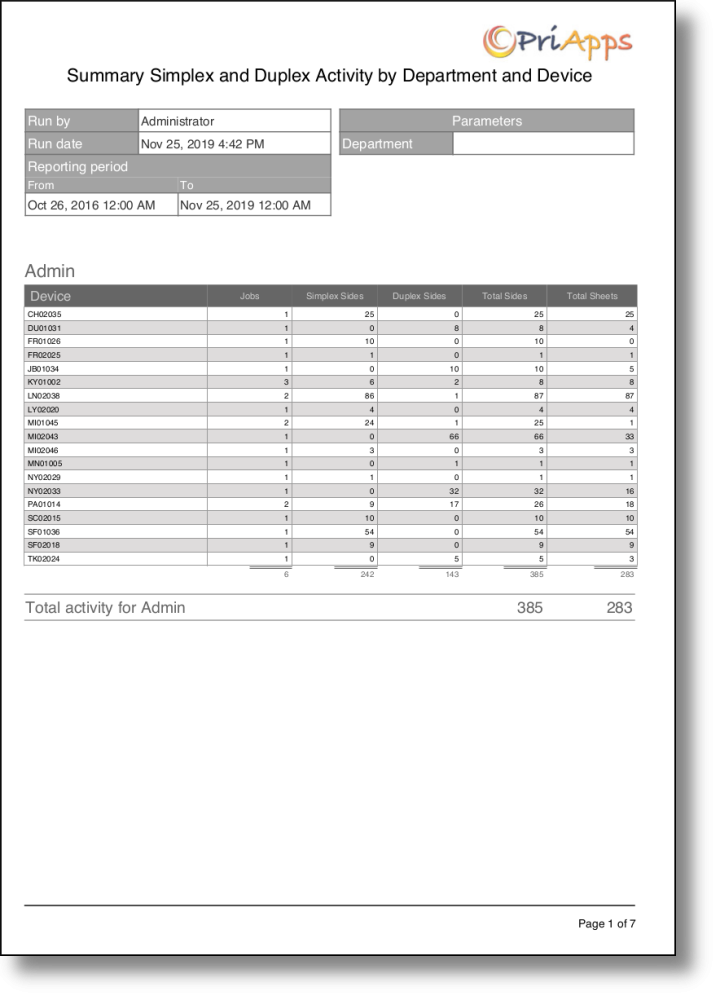
| Summary Simplex/Duplex Activity by Department & Device | Simplex vs duplex breakdown per department and device. |
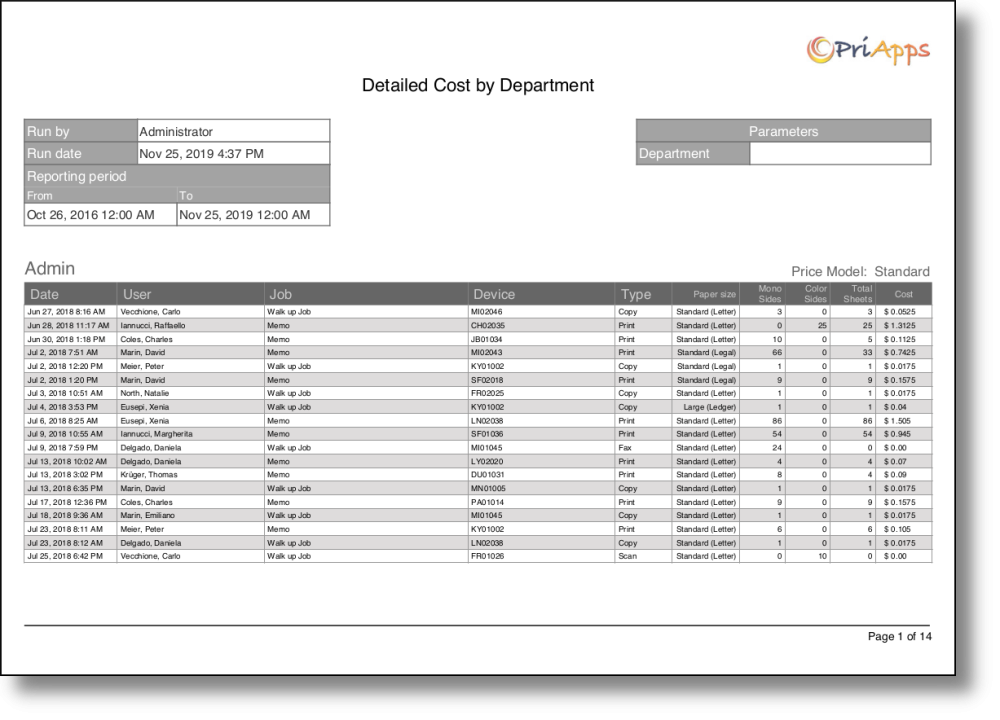
| Detailed Cost by Department Account | Detailed cost breakdown per department account. |
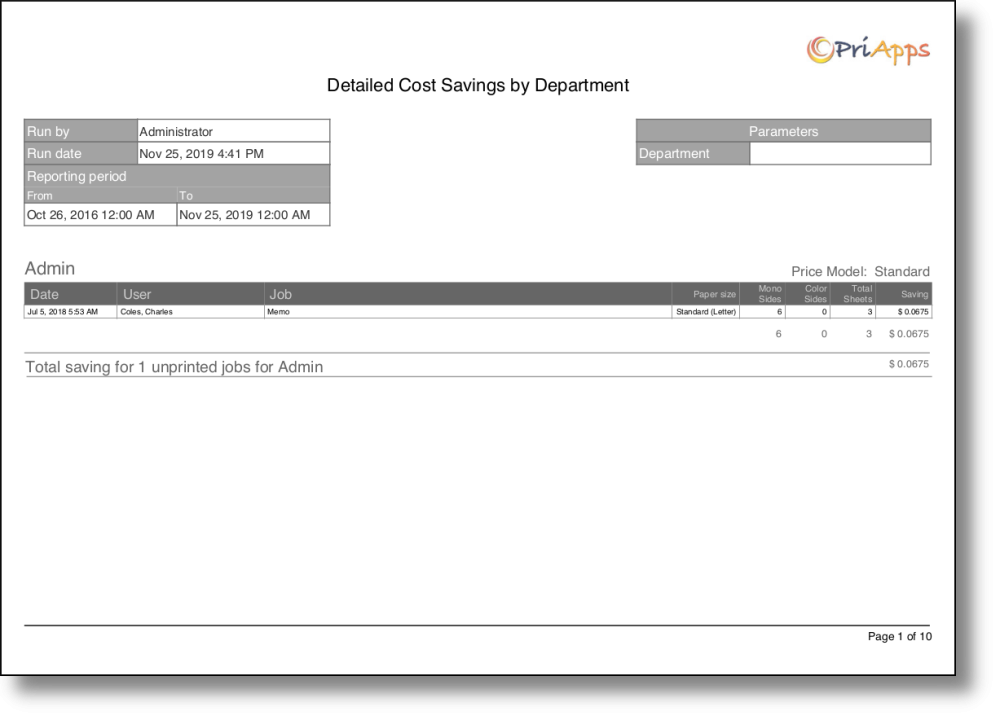
| Detailed Cost Savings by Department Account | Cost savings per department account. |
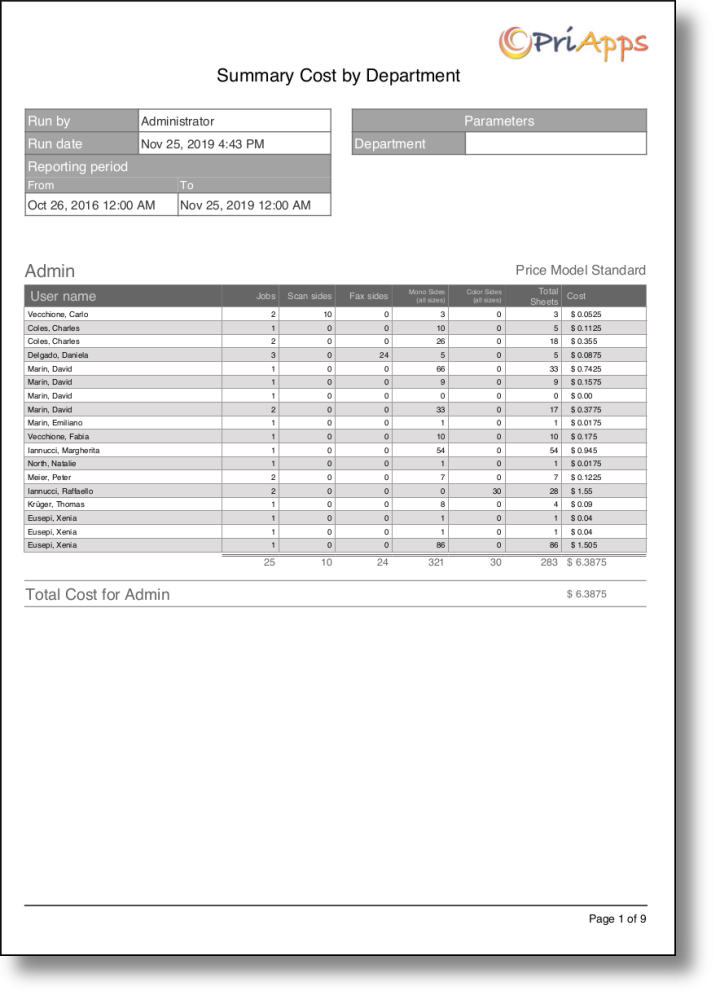
| Summary Costs by Department | Summarized cost totals per department. |
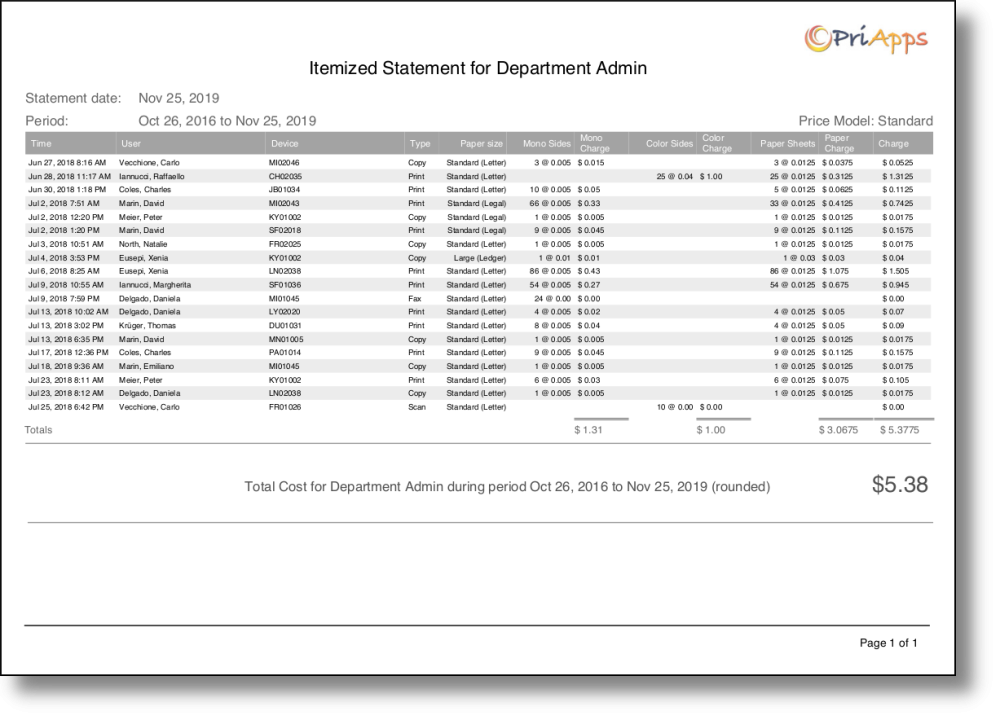
| Itemized Statement by Department Account | Itemized billing statement per department account. |
Device reports
| Report | Description |
|---|---|
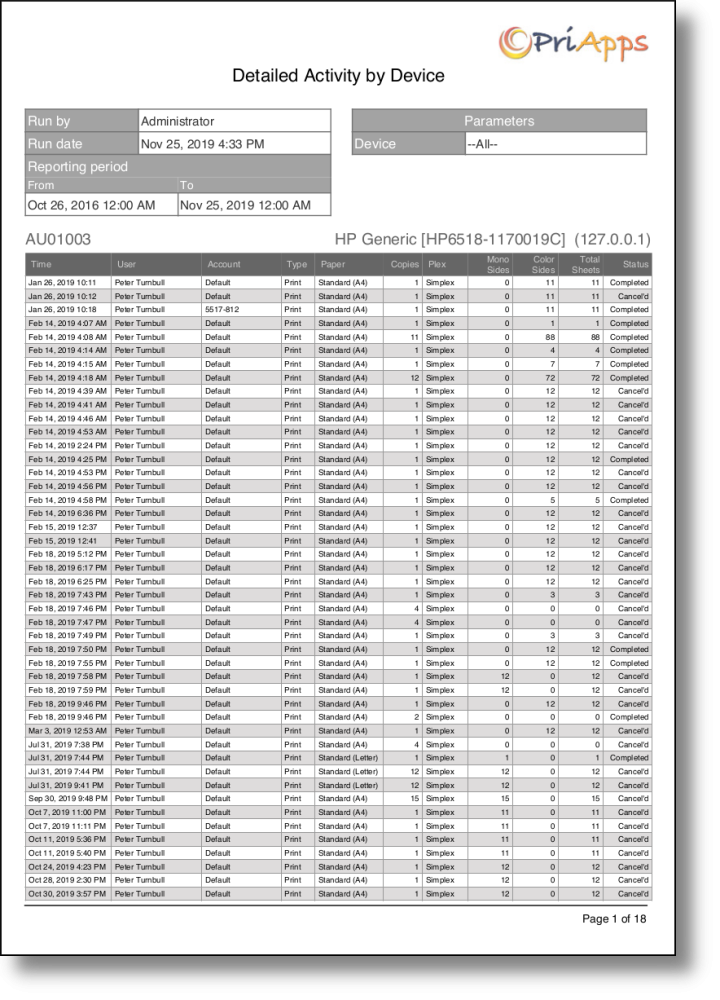
| Detailed Activity by Device | Line-by-line activity at each managed device. |
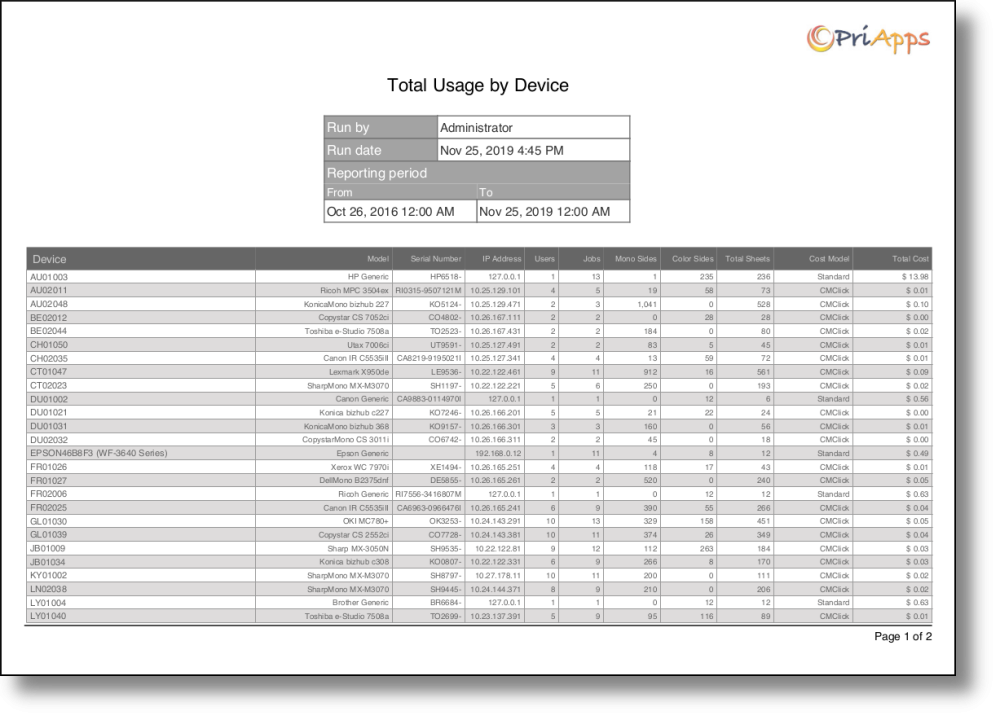
| Total Usage by Device | Summarized usage totals per device. |
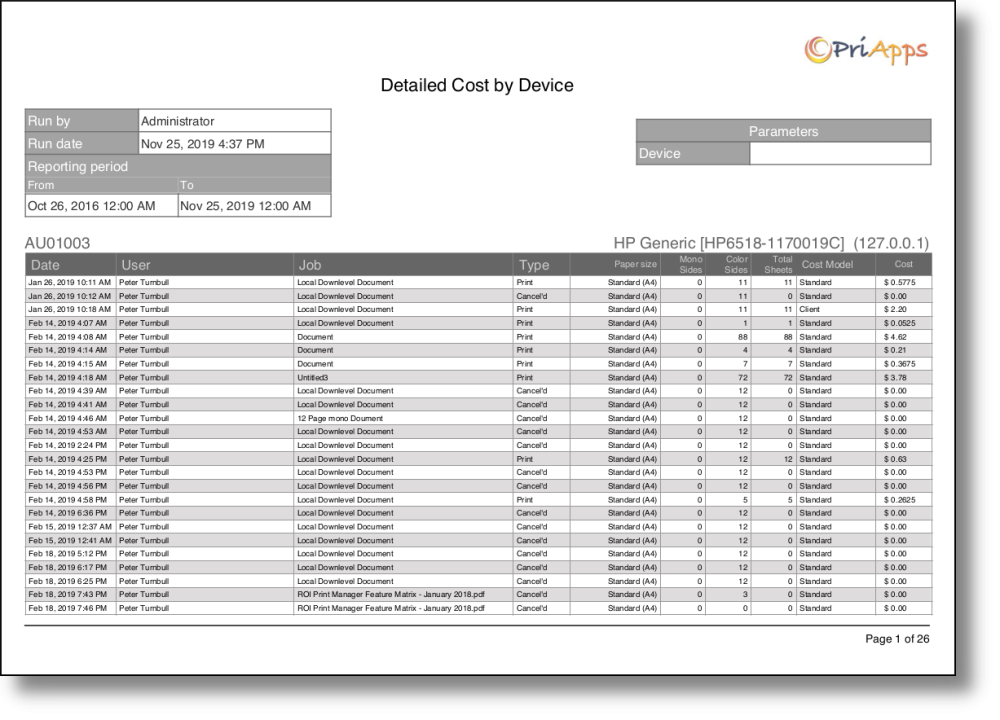
| Detailed Cost by Device | Cost breakdown per device. |
Application reports
| Report | Description |
|---|---|
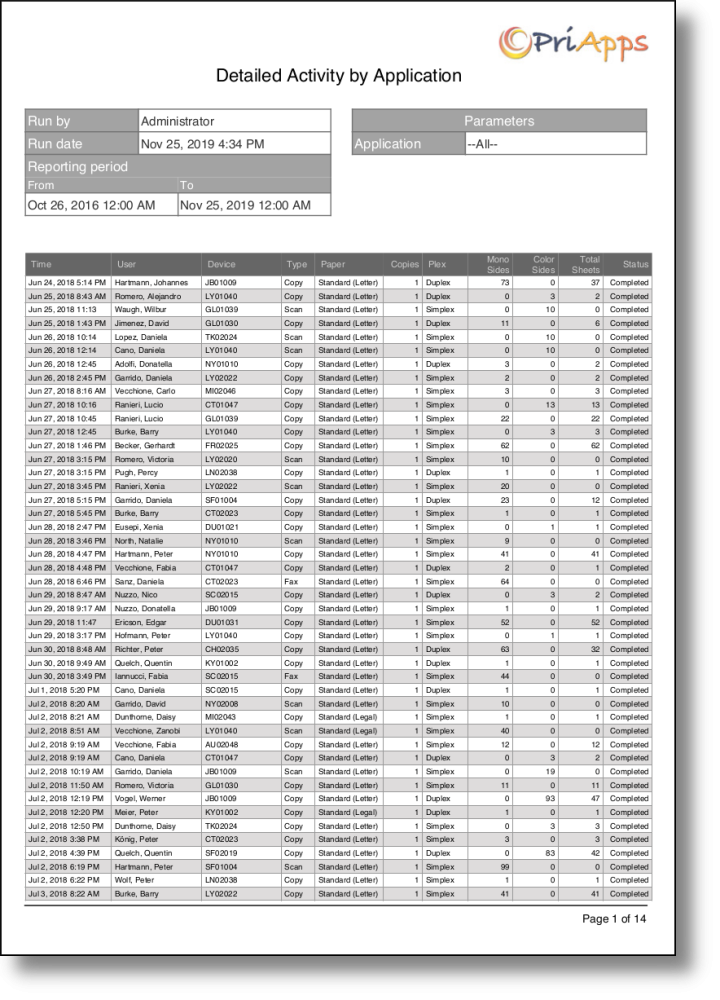
| Detailed Activity by Application | Print activity broken down by originating application. |
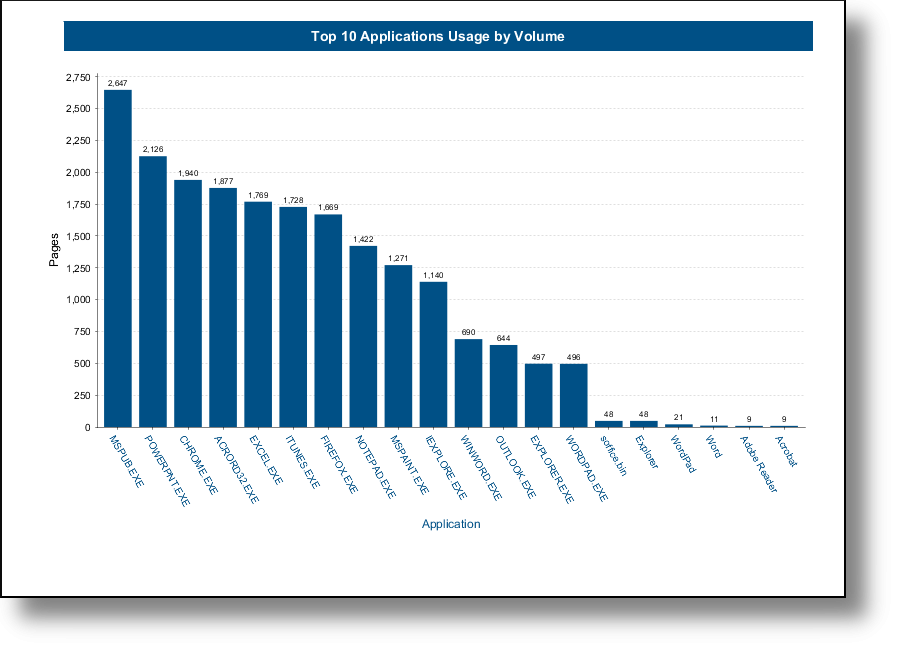
| Top 10 Applications by Usage Volume | The 10 applications responsible for the highest print volume. |
Client account reports
| Report | Description |
|---|---|
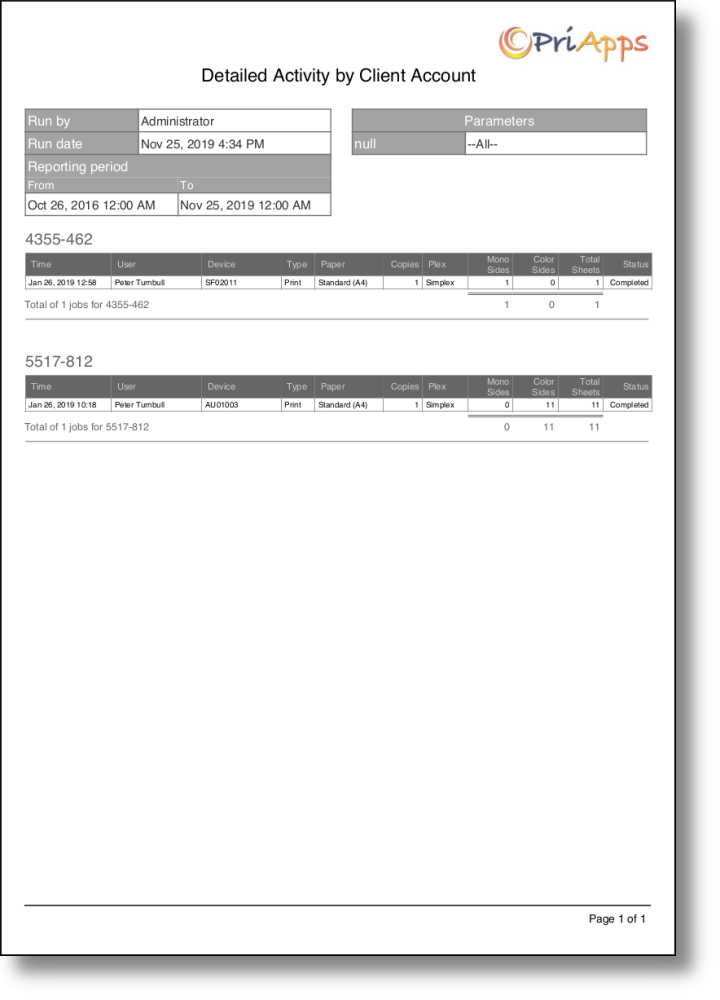
| Detailed Activity by Client Account | Detailed activity per client or matter account. |
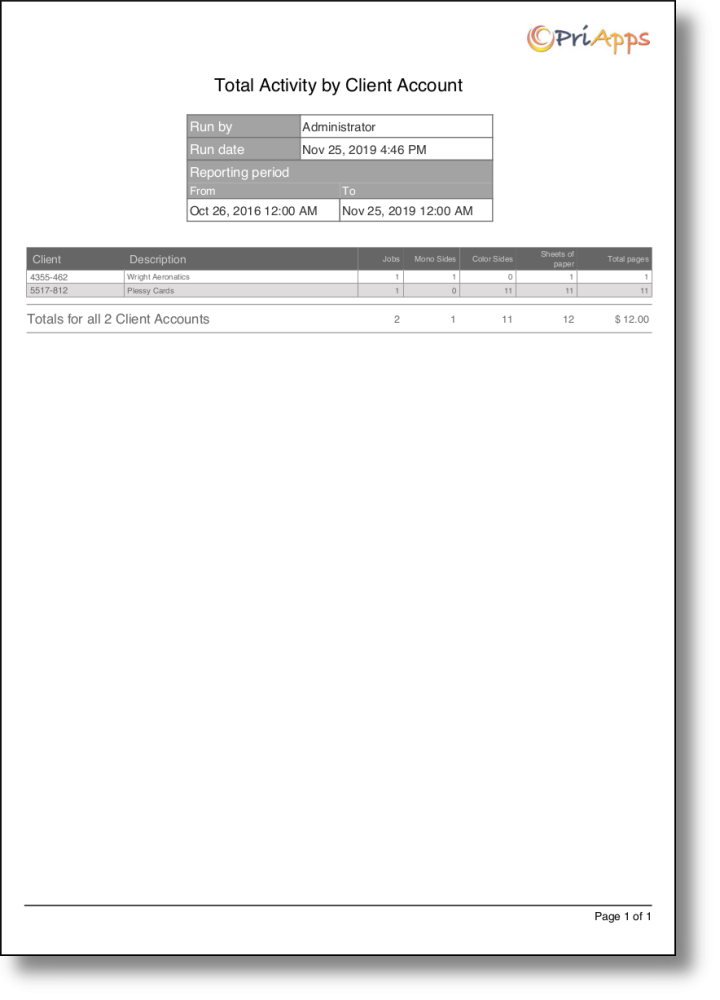
| Total Activity by Client Account | Total activity per client account. |
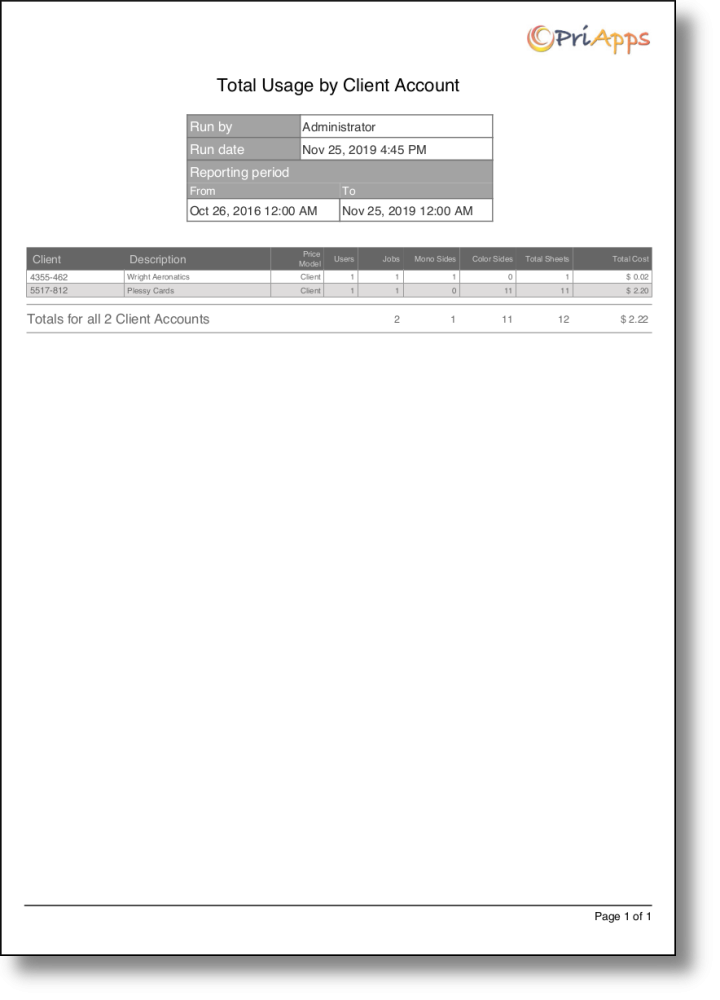
| Total Usage by Client Account | Total usage per client account. |
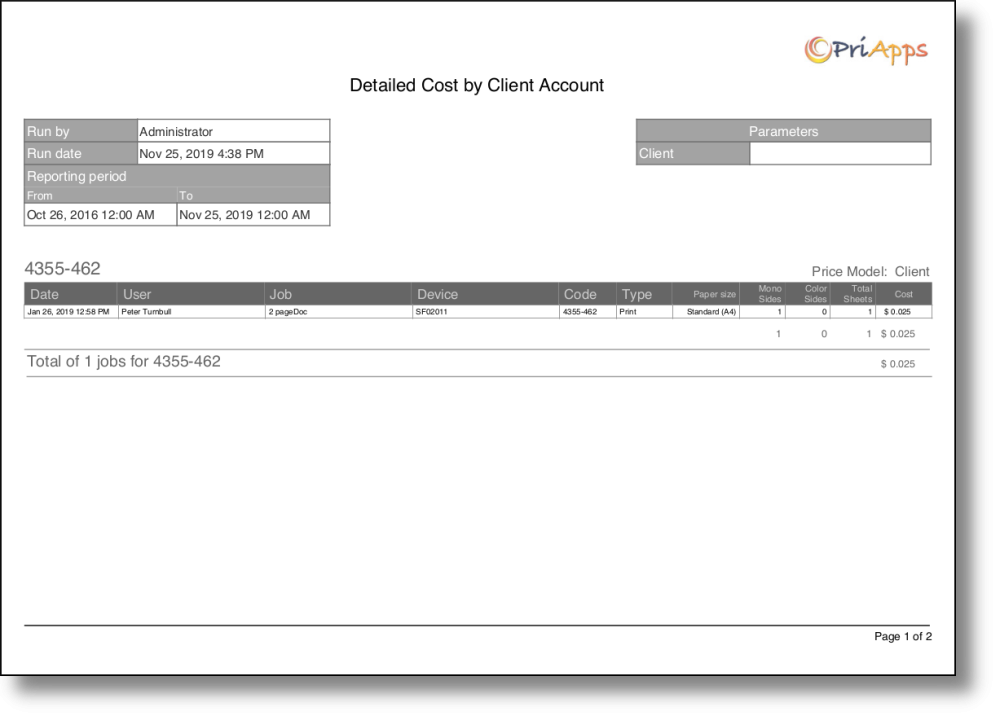
| Detailed Cost by Client Account | Detailed cost breakdown per client account. |
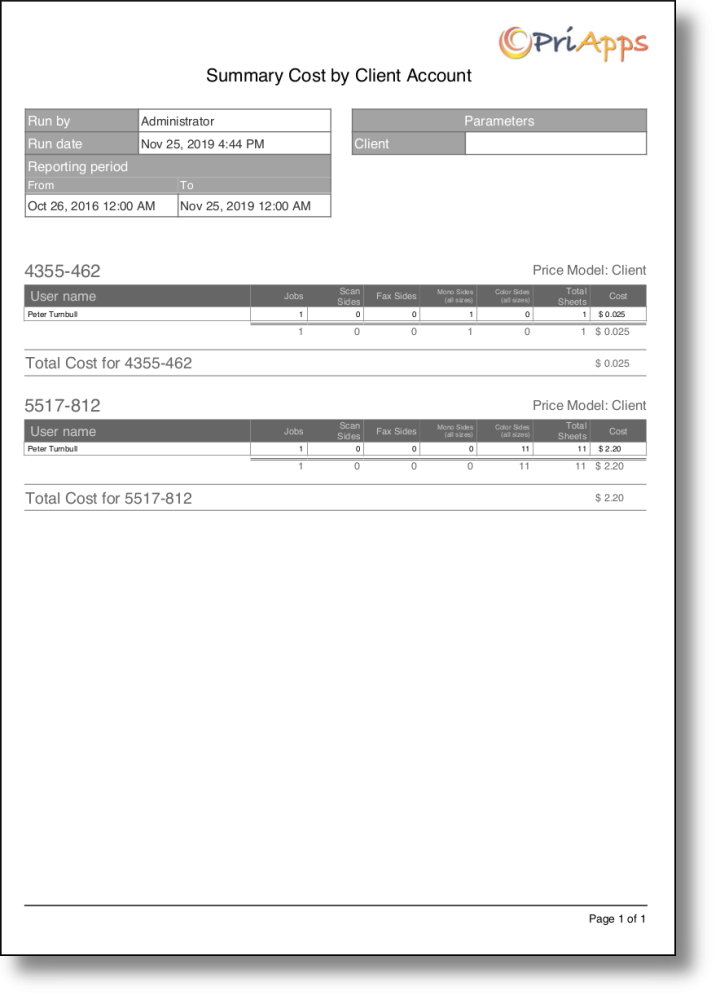
| Summary Costs by Client Account | Summarized costs per client account. |
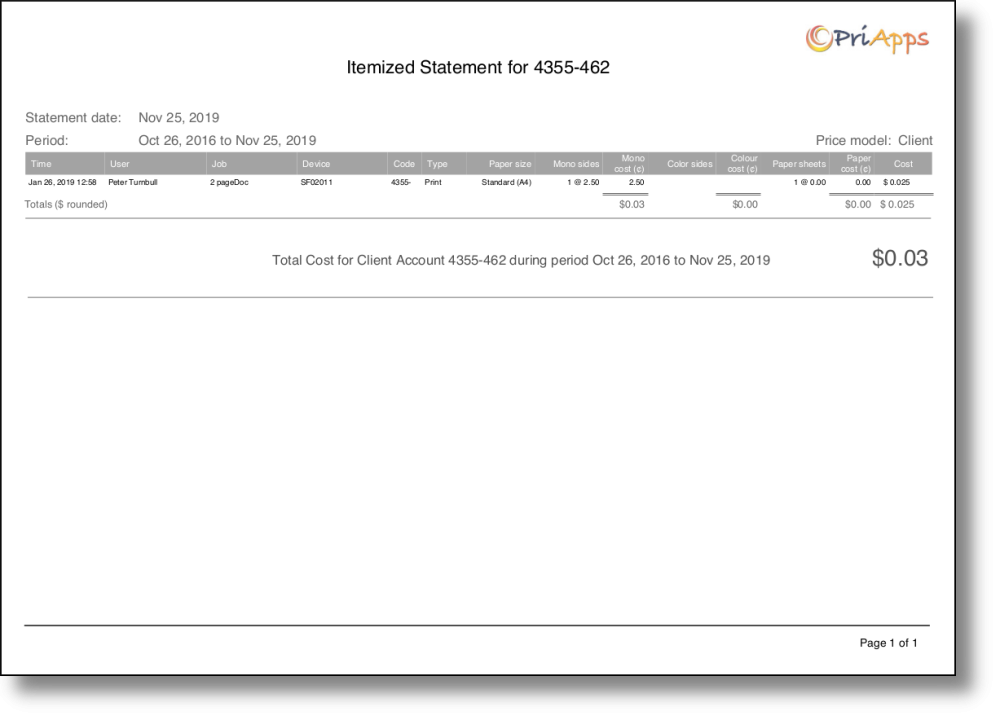
| Itemized Statement by Client Account | Itemized billing statement per client account. |
Other reports
| Report | Description |
|---|---|
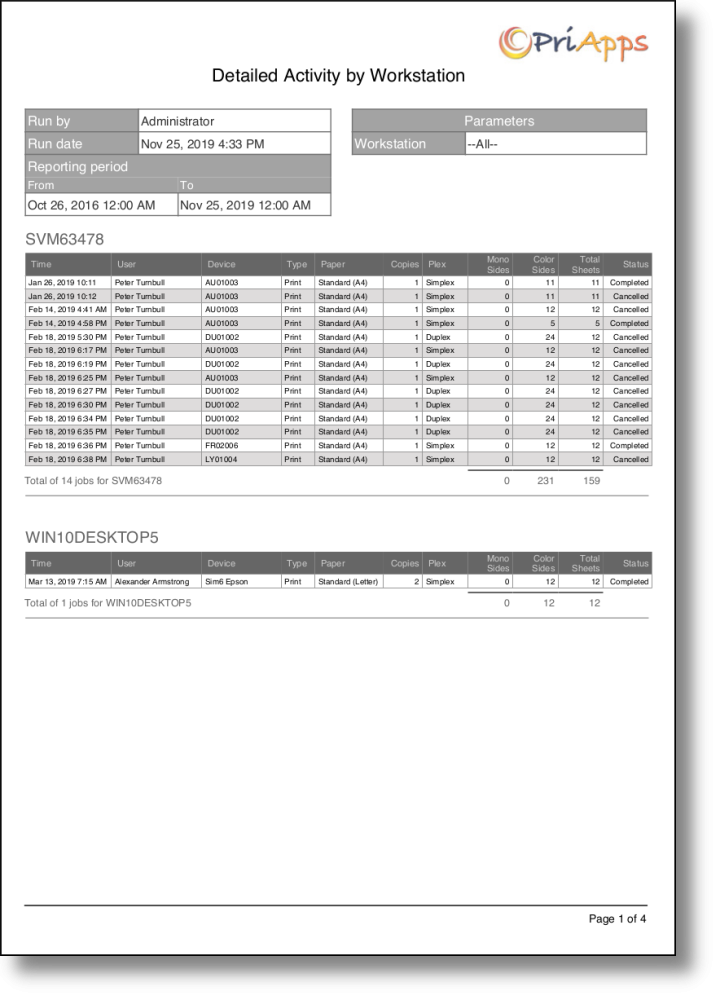
| Detailed Activity by Workstation | Print activity per workstation or computer. |
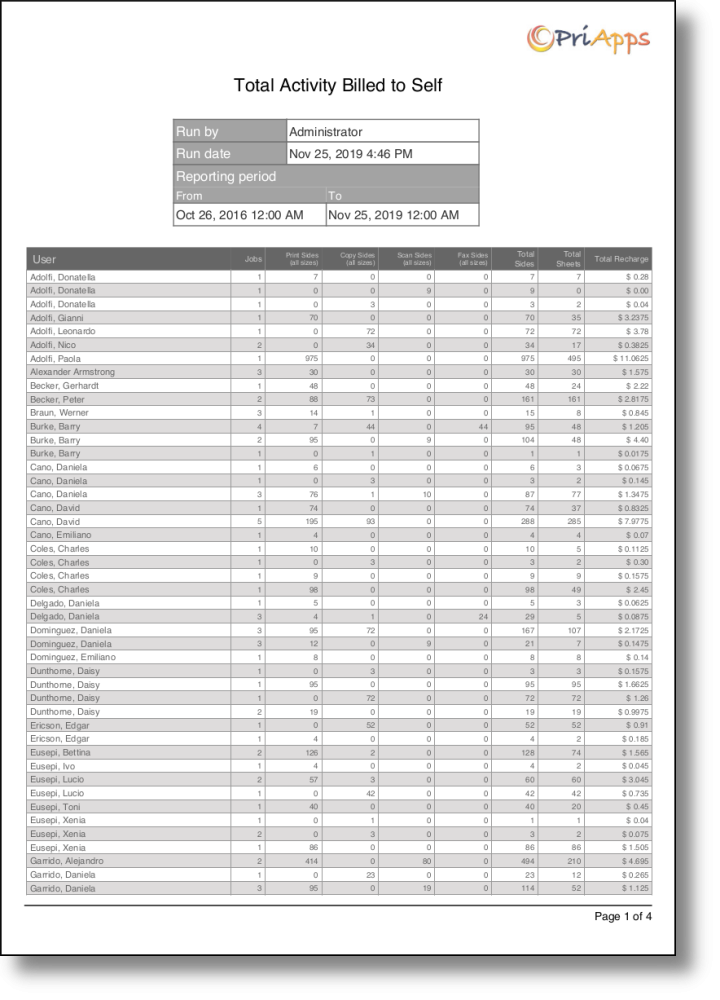
| Total Activity Billed-to-Self | Activity where the cost was billed to the user's own account. |
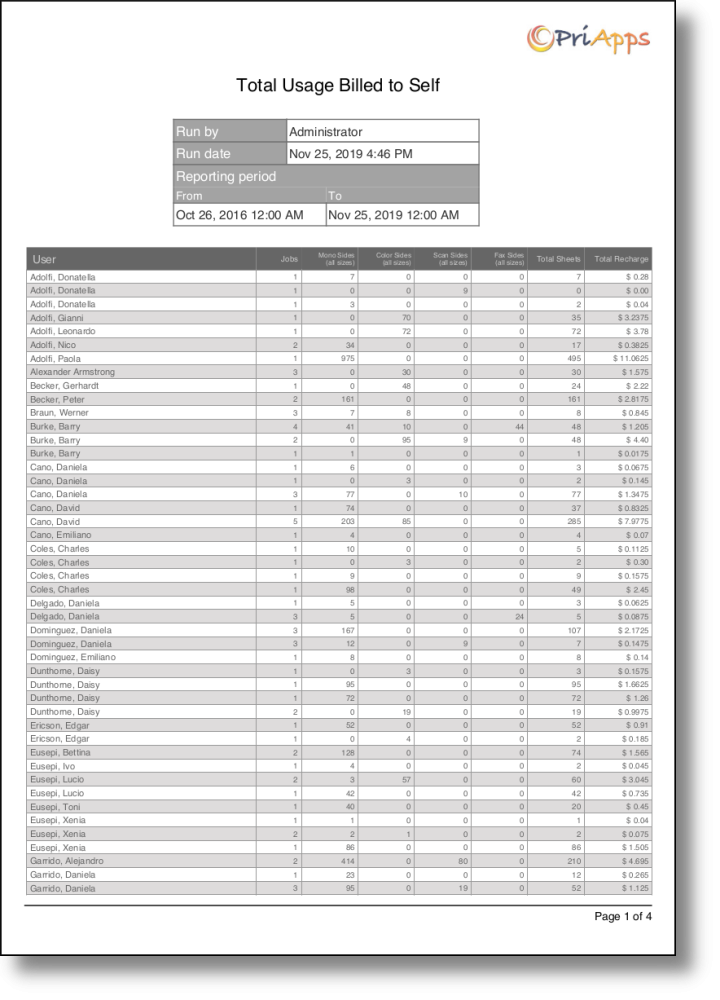
| Total Usage Billed-to-Self | Usage where the job was billed to the user's own account. |
Viewing scheduled and historical reports
All generated reports can be viewed online from Reporting → View Scheduled & Historical Reports.
- Scheduled Reports are listed at the top and show the report name, date range, frequency, and next run time. Delete a scheduled report with the Delete button.
- Historical Reports are listed below and show the run date, unique ID, report name, parameters, time period, run time, format, and status. Click the report name to view it. Delete historical reports with the Delete button.

Live Usage
The Live Usage screen provides an at-a-glance view of current activity for any user or device being managed or monitored by PriApps.

Navigate to Reporting → Live Usage.
Live Usage shows the last 500 jobs for all users and all devices by default, including all Print, Copy, Scan, and Fax usage tracked by PriApps.
Use the dropdown filters to view jobs for a specific user or a specific device. The number of jobs displayed can also be increased or decreased using the filter controls.