Manually Creating Users
How to create individual user accounts manually in the PriApps Admin UI.
Although PriApps makes it possible to track print usage without knowing anything about users beforehand, it is best practice to create or import users when installing the software to take full advantage of the more powerful features PriApps offers.
Manual user creation is most appropriate for guest users, temporary users, or environments without LDAP / Active Directory.
How to create a user manually
Navigate to Users
Select Users & Security in the main menu, then select Users.
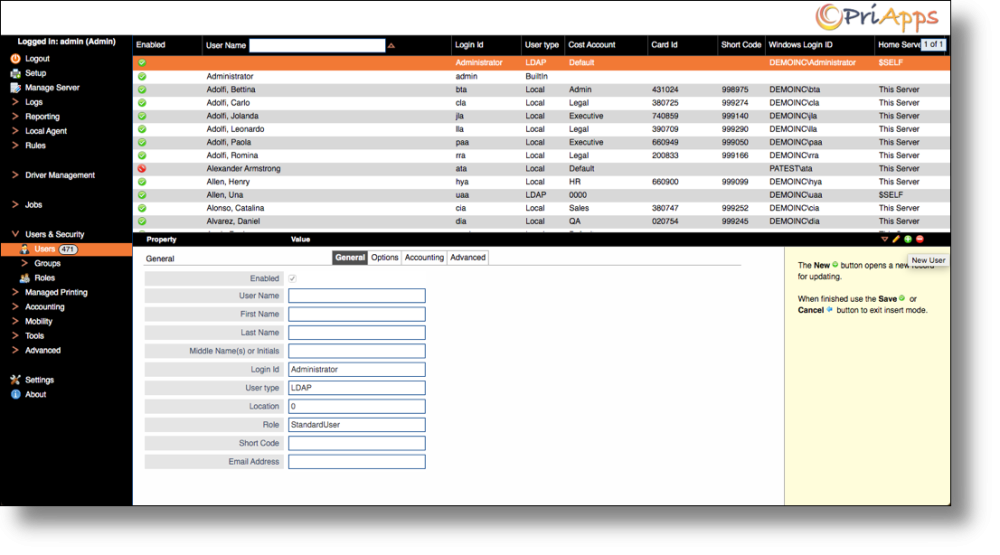
Add a new user
Click the Add button on the right-hand side of the screen.
Complete the user properties
Fill in the details across the General, Options, Accounting, and Advanced tabs as appropriate. See User Properties for a full description of each field.
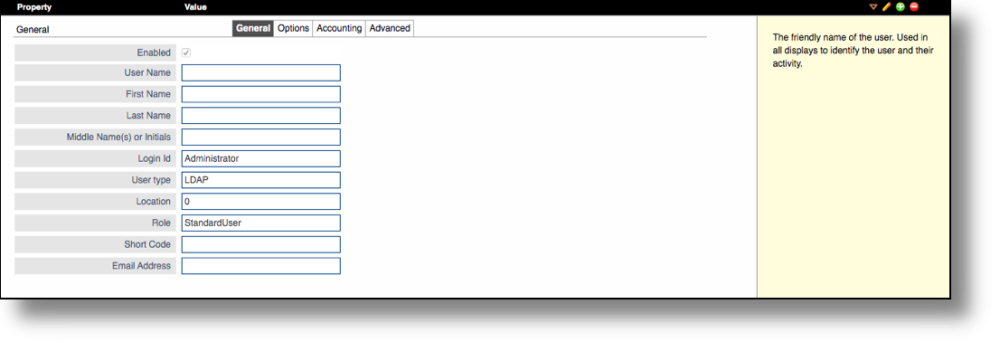
Save the user
Click the Save / Confirm button on the right-hand side of the screen to save the new user.