
User Properties
All configurable properties for a PriApps user across the General, Options, Accounting, and Advanced tabs.
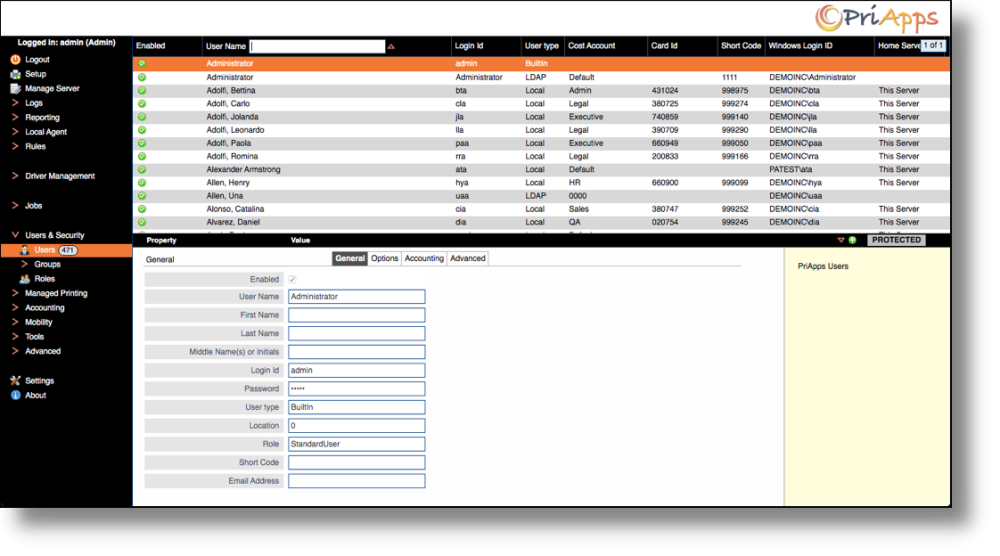
User properties are organized across four tabs in the User Properties dialog: General, Options, Accounting, and Advanced. Access user properties by navigating to Users & Security → Users, selecting a user, and clicking the Edit / Update button.
General tab
Ensure the user is enabled by checking the Enabled checkbox.
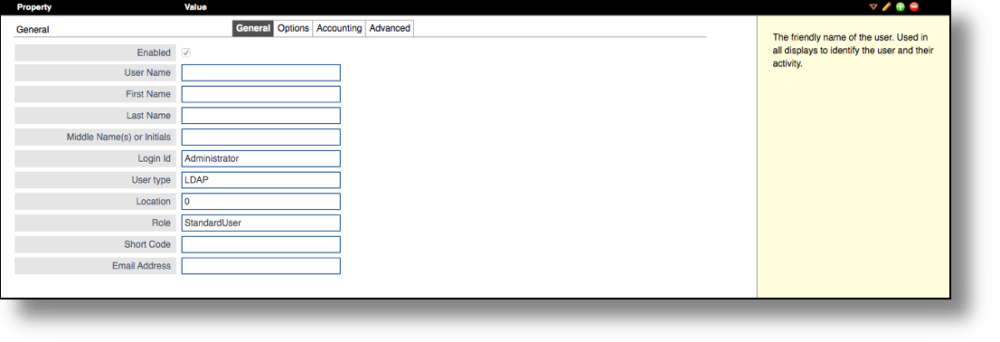
| Field | Description |
|---|---|
| Username | The display name of the user, as shown in reports and other administrative functions. |
| First Name | The first name of the user. |
| Last Name | The last name of the user. |
| Middle Name(s) or initials | The middle name or initials of the user. |
| Login ID | The Login ID used to authenticate the user within PriApps. |
| Password | The password for this user account. |
| User Type | Defines the user type within PriApps. Most manually created users are Local Users (local to the PriApps database, not sourced from LDAP). Other options are available via the dropdown. |
| Location | The location where the user is normally situated, such as a department or office. |
| Role | All users are Standard Users by default. Users can be assigned the Device Administrator role, which allows them to log into any device as an admin to access device admin functions. Roles can also be used to restrict users to specific functions such as No Color, No Fax, Copy only, or Scan only. New roles can be defined under Users & Security → Roles. |
| Shortcode | A 4 or 5 digit shortcode (depending on the number of users in the organization) that can be assigned to a user. The shortcode can be used to authenticate at a PriApps managed device as an alternative to other authentication methods. |
| Email Address | The user's primary email address, used for alert and report distribution. |
Options tab
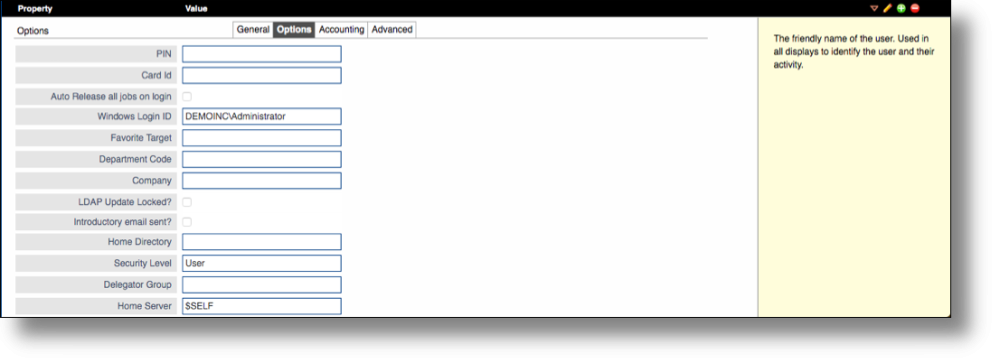
| Field | Description |
|---|---|
| PIN | A longer numeric code that can be used instead of a shortcode for user authentication at a PriApps managed device, providing greater security. |
| Confirm PIN | Confirmation of the user's PIN for security purposes. |
| Card ID | The unique ID of the user's ID card or badge, used for card-based authentication at the printer or MFP. Can be entered manually by an administrator, or populated automatically via self-registration when the user first presents their card at a PriApps managed device. |
| Auto Release all Jobs on Login | If checked, all held jobs in the user's myQueue will be automatically released immediately after they log into the managed printer or MFP. |
| Windows Login ID | The Windows login ID matched against the print job owner. Required when a user is created manually (as opposed to being imported via LDAP/AD). Format: WORKGROUP\username or DOMAIN\username. |
| Favorite Target | An optional field that defines the preferred printer or MFP for this user in a direct printing deployment. |
| Department Code | An optional field for the user's default department code. |
| Company | An optional field for the name of the Company to which the user belongs. |
| LDAP Update Locked? | If checked, this user's details will not be overwritten during an LDAP sync. |
| Introductory Email Sent | Indicates whether an introductory email has already been sent to this user. Uncheck to resend the email. |
| Home Directory | Defines the home directory of the user. Typically populated automatically during an LDAP/AD sync. Used by PriApps to share the location with other MFP apps in SSO deployments, such as scan-to-home-folder workflows. |
| Security Level | Defines the user's access level within the PriApps Admin UI. Options: User (default — submit and view own jobs only), Operator (day-to-day tasks such as running reports), Administrator (full access except system internals), Developer (full system access — for PriApps Support use only). |
| Delegator Group | An optional field defining a Delegator Group whose members' jobs this user can release on their behalf. |
| Home Server | Defines the user's Home Server in an Enterprise Deployment. |
Accounting tab
The Accounting tab defines user properties for Cost Accounting and Quota Management. Some fields may be hidden until Cost Accounting or Quota Management has been configured in the system.
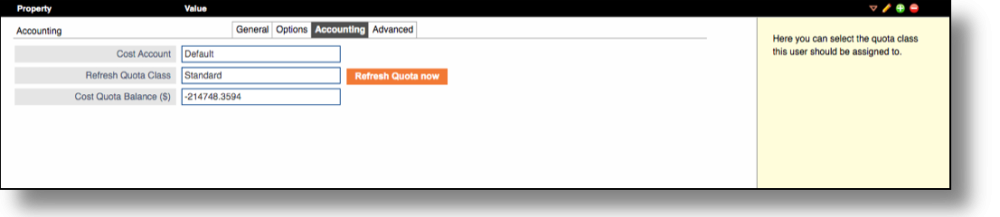
| Field | Description |
|---|---|
| Cost Account | The user's default Cost Account or cost center within the organization, used for cost recovery and reporting. |
| Refresh Quota Class | The Quota Class the user belongs to. Only visible when Quota Management has been enabled. |
| Click Quota Balance | The user's current click quota balance. Only visible when Quota Management has been enabled. |
| Job Account | The Job Account ID for the user, used for reporting purposes. |
Advanced tab
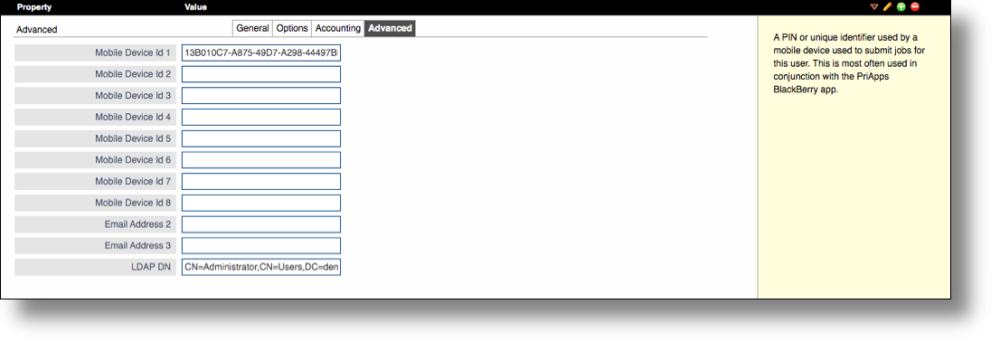
The Advanced tab stores the IDs for a user's mobile devices, used when the user uses the PriApps Mobile app for job submission, Secure Print Release (PullPrint), or user authentication at a PriApps Managed Device.
- Up to 8 mobile devices are supported per user.
- Mobile device IDs are typically detected and populated automatically when the user first registers the PriApps Mobile app with the PriApps server.
- Additional email addresses for the user can be entered here.
- The user's LDAP DN is stored here and is created automatically during the first LDAP/AD sync.