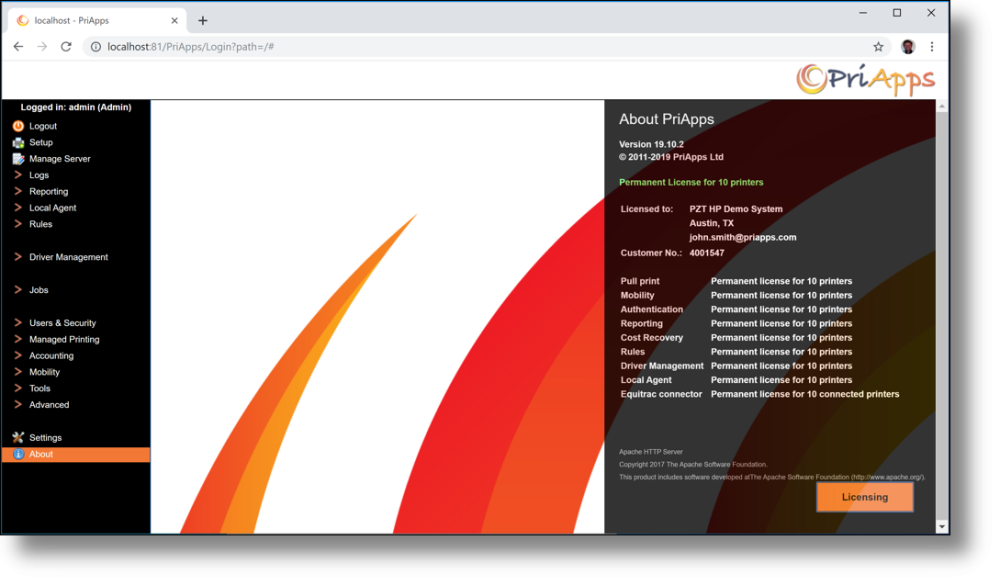
New customer
Redeem a License Token to activate PriApps for a new installation.
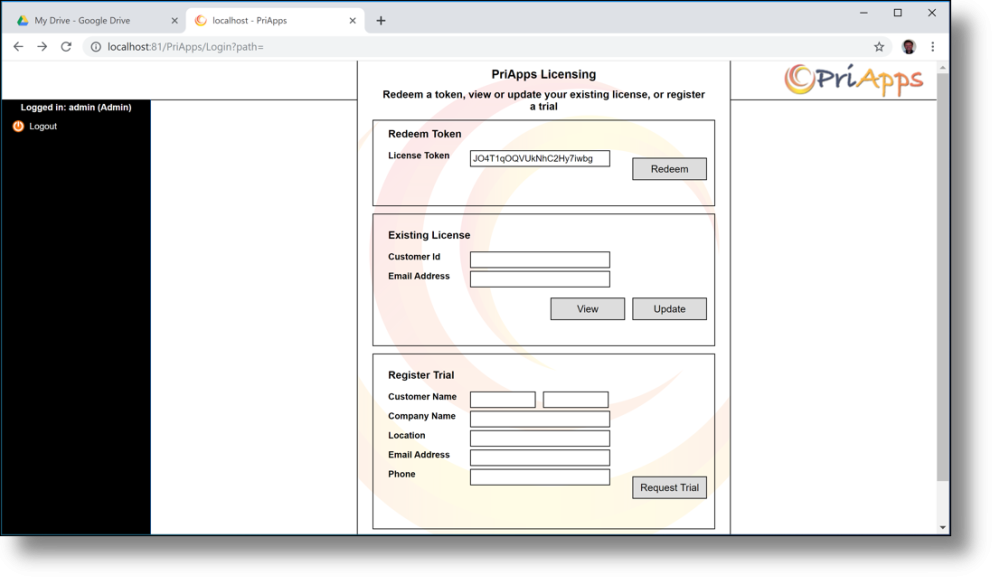
When logging into PriApps for the first time, the Licensing dialog is displayed automatically. New customers will have been issued a License Token — a unique 22-character code that activates the software.
Steps
Enter the License Token
Type or paste your 22-character License Token into the token field and select Redeem.
Complete customer details
Fill in the required customer information (see field descriptions below).
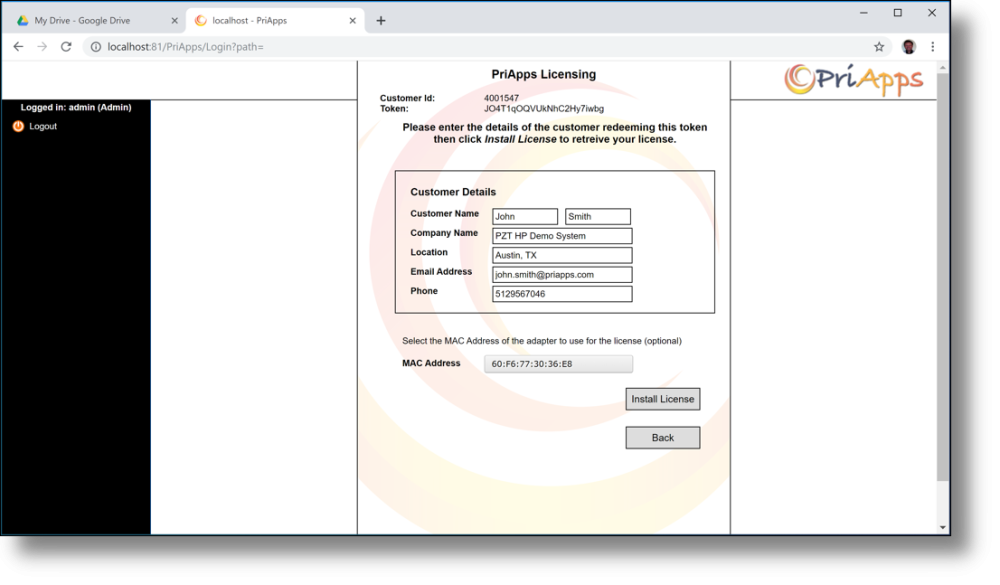
Install the license
Select Install License. A confirmation screen will be displayed on success.
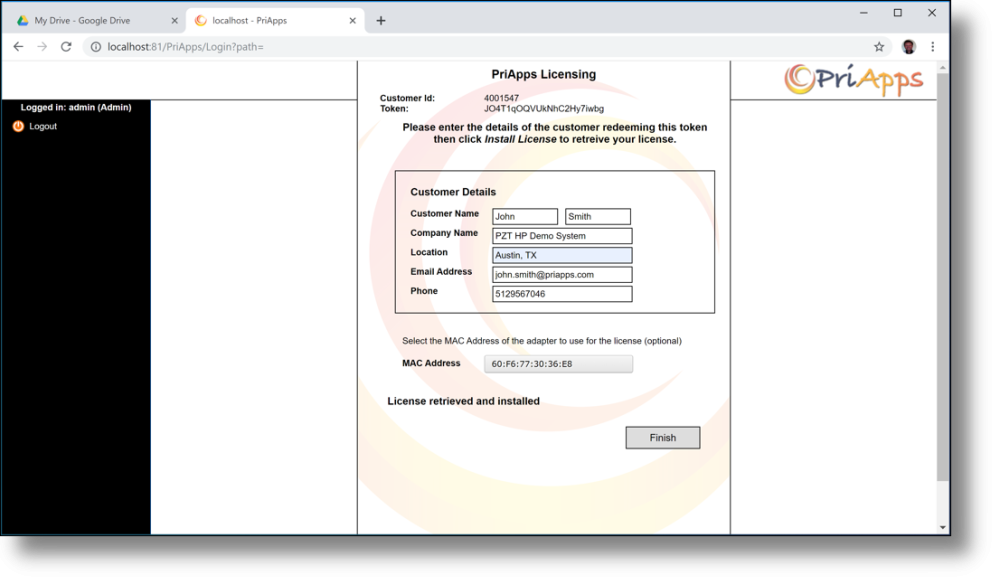
Customer details fields
| Field | Description |
|---|---|
| Customer Name | First and last name of the main contact at the end customer organization. |
| Company Name | Name of the organization to which PriApps is licensed. |
| Location | Town/city of the PriApps Application Server. For multi-server deployments, can also indicate building or site location. |
| Email Address | Email address of the main contact at the end customer organization. |
| Phone | Phone number of the main contact at the end customer organization. |
Redeeming a token
Enter the License Token in the Licensing dialog and select Redeem. You will then be prompted to complete the Customer Details — see the field descriptions above.
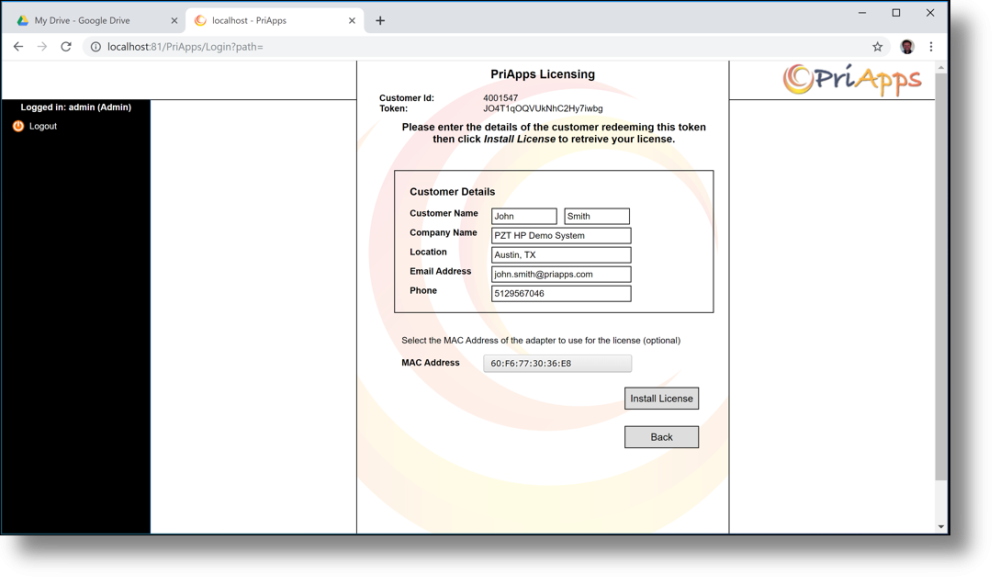
After entering details, select Install License to activate. A confirmation screen is displayed on success.