Additional OSA 5.5 settings
Sharp OSA 5.5 requires additional manual configuration steps beyond the standard OSA setup.
Access the MFP web interface via browser using the MFP's IP address. Log in as Administrator (username: admin, default password: admin).
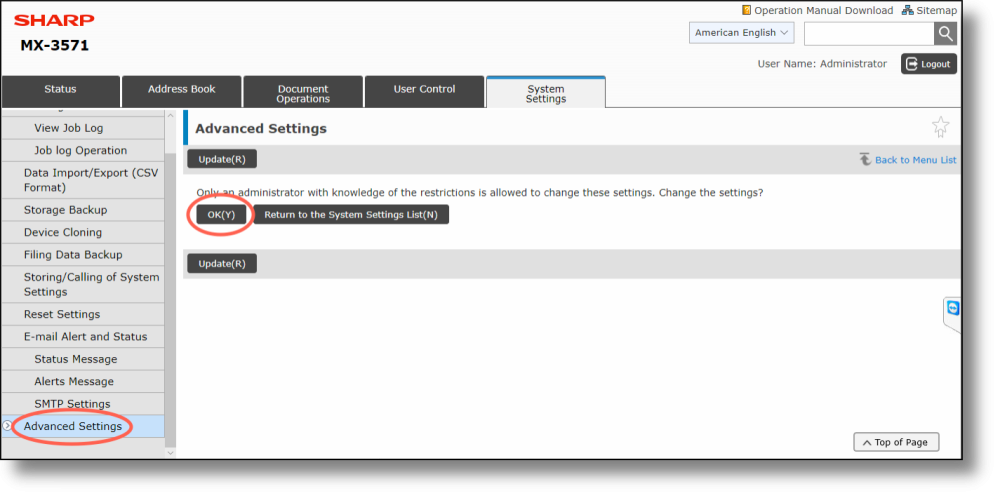
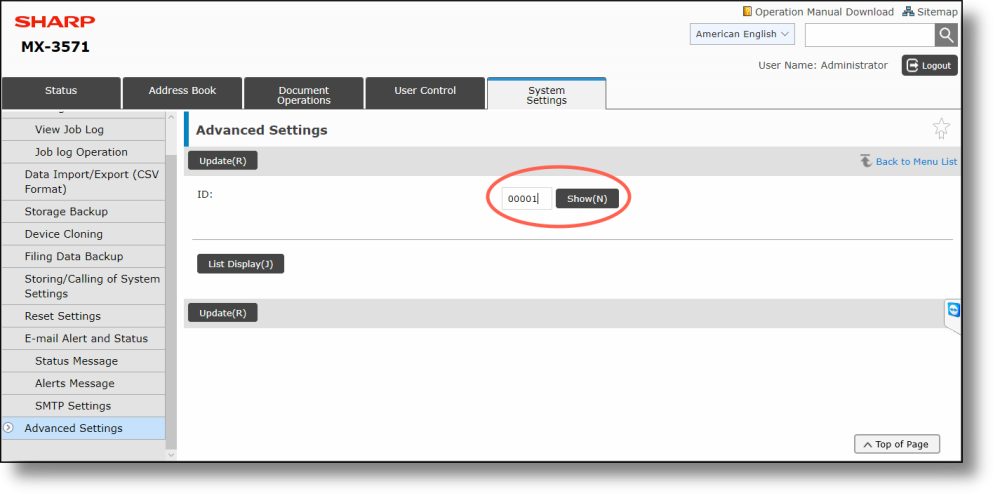
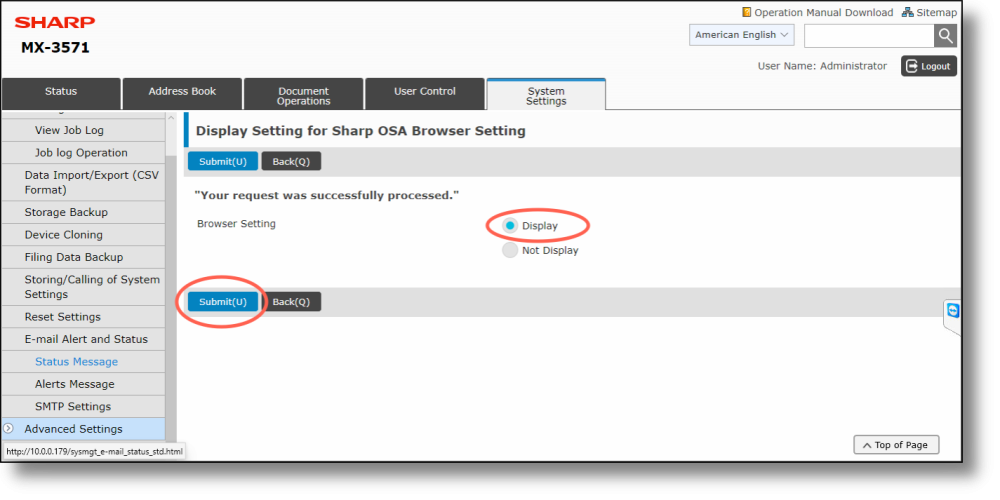
Enable browser selection control
The browser selection option is not displayed by default when configuring an External Application in OSA 5.5.
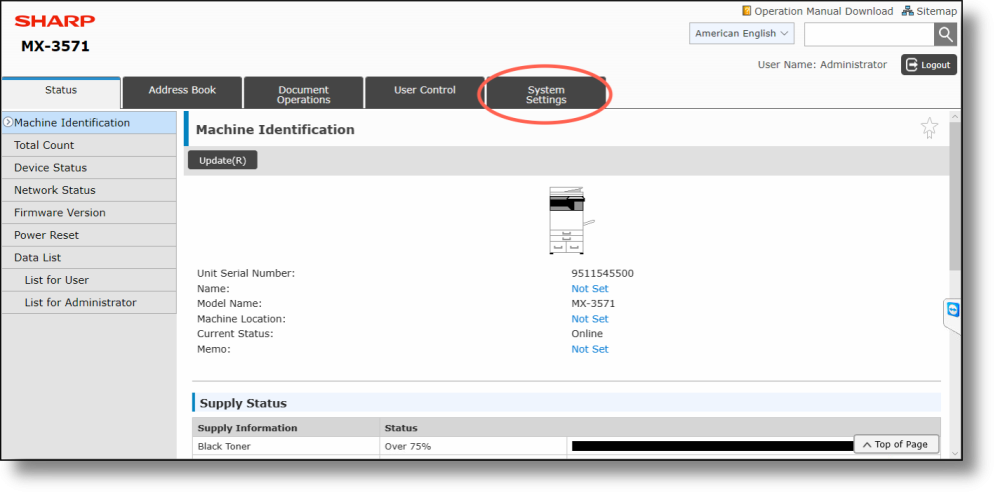
Go to System Settings
Select the System Settings tab.
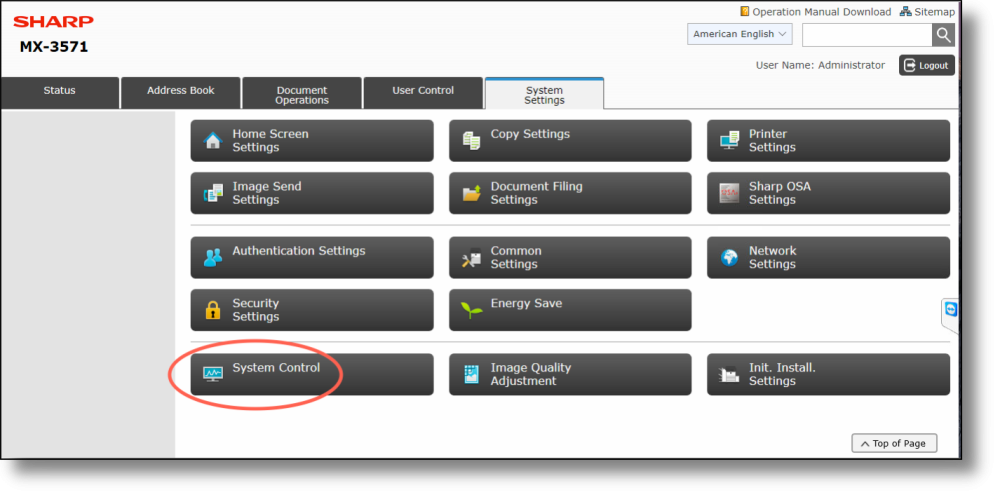
Select System Control
Navigate to System Control to enable the browser selection control.
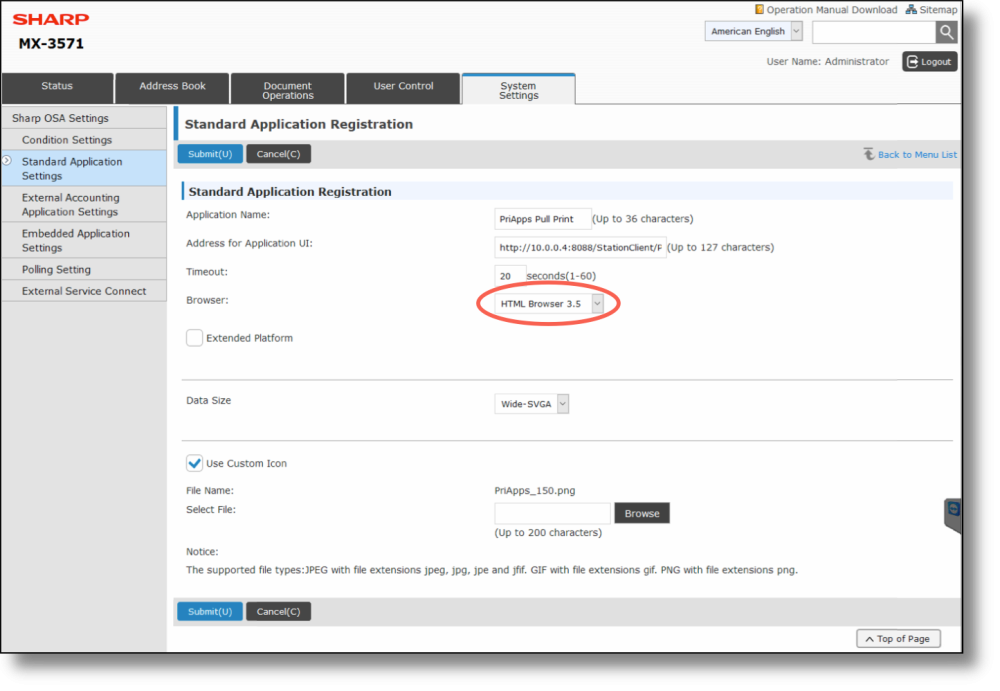
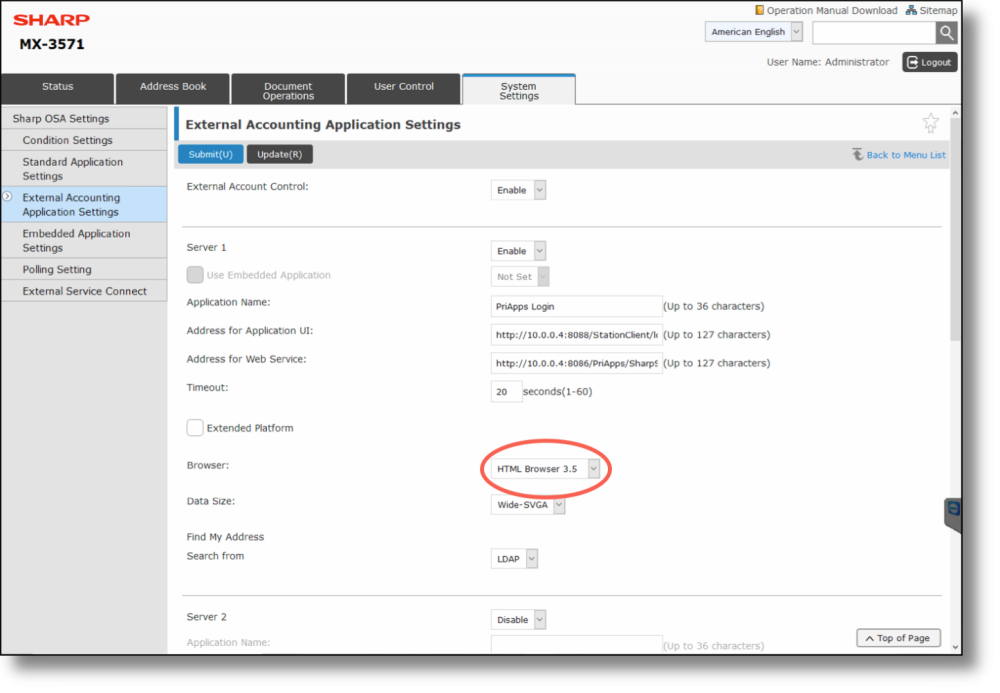
Set browser to HTML 3.5
Under External Accounting Application, confirm the browser is set to HTML 3.5.
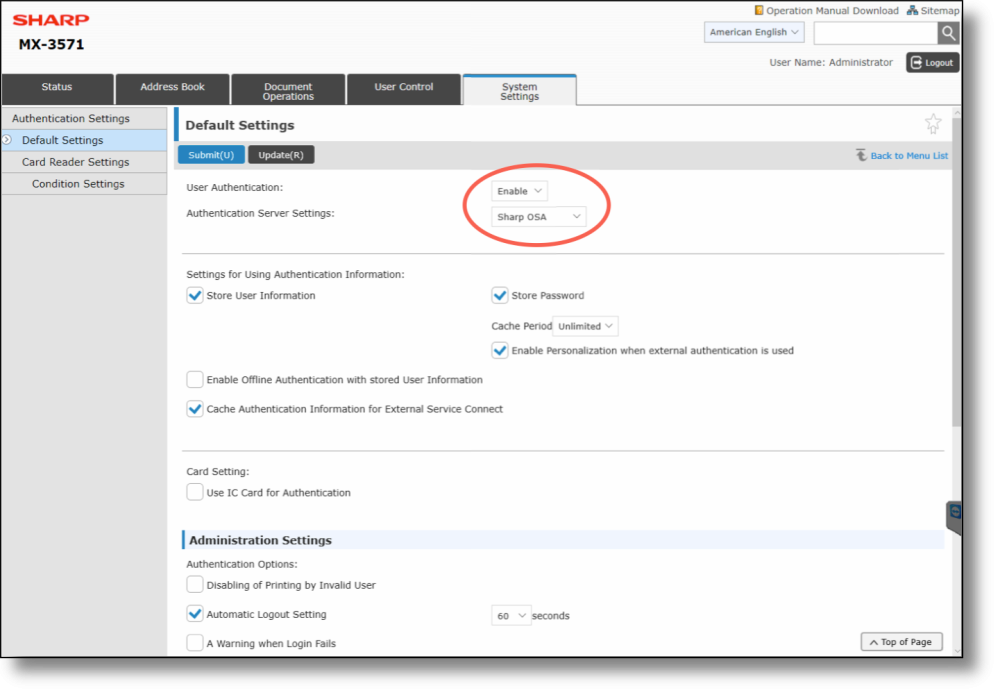
Enable user authentication
Under OSA 5.5, User Authentication must be explicitly enabled in addition to configuring it under External Accounting Application (which is done automatically by PriApps).
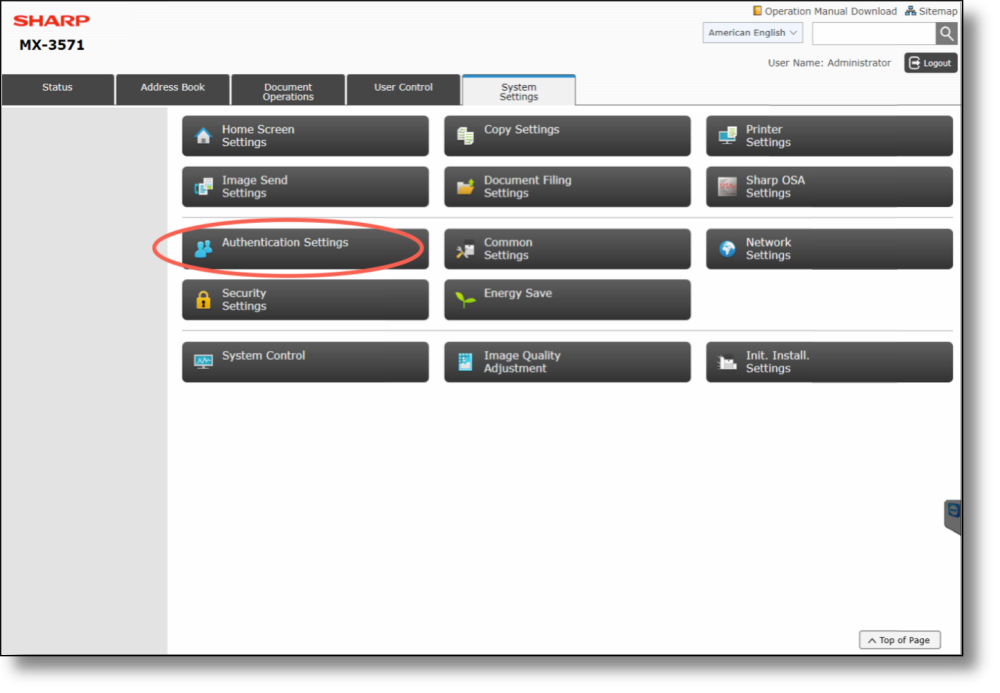
Access Authentication Settings
Select System Settings → Authentication Settings.
Enable User Authentication
Set the User Authentication checkbox to Enable. Set Authentication Server Settings to Sharp OSA.
Reboot if required
You may need to reboot the device for the settings to take effect.
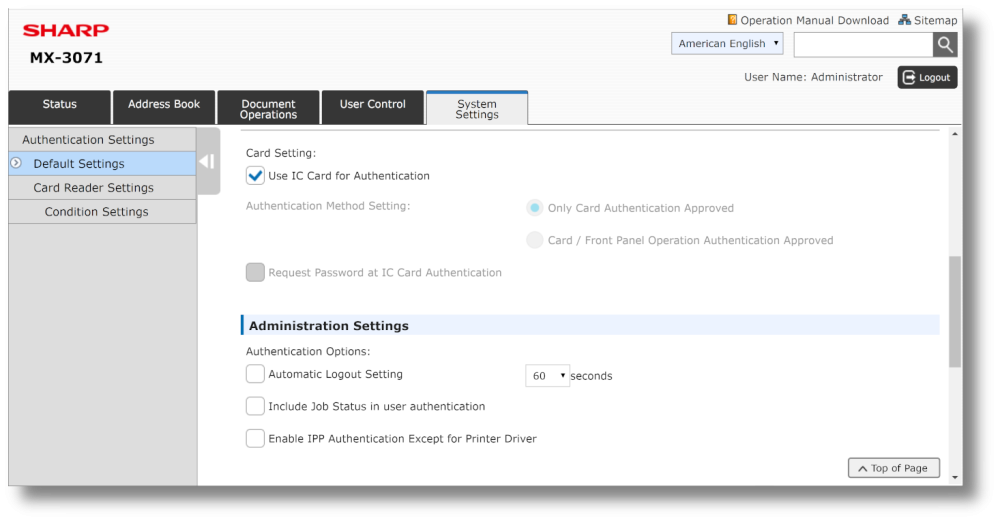
Activating card readers
To allow users to authenticate using a staff ID card or door access badge, enable the card reader by setting the Use IC Card for Authentication checkbox to enabled in Authentication Settings.