bizhub bEST configuration
Prepare each bizhub MFP with firmware, SSL certificate, and OpenAPI settings before deploying the PriApps application.
Firmware requirements
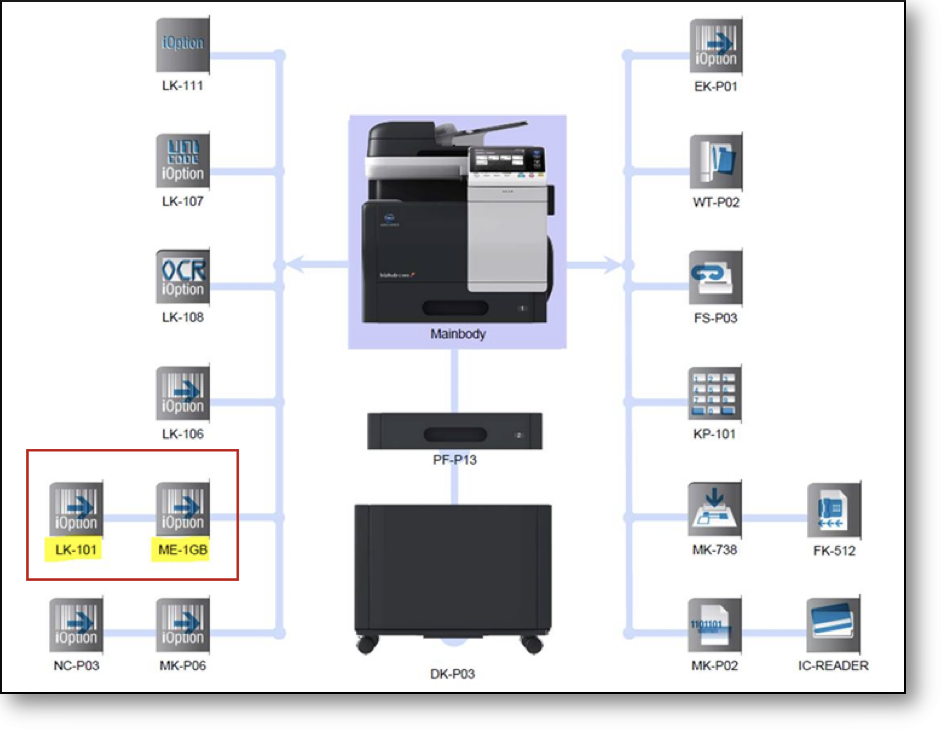
Konica Minolta bizhubs must have the correct firmware level installed to run bEST (OpenAPI) applications. Refer to the recommended firmware document for your specific bizhub model. The bizhub must also be fitted with LK-101 (web browser license) and ME-1GB (additional memory).
SSL certificate
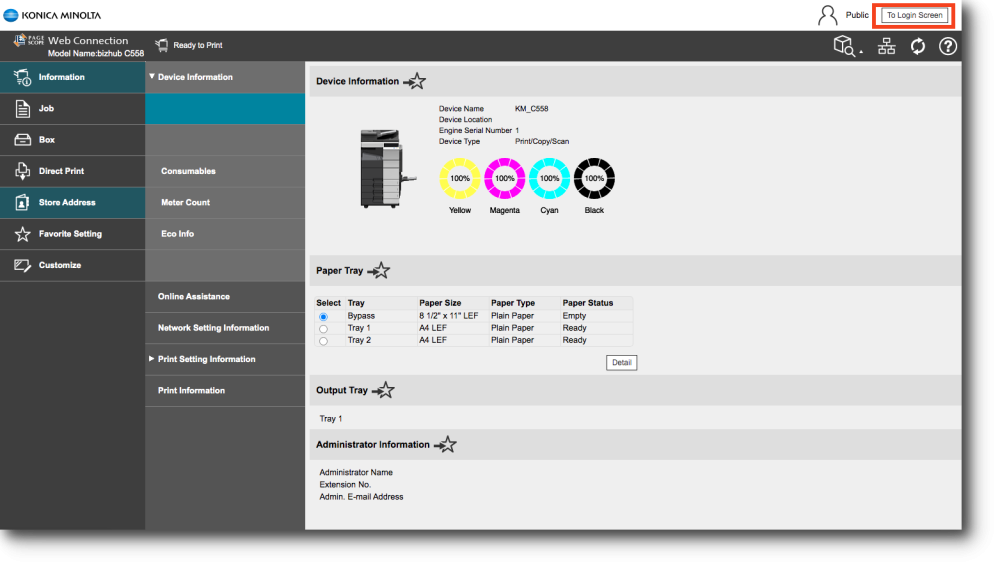
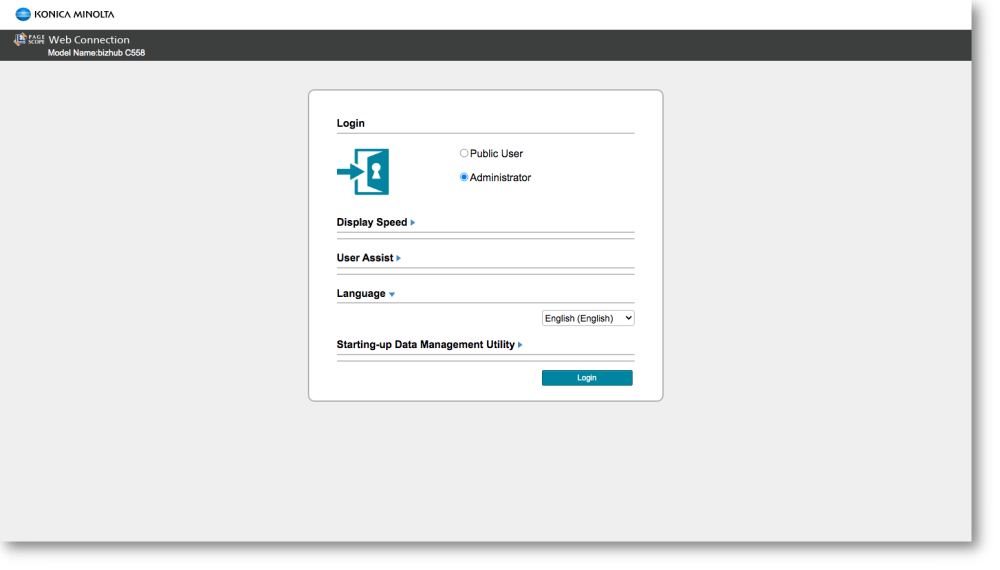
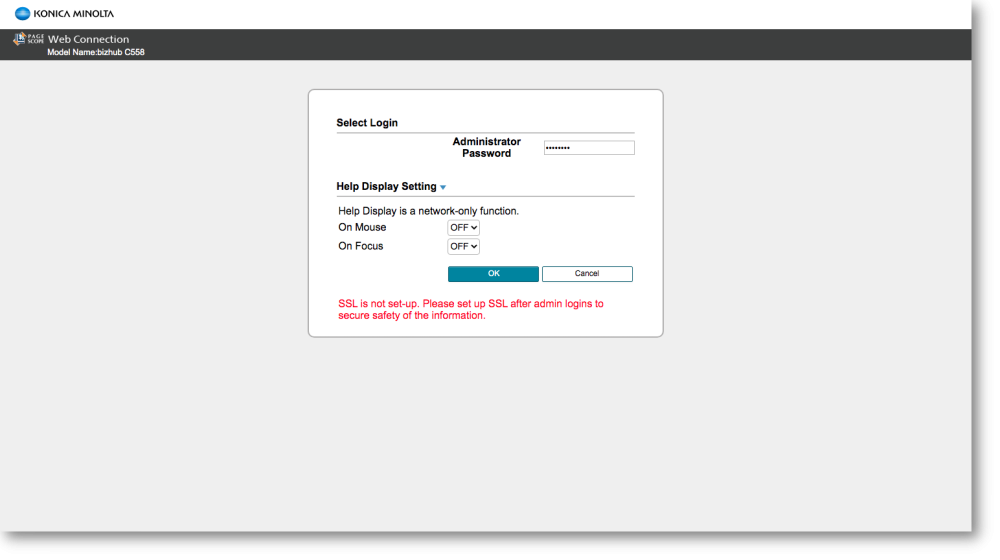
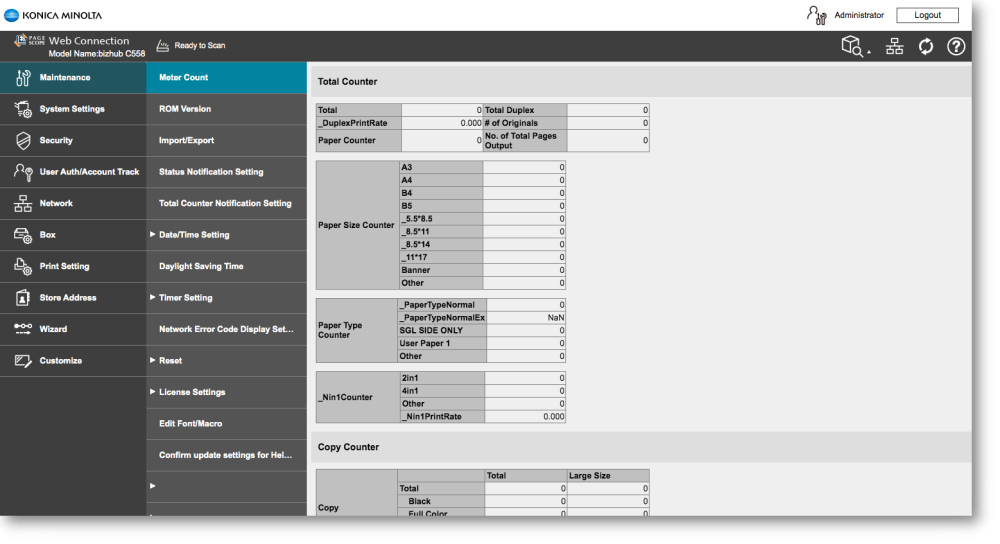
Access the bizhub web interface via browser (enter the device IP address) and log in as Administrator.
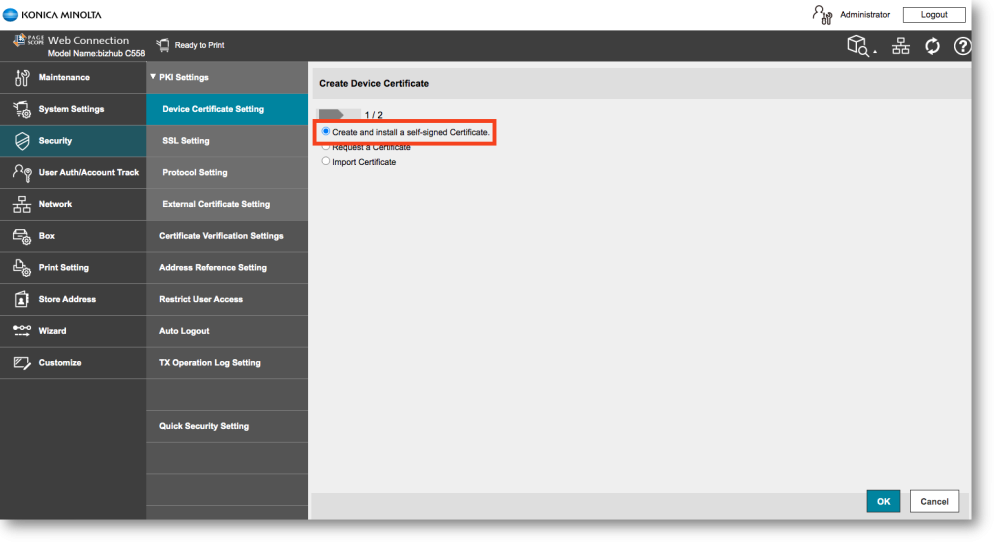
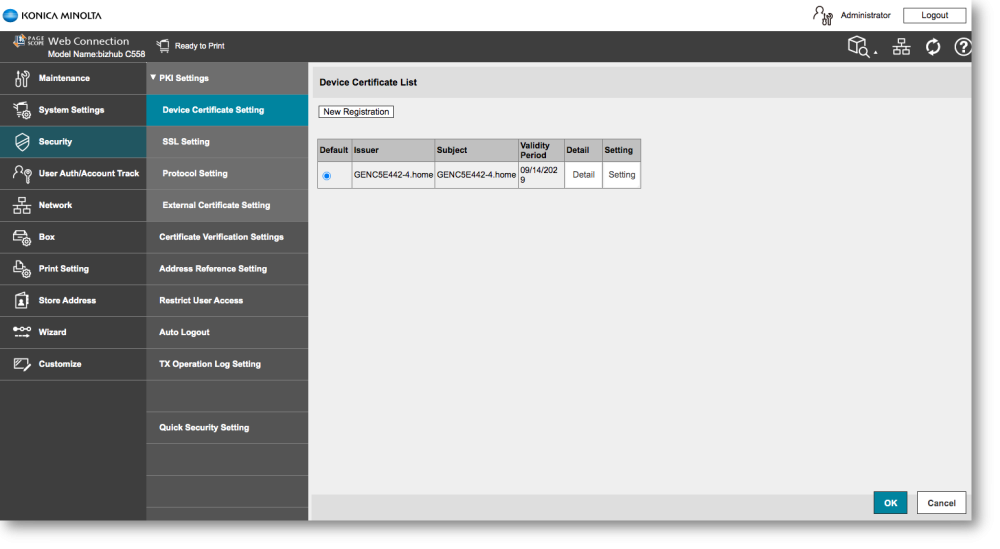
Under Security → Device Certification Setting, create and install a self-signed SSL certificate with your organization details. The validity period has a maximum of 10 years (3,650 days). View the certificate detail to confirm the settings are correct.

SSL settings
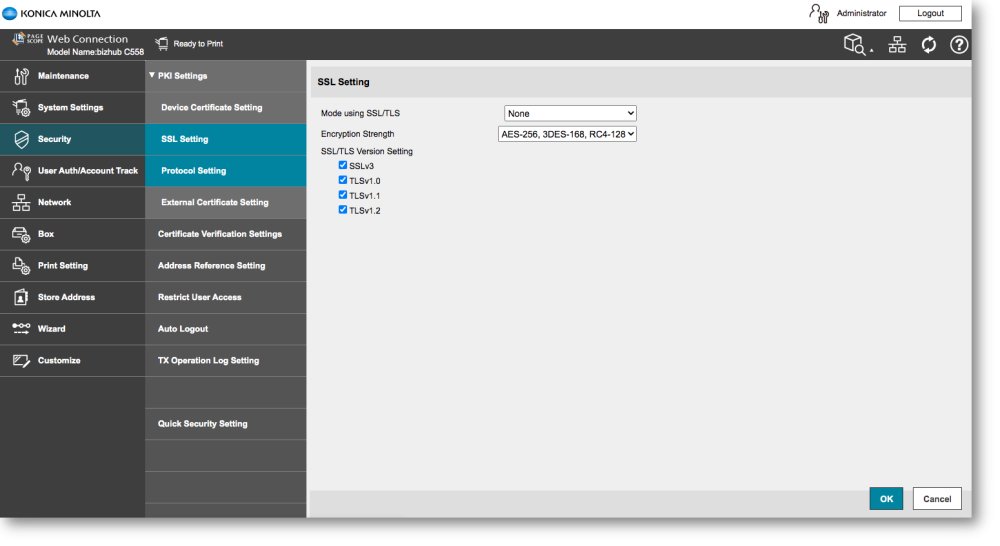
Select SSL Settings and apply the required SSL configuration to enable secure communication.
Certificate verification
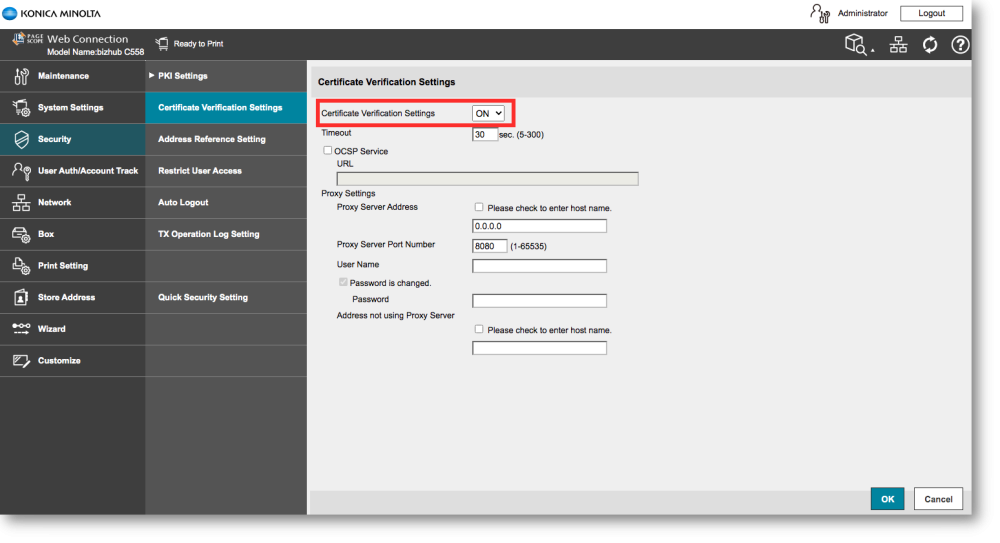
Select Certificate Verification Setting and ensure verification is switched ON.
OpenAPI settings
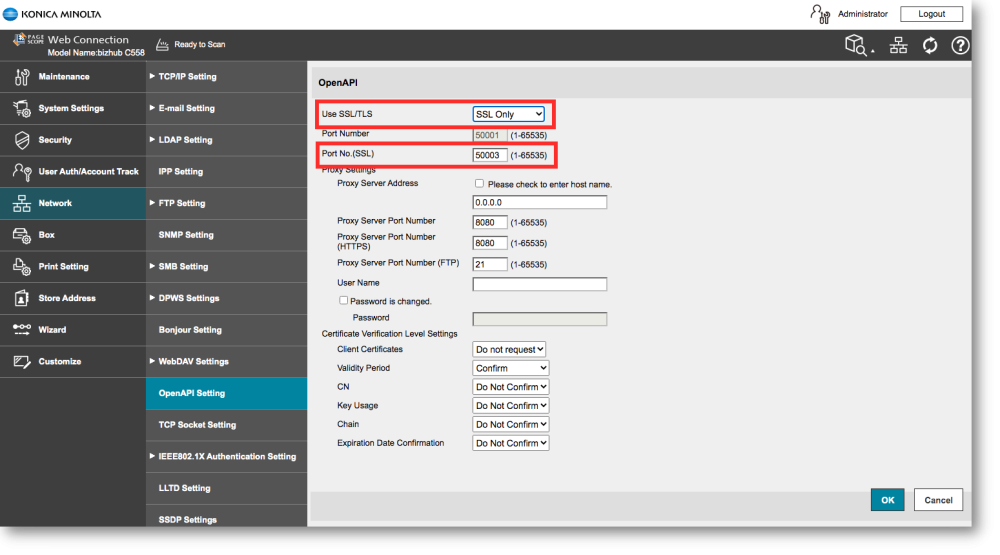
Under Network → OpenAPI Setting, set Use SSL/TLS to SSL Only. The SSL port number must match the deployment port configured in the PriApps configuration application.
TCP Socket Settings
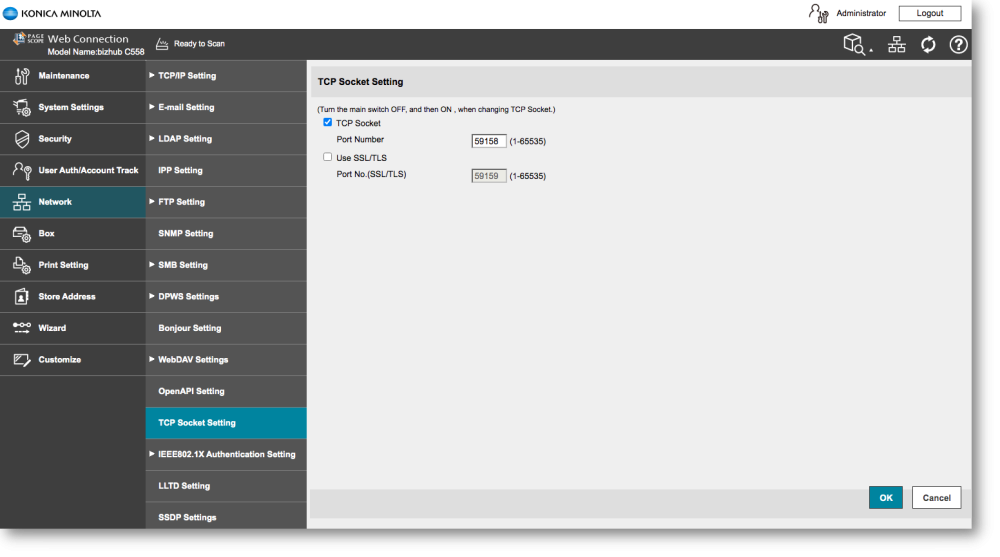
Ensure the TCP Socket Setting is set as shown below.
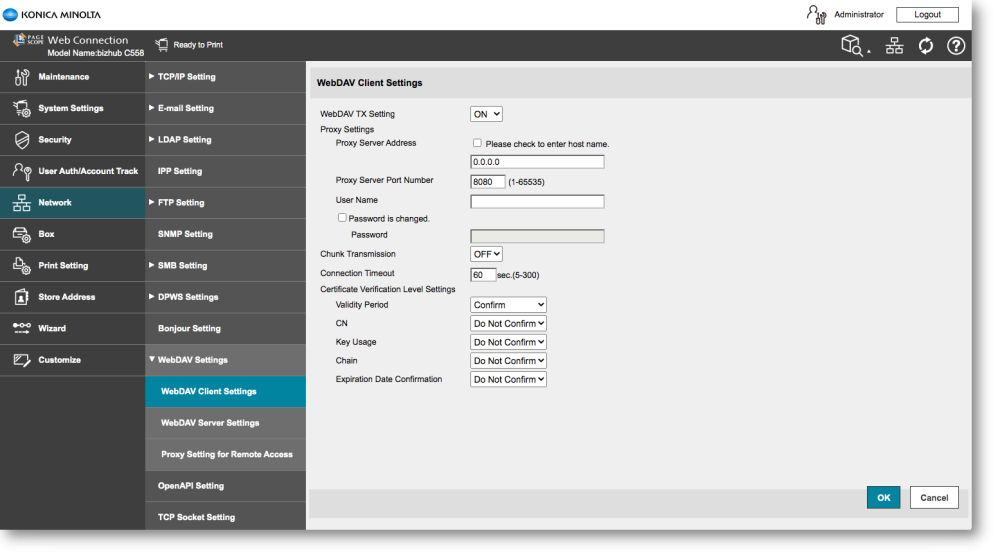
WebDAV Client Settings
Ensure the WebDAV Client transmission Setting is switched ON.
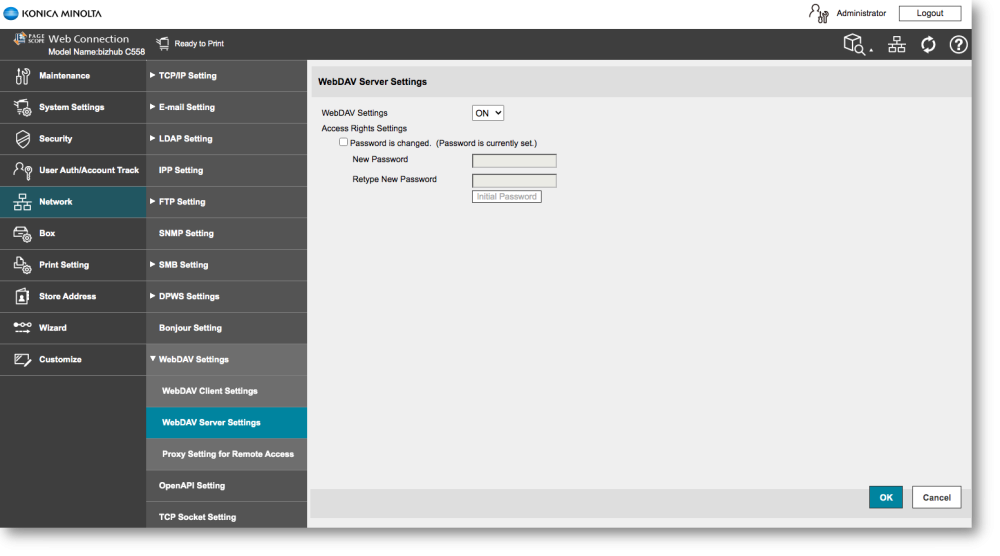
WebDAV Server Settings
Ensure the WebDAV Server Setting is switched ON.
Web Browser Settings
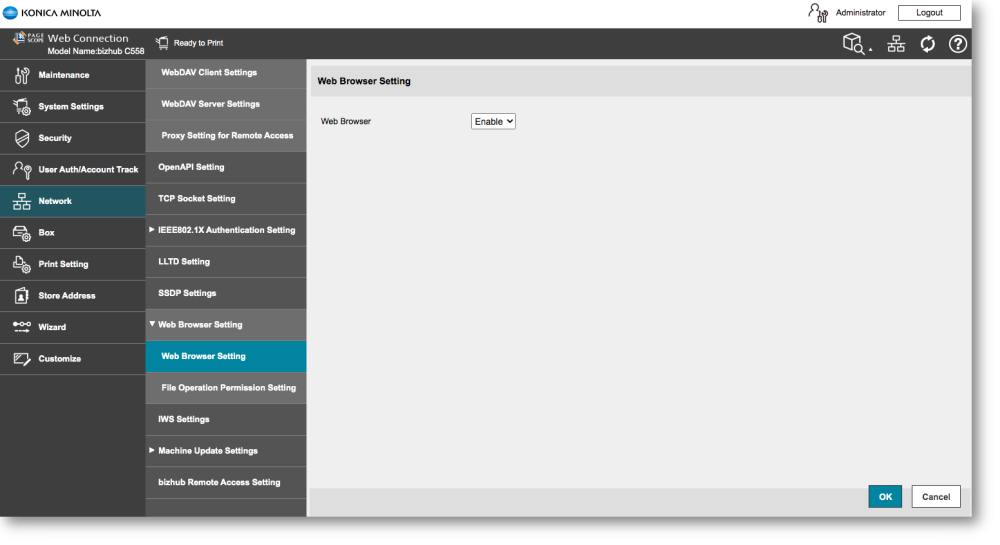
Ensure the Web Browser Setting is switched Enable.