PriApps configuration app
The PriApps Konica Minolta Embedded configuration app simplifies deployment of the PriApps MFP application to DEVELOP ineo devices.
To extend its print management and document capture functionality to DEVELOP ineo MFPs, PriApps uses the Konica Minolta OpenAPI SDK based on the Microsoft .NET Framework.
Before starting, ensure all bizhubs are configured correctly and running the required firmware to support OpenAPI version 3.7.x connections or above (Konica Minolta's bizhub Extended Solution Technology, bEST). Microsoft .NET Framework 4.5 SP1 and IIS 6.0 or above must also be installed and configured — ideally on the same computer as the PriApps Application Server. See IIS web server setup and ineo bEST configuration.
Installation
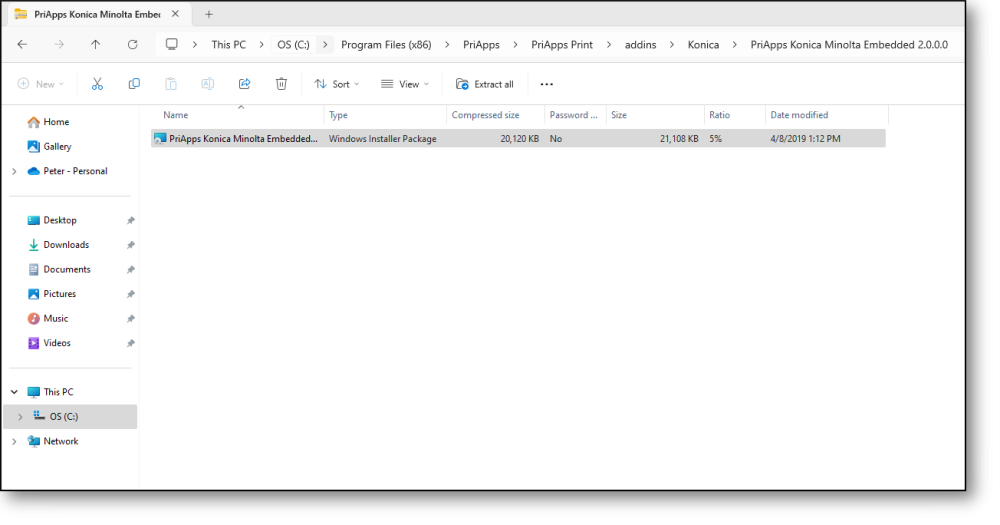
The PriApps Konica Minolta Embedded configuration application is installed automatically during the initial PriApps setup. It can be found on the PriApps Application Server at:
C:\Program Files (x86)\PriApps\PriApps Print\addins\Konica\PriApps Konica Minolta Embedded 2.0.0.0.zip
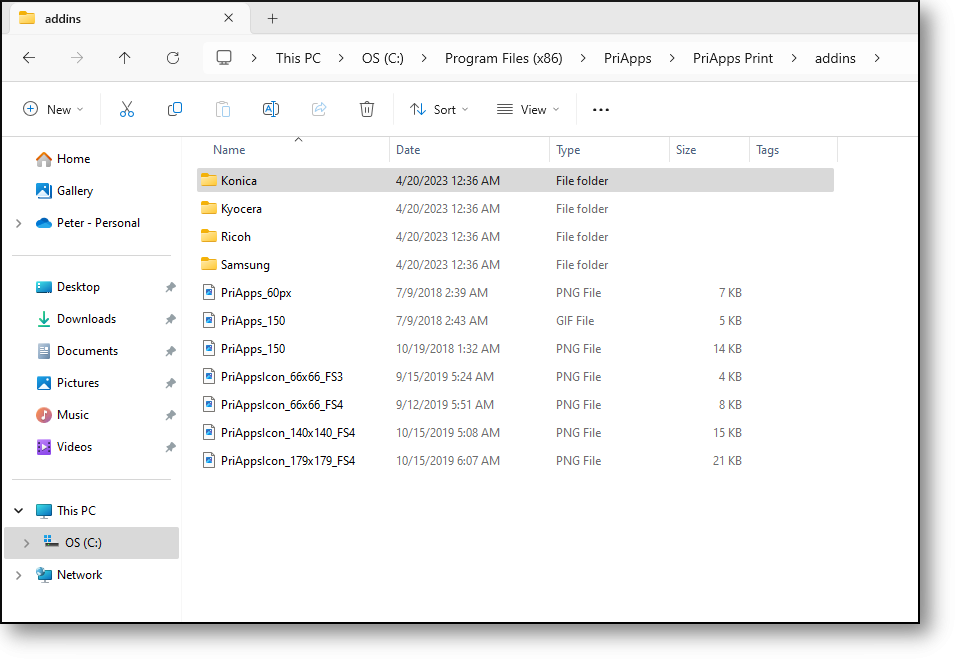
Run the Windows Installer Package within the zip file — PriApps Konica Minolta Embedded 2.0.0.0.msi.
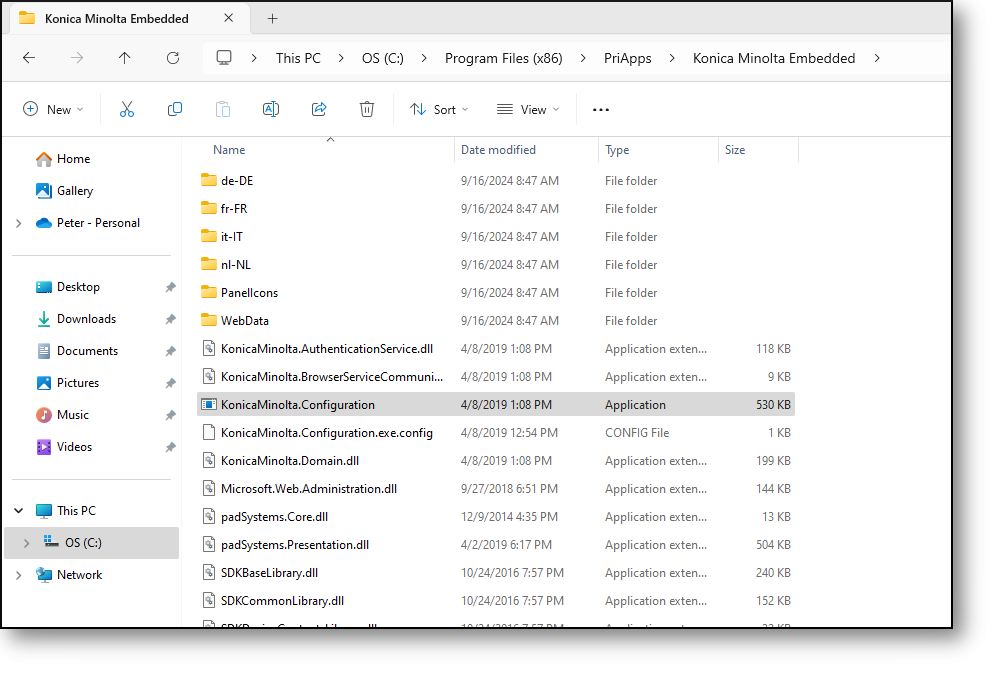
This will install the configuration application within the PriApps directory and create a shortcut on the desktop.
Configuration settings
Communication settings
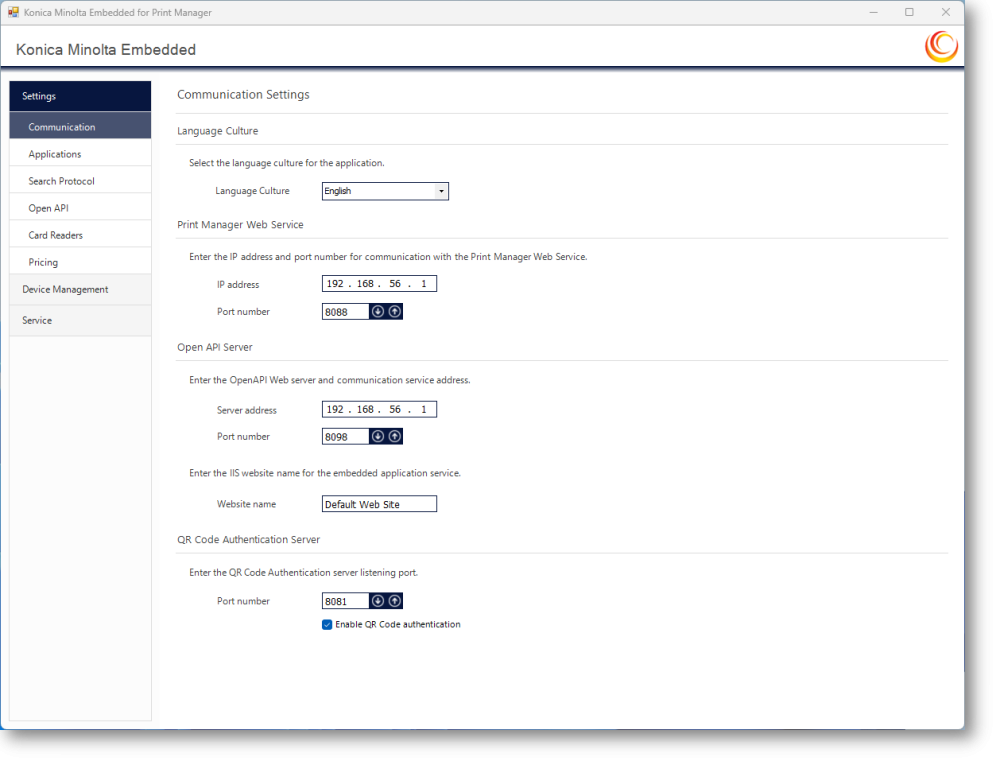
It is advisable to use the default port values unless the ports are already in use. Port and IP address settings are applied to the PriApps MFP application during installation and should not be changed once the application has been deployed to ineo MFPs.
Language settings
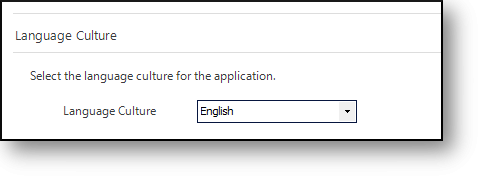
Select the appropriate language for your installation.
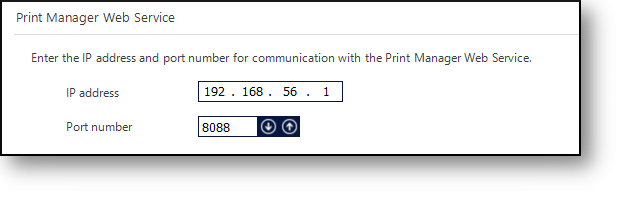
PriApps Server settings
Enter the IP address for the PriApps Application Server and the port number for communication.
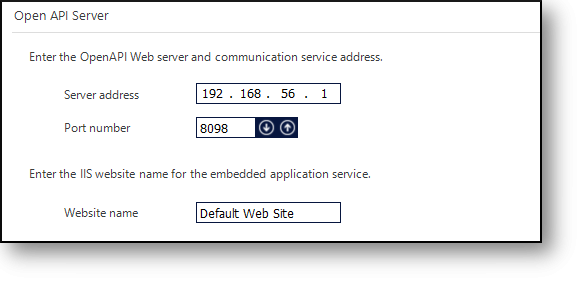
OpenAPI Server settings
The OpenAPI Server is the IIS web application host. Enter the IP address of the IIS web server (ideally the same as the PriApps Application Server). These settings must be finalized before installing the PriApps MFP application to IIS.
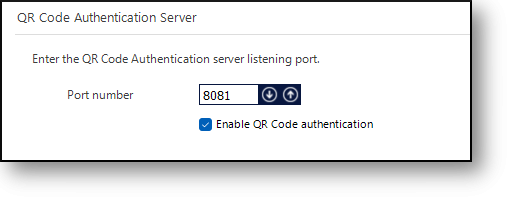
QR Code authentication settings
Select this option to enable QR Code authentication with the PriApps Mobile app.
Applications
The PriApps MFP application communicates with both the PriApps Application Server and the IIS web application once deployed to each device. Use the default port settings unless they are already in use. These settings should not be changed once applications have been deployed to ineo MFPs.
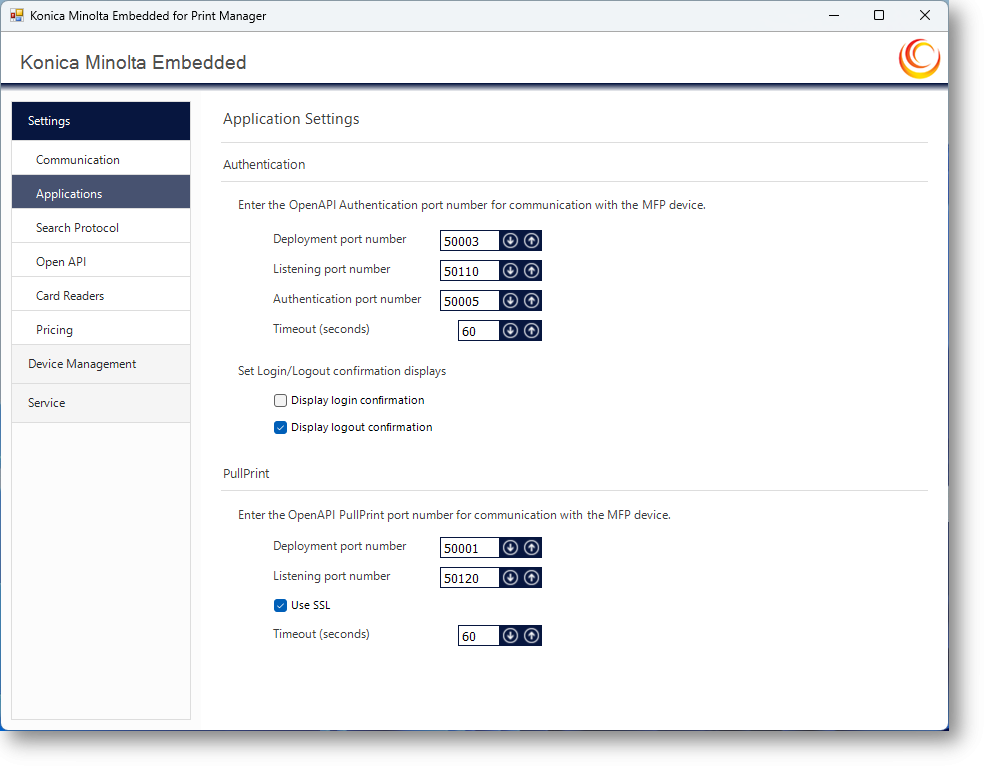
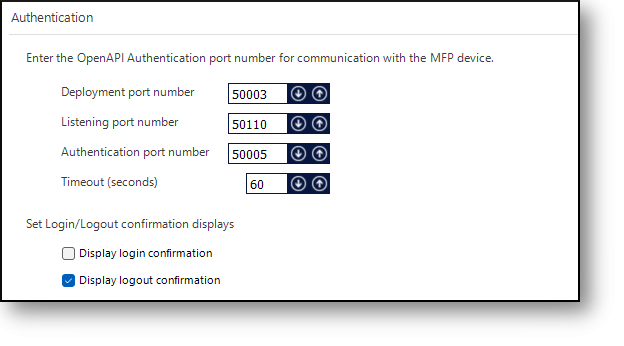
Authentication settings
Enter the OpenAPI authentication port number for communication with ineo MFPs. Select the login/logout confirmations to display to the user on the ineo MFP.
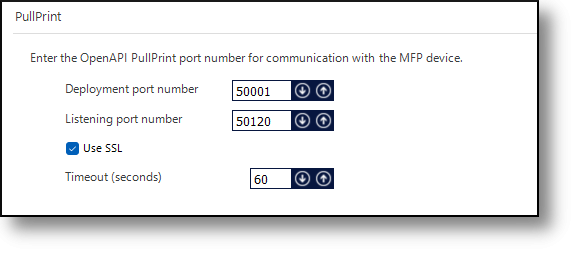
PullPrint settings
Enter the OpenAPI PullPrint port number for communication with ineo MFPs.
Device Search Protocol settings
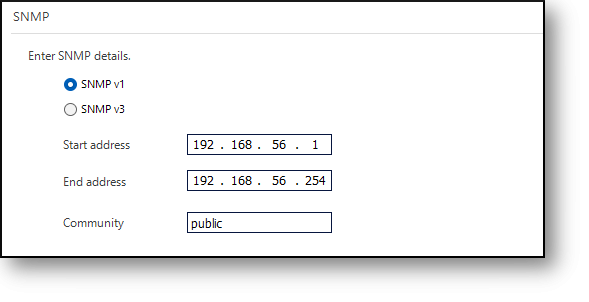
Devices can be searched by IP address range or by the subnet the PriApps Application Server resides on.
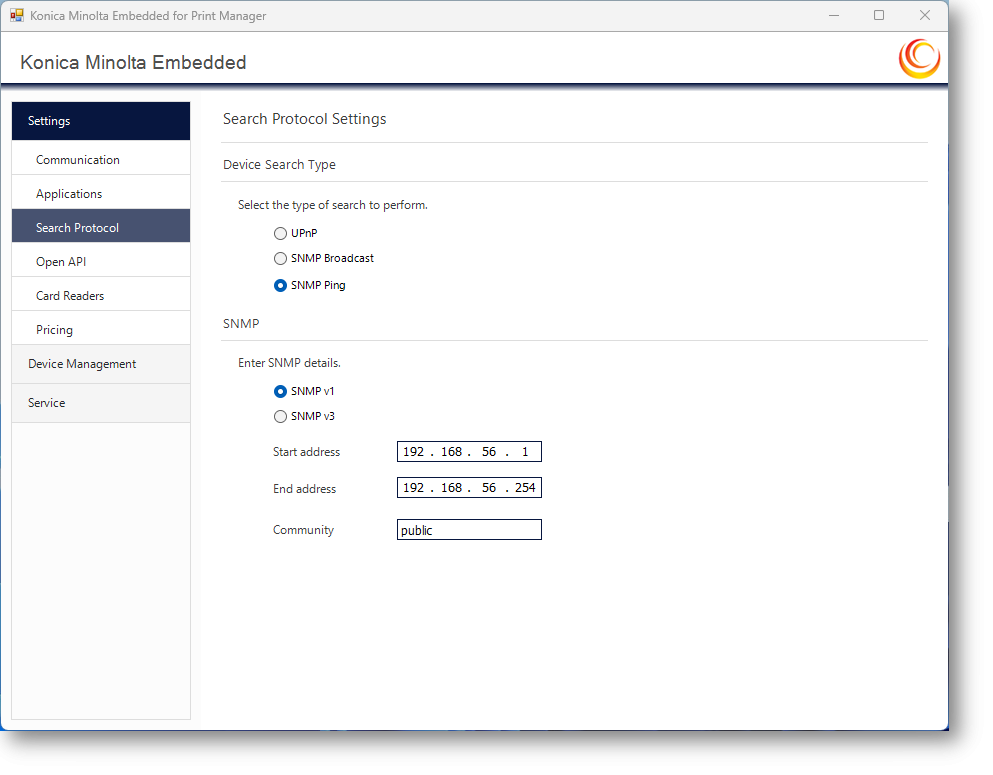
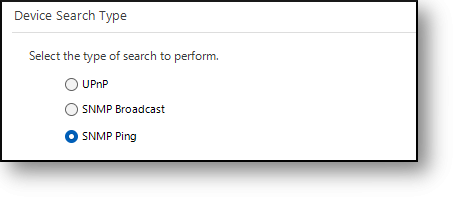
Three search methods are available:
- UPnP (Universal Plug and Play) — requires no configuration but searches only the local subnet.
- SNMP Ping — searches a specified IP address range. May return non-Konica Minolta device addresses, so take care when specifying ranges.
- SNMP Broadcast — searches subnets by broadcast address range. May also return non-Konica Minolta addresses.
Both SNMP methods support version 1 and version 3.
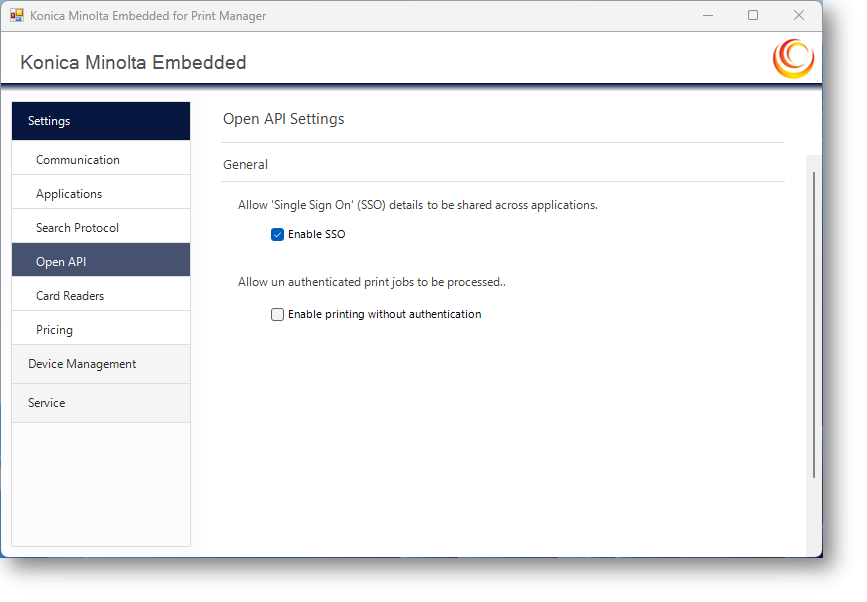
OpenAPI settings
These settings enable Single Sign-On (SSO) to the device and instruct the MFP how to handle unauthenticated print jobs.
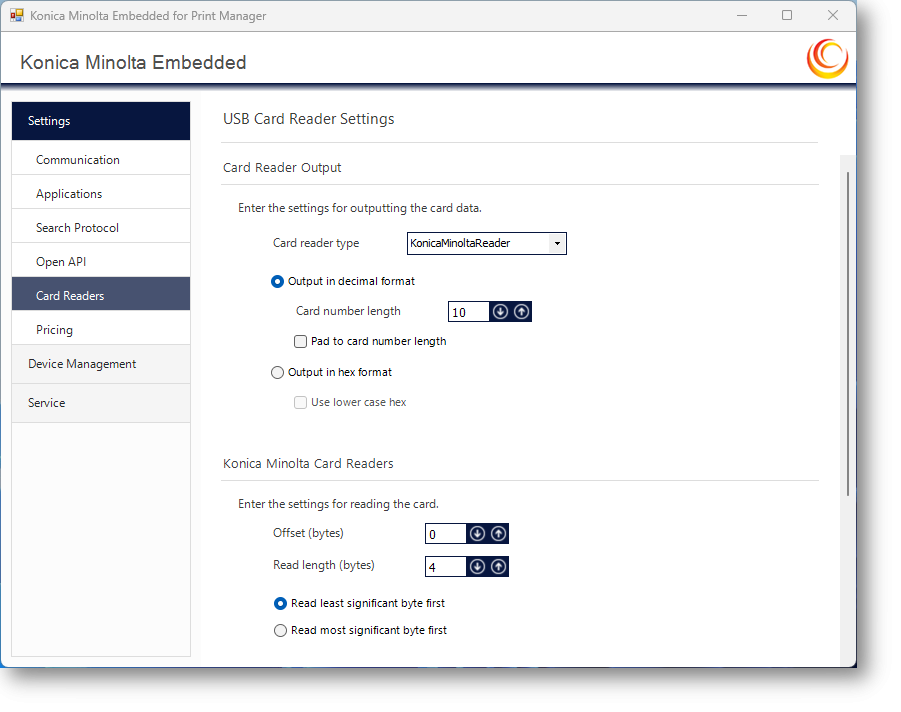
Card Reader settings
If USB card readers are used for authentication, the output settings for the device must be specified. If Konica Minolta USB readers are in use, supply the card output information for authentication.
Pricing
The ineo MFP charges users for different document output types and finishing. The user's balance is provided to the ineo MFP at login and subtracted based on the pricing structure defined here.
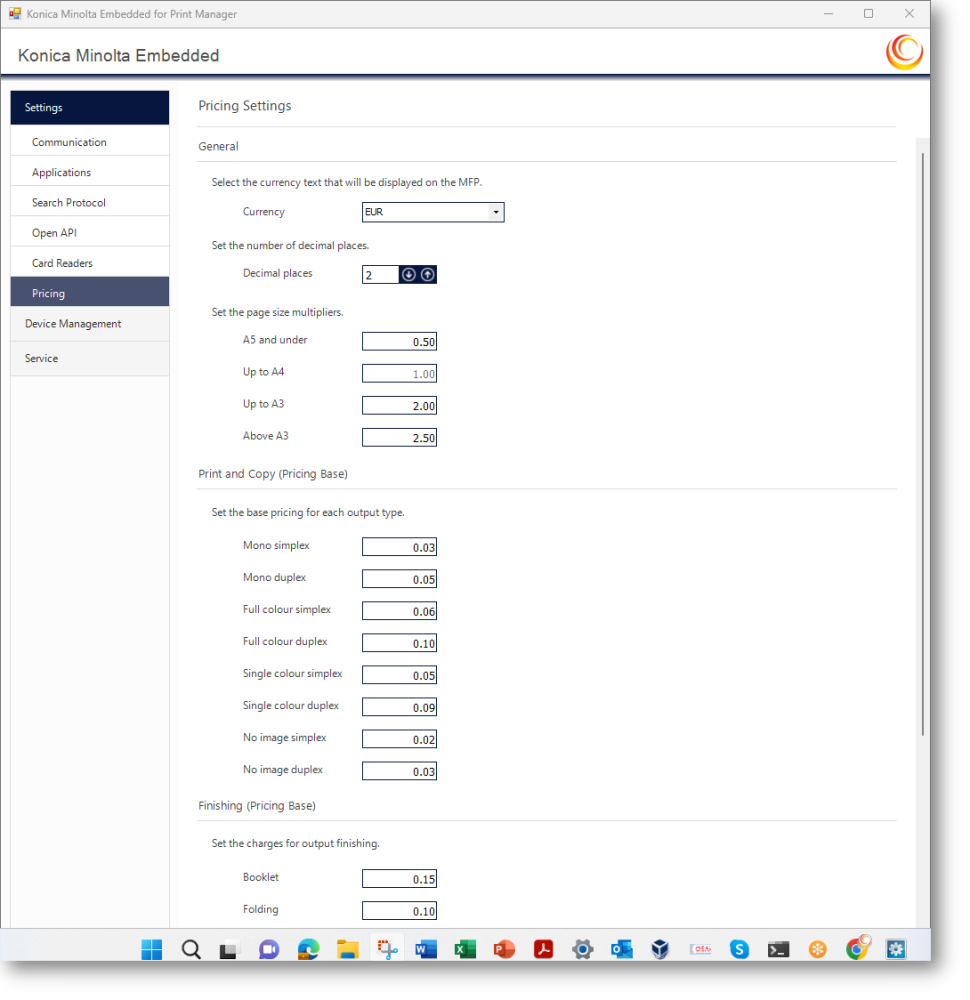
General settings
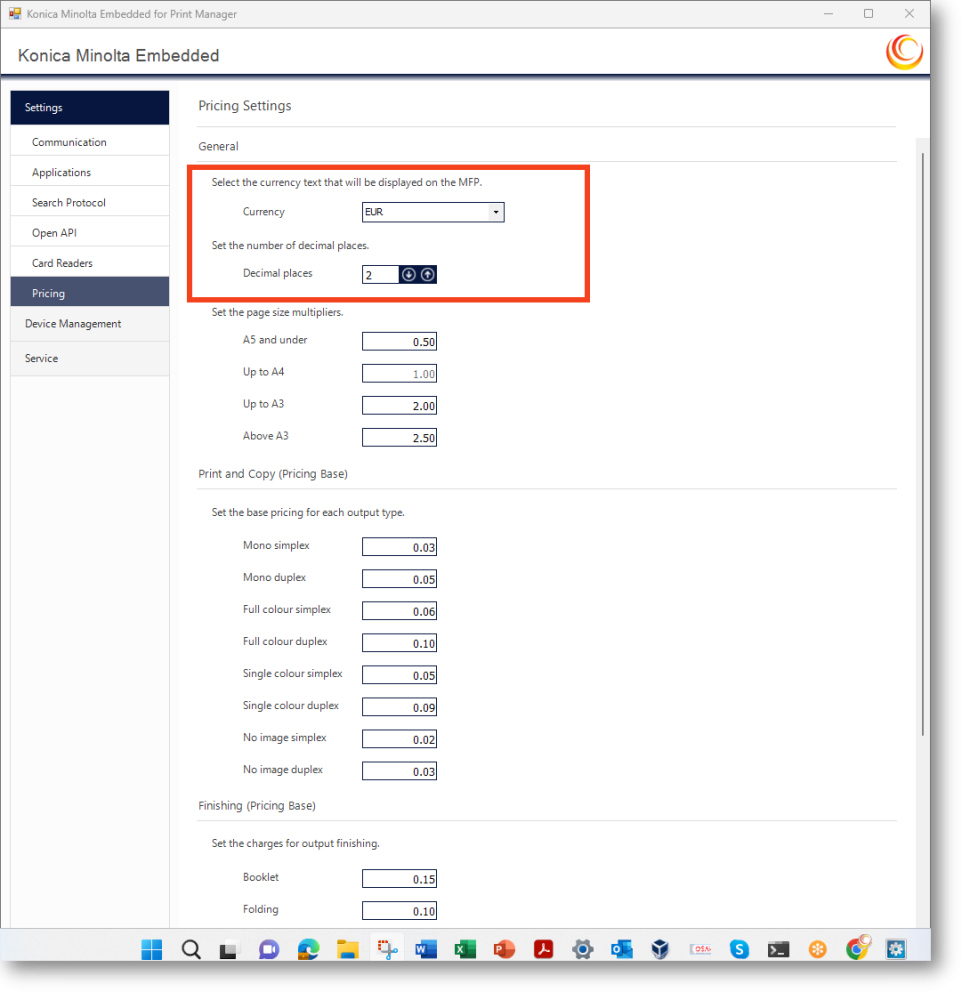
The Currency text selected displays against the user's balance on the ineo MFP. Set to None if no currency display is required. Decimal places defines the accuracy of charge subtraction (valid values: 0–4).
Page size multipliers
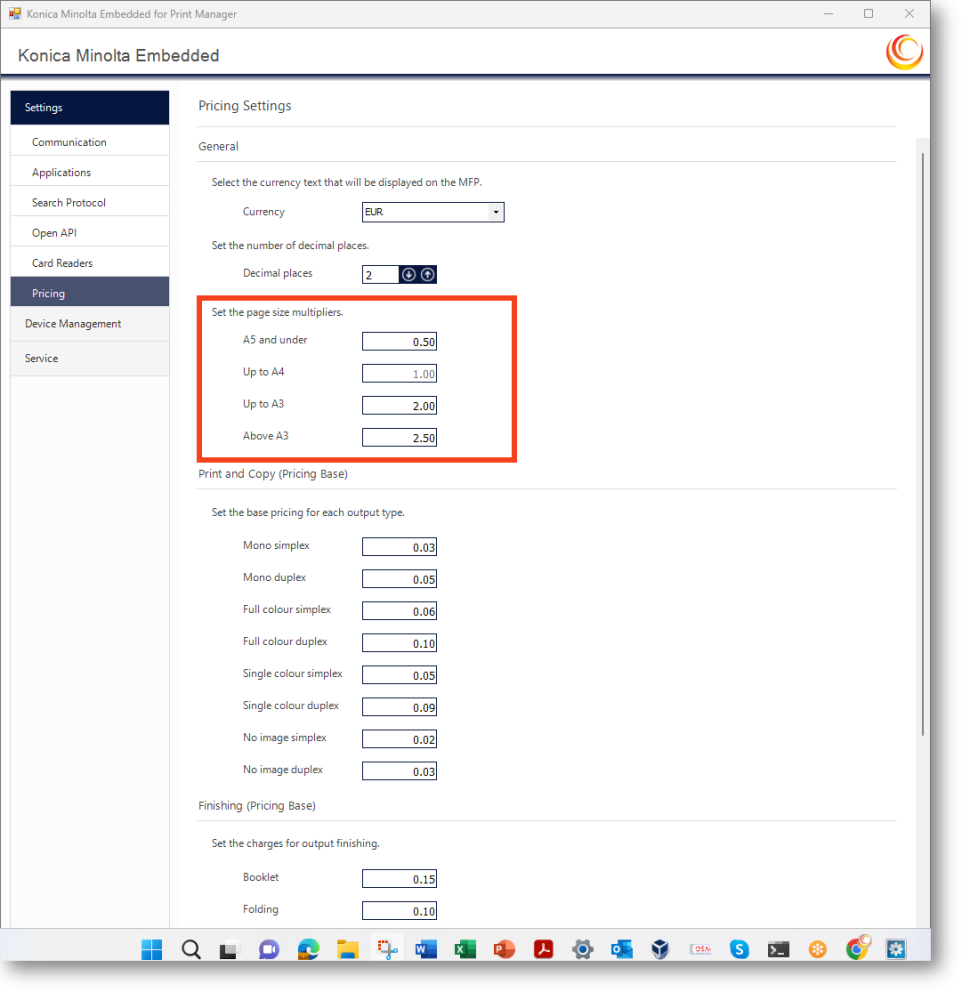
Page size multipliers apply a multiplication factor between the pricing base, number of pages, page size, and output type. A4/Letter is the base size (multiplier 1.00).
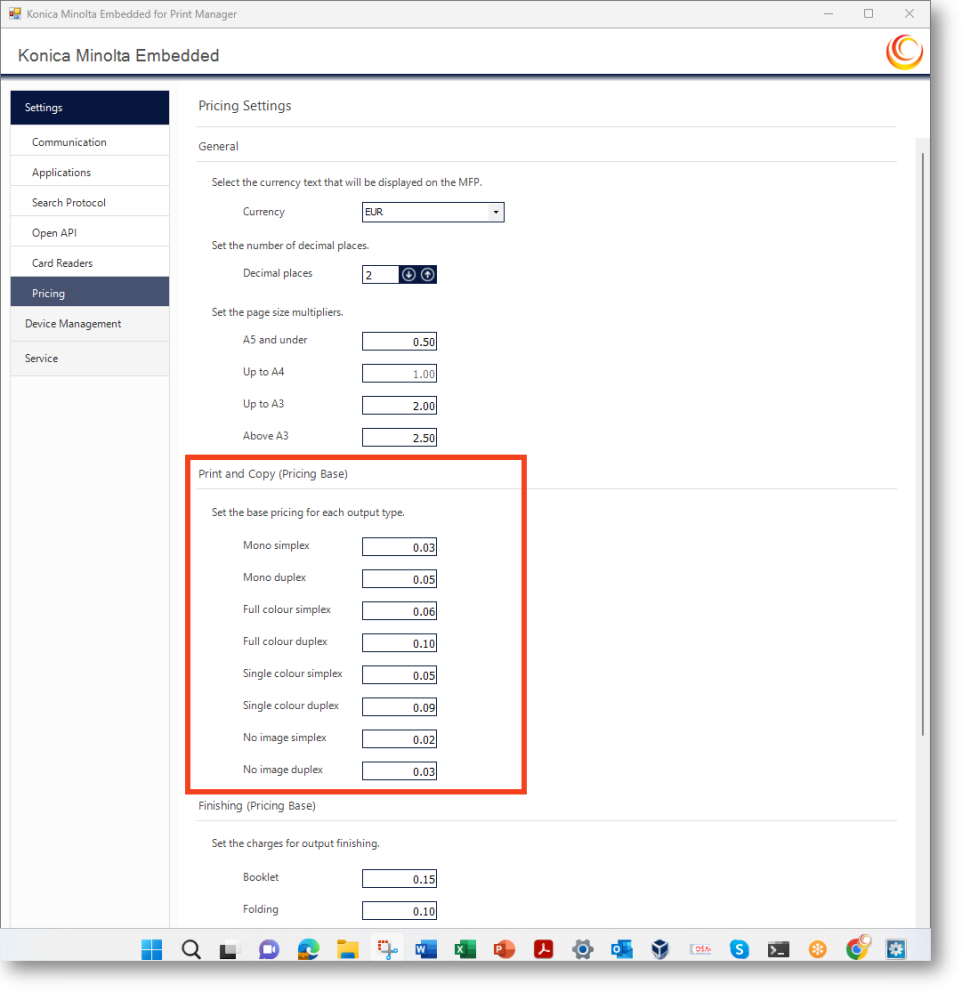
Print and Copy pricing
Set print and copy output pricing based on A4/Letter as the base size.
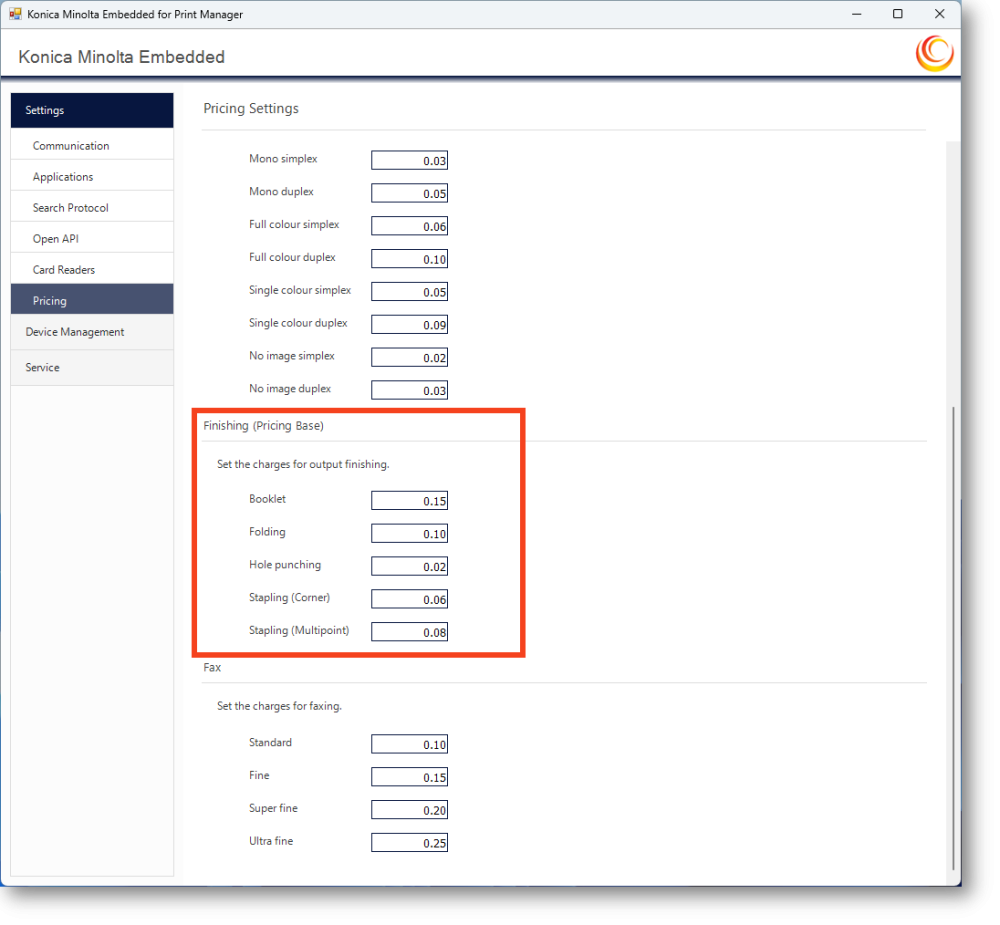
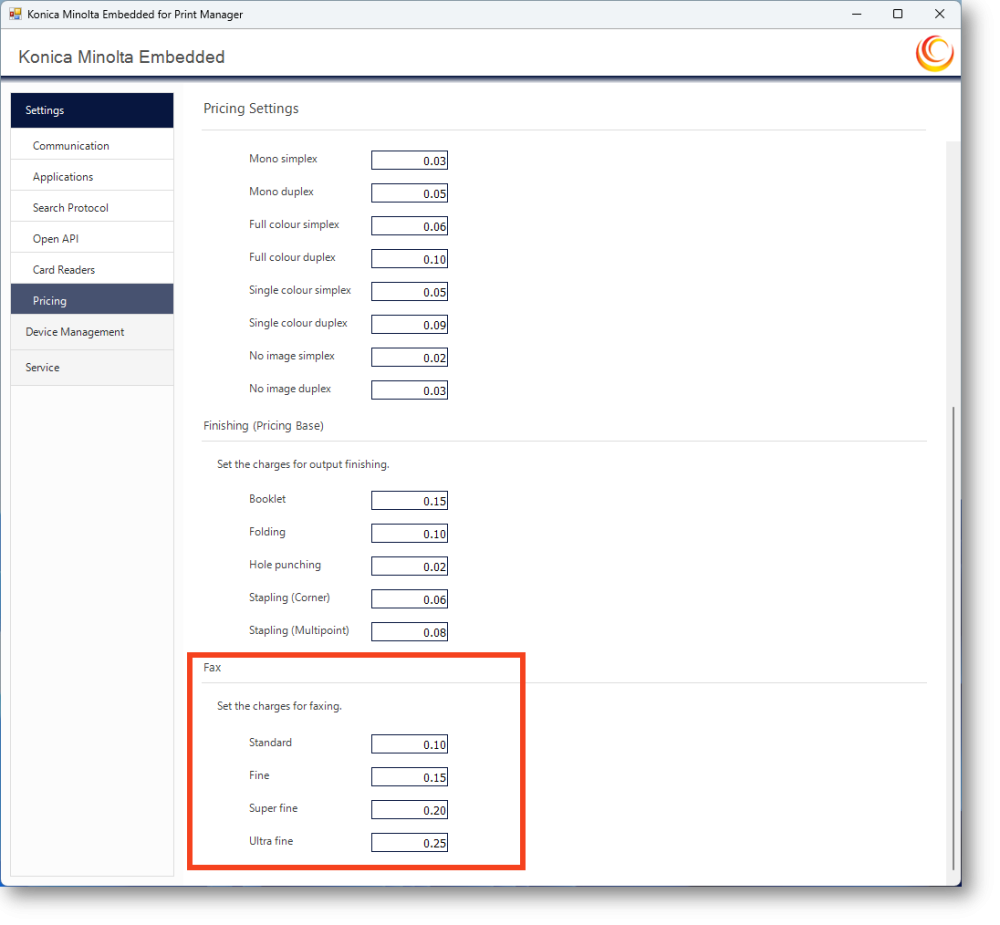
Finishing pricing
Document finishing options can also be charged. The finishing charge is applied once per completed job.
Fax charges
Enter charges for each fax quality type. Charges are per output page; higher quality takes longer to transmit.
Device management
Searching for devices
Click the Search Devices button to invoke a network search based on the search method configured in the Device Search Protocol settings.
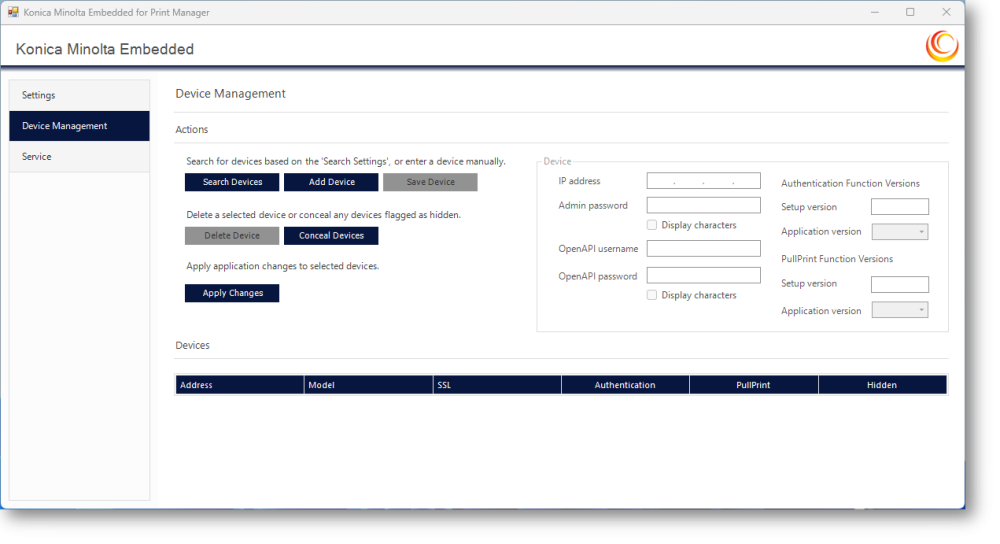

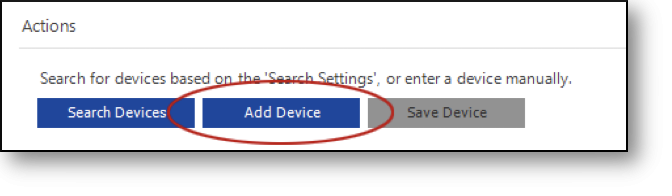
Adding a device manually
Click the Add Device button to add an ineo MFP individually. Enter the IP address into the IP address box and press Tab. The ineo MFP will be queried at the specified address.

Device found
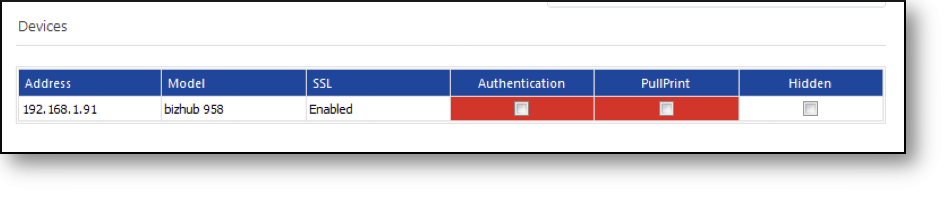
Once an ineo MFP is found (via search or manual add), its details and SSL status are returned to the application. The SSL status must show as enabled — if not, review the ineo MFP bEST configuration.
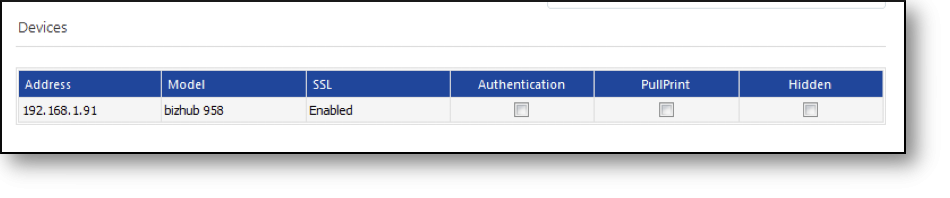
Applying changes
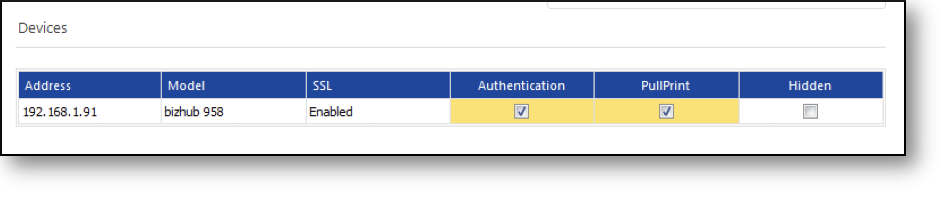
Select the checkbox next to an ineo MFP to action it. The pending state will be Deploy if no applications are deployed, or Remove if applications are already deployed. Pending status displays in yellow.
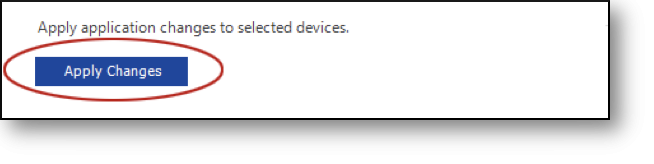
Click Apply Changes to invoke the action. Progress is displayed during the operation.
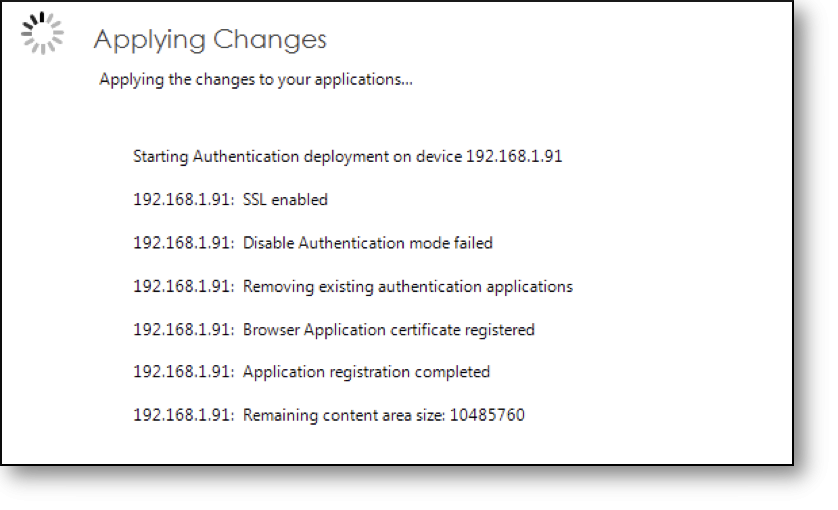
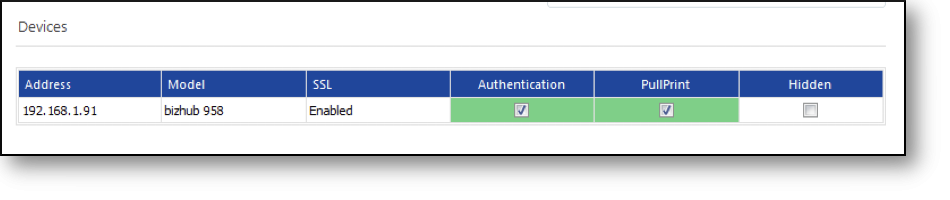
If successful, the status displays in green. If unsuccessful, the status displays in red.
Changing device settings
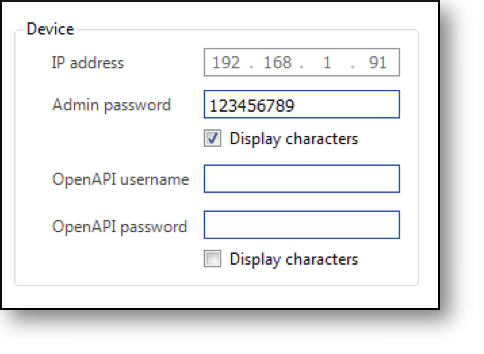
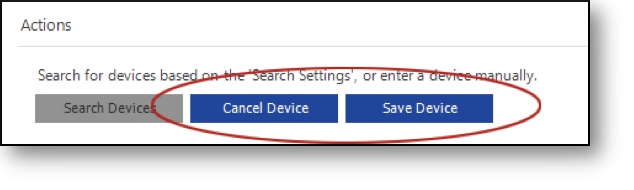
To change usernames or passwords expected by an ineo MFP, these must be set prior to deployment. Click the grid row containing the device to enable edits. No other actions can be made while a device is selected — save or cancel changes using Save Device or Cancel Device before proceeding.
Deleting a device
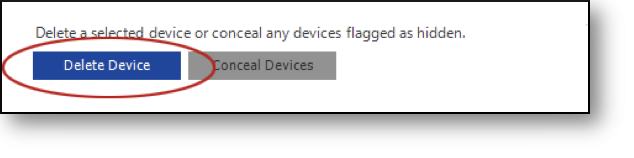
Select the device as above and click Delete Device to remove it.
Service control
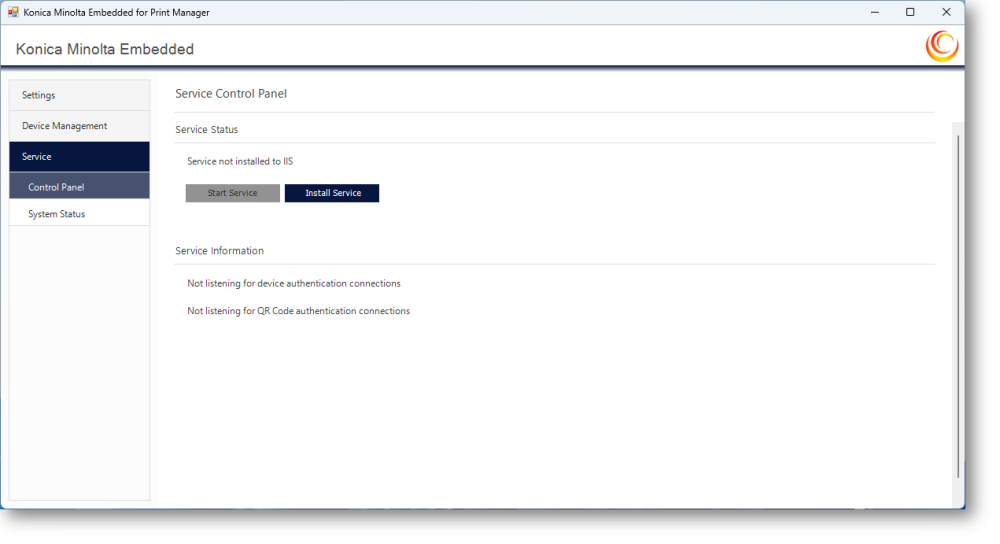
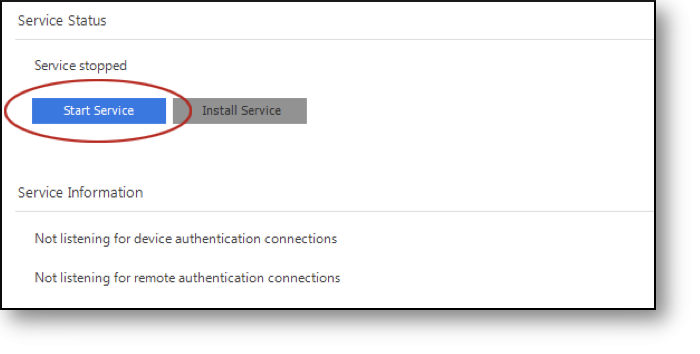
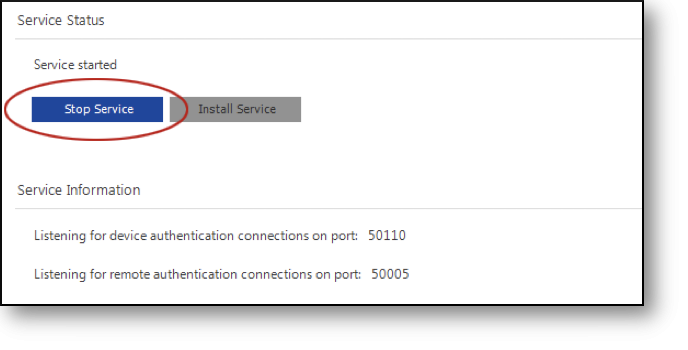
The Service Control tab displays the current status of the listening services and allows them to be started and stopped.