LDAP / AD Integration — General Tab
Name, synchronization type, frequency, and defaults for an LDAP or Active Directory integration in PriApps.
v24.0
Configure the basic identity and schedule for an LDAP / AD integration from Tools → LDAP Integration in the PriApps Admin UI. Complete the General tab as a minimum before saving.
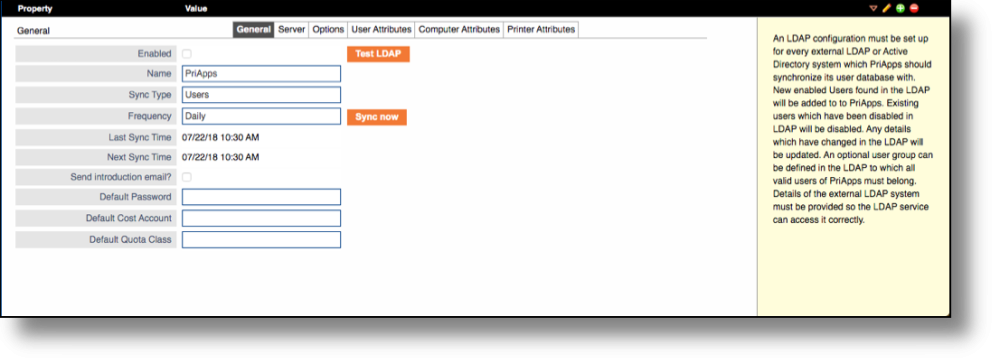
| Field | Description |
|---|---|
| Enabled | Checkbox to enable or disable this LDAP synchronization connection. Disabled connections will not sync. |
| Name | The name of this LDAP instance within PriApps. Used only for identification in the Admin UI — it does not affect the connection. |
| Synchronization Type | Specifies what type of objects will be synchronized. Options typically include Users or Computers. |
| Frequency | Defines how often the LDAP service will synchronize with this LDAP instance. Options are: Manual (the Next connection time must be specified manually), Hourly, Daily, Weekly, or Monthly. |
| Last Sync Time | The date and time of the last successful synchronization. Read-only. |
| Next Sync Time | The next scheduled synchronization time. Read-only when a frequency other than Manual is selected. |
| Send Introduction Email? | If selected, an introductory email will be sent to all users imported during the LDAP synchronization. |
| Default Password | The password assigned to new users created during the LDAP synchronization. To use the Active Directory password instead, leave this field blank and enable LDAP Authentication in the General Settings. |
| Default Cost Account | The default Cost Account assigned to each user created during the LDAP import. |
| Default Quota Class | The default Quota Class assigned to each user created during the LDAP import. |
PriApps requires an Active Directory user account with READ permissions in order to sync with AD. Write access is not required.
Before configuring an LDAP integration, ensure the LDAP Update Service and LDAP Authentication Service are both enabled and started. Check this under Manage Server in the left-hand sidebar.