LDAP / AD Integration — Options Tab
Additional LDAP sync options including paged results, PIN length, auto-creation of departments and quota classes.
v24.0
Configure optional LDAP synchronization behavior from Tools → LDAP Integration in the PriApps Admin UI. Select a connection and edit the Options tab. Complete this tab as appropriate — it is not required for a basic LDAP synchronization.
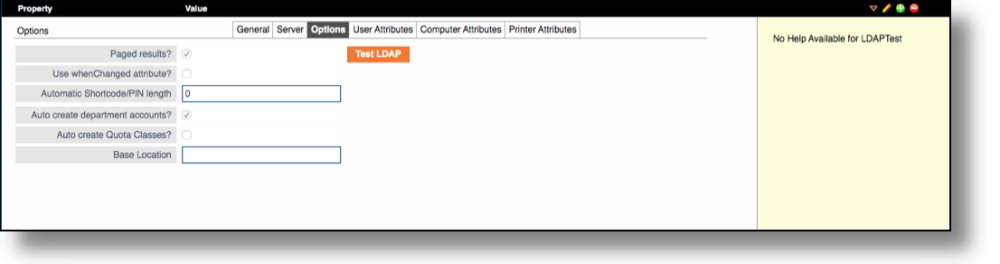
| Field | Description |
|---|---|
| Paged Results? | Indicates that the LDAP server supports paged requests. Enable this option for large directories where a single LDAP query would return more results than the server's page size limit. |
| Use When Changed Attribute? | If checked, only objects that have changed since the last LDAP sync will be processed. This reduces the load on the LDAP server for large directories. |
| Automatic Short Code/PIN length | Specifies the length of automatically generated Short Codes or PINs for Active Directory users imported during the sync. |
| Auto Create Department Accounts? | If checked, department accounts will be automatically created in PriApps for any departments found during the LDAP import. |
| Auto Create Quota Classes? | If checked, a Quota Class will be automatically created if one is specified in LDAP for a user. If no Quota Class is found in LDAP and this option is selected, a Standard Quota Class will be applied. |
| Base Location | The starting location in the Printer and Driver Management Organizational Model where the Organizational Unit (OU) import will begin, if OU-based location import is enabled. |
After configuring all tabs, click Save / Confirm to save the settings, then use the Test LDAP button to verify the connection before running the import.