LDAP / AD Integration — Server Tab
Connection details for the LDAP or Active Directory server, including host, port, SSL, base DN, and credentials.
v24.0
Configure the connection details for the LDAP or Active Directory server from Tools → LDAP Integration in the PriApps Admin UI. Select a connection and edit the Server tab.
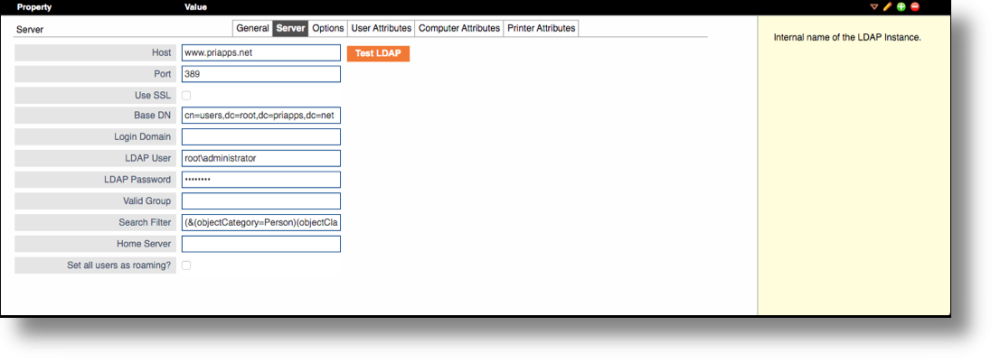
| Field | Description |
|---|---|
| Host | The hostname or IP address of the server hosting the LDAP or Active Directory service. |
| Port | The network port for the connection to the LDAP or Active Directory service. The default LDAP port is 389; LDAP over SSL uses port 636. |
| Use SSL | Check this box if the LDAP server requires an SSL connection. |
| Base DN | The Distinguished Name (DN) that defines the base location in the directory from which PriApps will search for objects. For example: cn=users, dc=root, dc=priapps, dc=com. |
| Login Domain | The pre-Windows 2000 domain login name. For example, if a user logs in as PriApps\userlogin, the Login Domain is PriApps. |
| LDAP User | A valid username that PriApps will use to access the LDAP directory. Can be entered in DN format or user@domain format. |
| LDAP Password | The password for the LDAP user account specified above. |
| Valid Group | The DN of a group to which all users who access PriApps must belong. If not specified, all enabled users in the directory will be imported. For example: CN=students, CN=Users. |
| Search Filter | The LDAP filter applied when searching the directory for eligible users. |
| Home Server | The PriApps Home Server assigned to users imported by this connection. Only required for Distributed or De-centralized Application Server deployments. |
| Set all users as Roaming | If checked, sets all users imported by this connection as Roaming users. Only required for Distributed Application Server deployments. |
After configuring the Server tab and saving, click the Test LDAP button to verify the connection. If successful, click Import to import your LDAP/AD users.