MFP Settings
Pull print, MFP UI behavior, and device interaction settings in Server Settings → MFP Settings.
v24.0
Configure printer and MFP behavior from Settings → MFP Settings in the PriApps Admin UI. The MFP tab displays configurable settings for printers and MFPs.
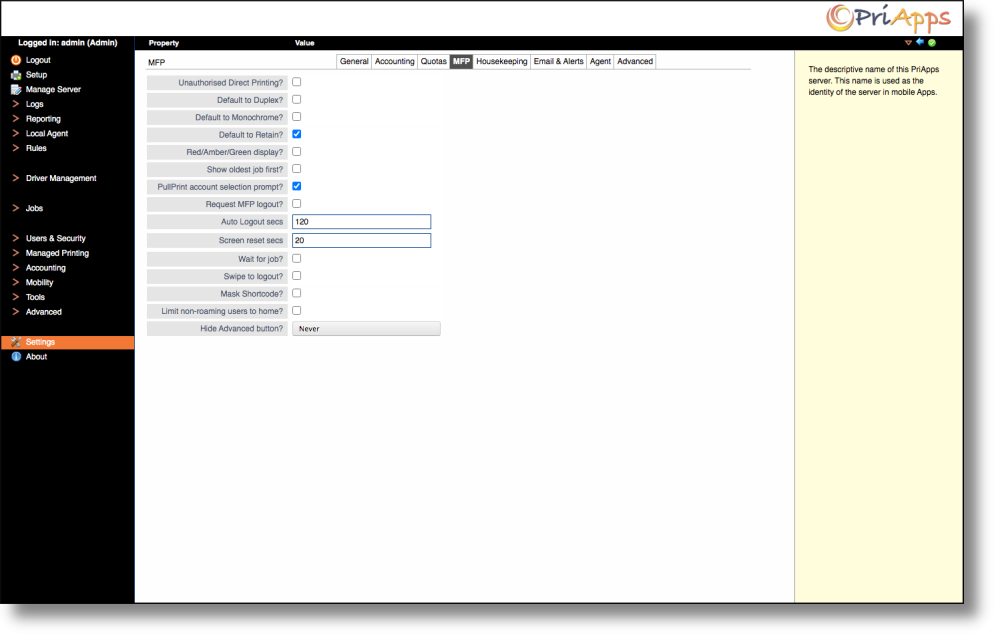
| Setting | Description |
|---|---|
| Unauthorized Direct Printing? | Select this option to allow users to print directly to a specific Managed Printer even if it has been locked down for SSO. |
| Default to Duplex? | Select this option to default all Pull Print jobs to duplex printing unless changed at the Managed Printer at the time of release. |
| Default to Monochrome? | Select this option to default all Pull Print jobs to monochrome unless changed at the Managed Printer at the time of release. |
| Default to Retain? | Select this option to default all Pull Print jobs to be retained in the queue after release unless changed at the Managed Printer at the time of release. |
| Red/Amber/Green display | Select this option to color-code jobs on the Managed Printer UI. Red = job cannot be released on this device. Amber = job can be released but certain features (e.g. stapling) may not be available. Green = job can be released as originally intended. |
| Show Oldest Job First? | Select this option to list the oldest print jobs first on the Managed Printer UI. |
| PullPrint account selection prompt? | When Pull Print jobs are released, an account selection prompt will be displayed to the user. |
| Request MFP Logout? | Select this option to display a logout option after the user exits the Pull Print screen on the Managed Printer UI. |
| Auto Logout Secs | Specifies the amount of inactivity time in seconds before a user is automatically logged out of the Managed Printer UI. |
| Screen Reset Secs | Specifies the amount of inactivity time in seconds before the authentication screen resets itself on the Managed Printer UI. |
| Wait for Job? | Wait for the job to start printing before returning control to the user. |
| Swipe to logout | Select this option to allow users to log out of the Managed Printer UI by swiping their ID Card or Badge on the Card Reader. |
| Mask Shortcode | Select this option to mask shortcodes as they are entered on the Managed Printer UI. |
| Limit non-roaming users to home? | Select this option to restrict users who are not defined as roaming users to only be able to use their Home PriApps Application Server in a multi-server deployment. |
| Hide Advanced Button? | Select this option to hide the advanced/settings button in the Pull Print screen on the Managed Printer UI. |