Quota Settings
Quota mode, activation, and warning configuration in Server Settings → Quotas.
v24.0
Configure quota management behavior from Settings → Quotas in the PriApps Admin UI. The Quota tab displays configurable settings for the Quota Management features.
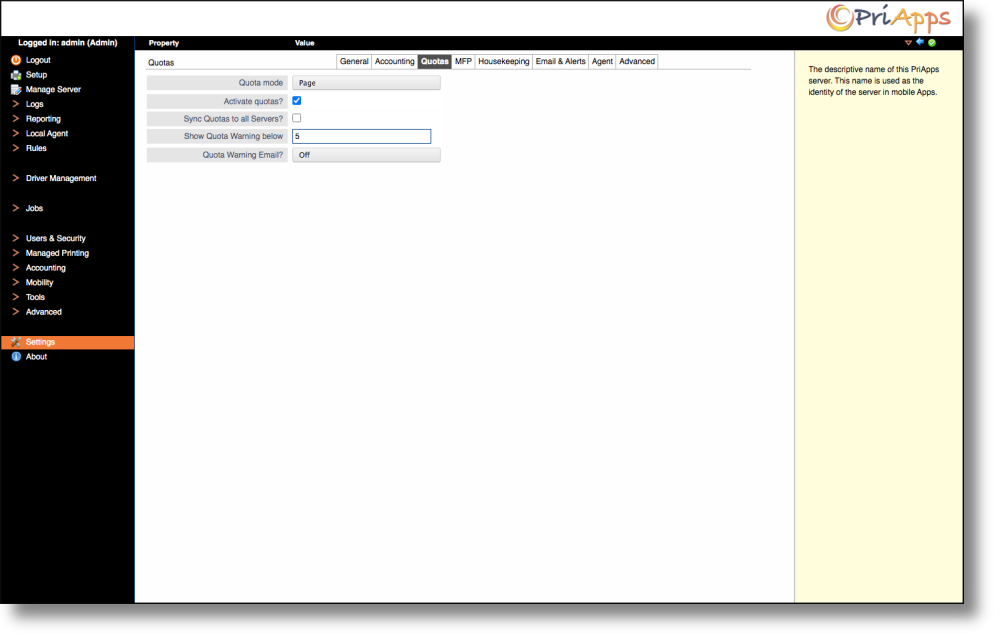
Quota mode
The Quota mode setting defines the way print quotas are managed on printers controlled by this server. Select one of the following modes:
| Mode | Description |
|---|---|
| Disabled | Quotas are not active. |
| Click | Quotas are based on a simple one-per-page Click value. |
| Color | Similar to Click, but separate quotas may be specified for Color and Mono jobs. |
| Cost | Quota is expressed as a monetary value which is depleted based on the calculated cost of jobs as they are completed. |
| Page | Similar to Click, but separate quotas may be specified for different types of jobs, such as Print, Copy, Fax, and Scan. |
Settings
| Setting | Description |
|---|---|
| Activate quotas? | Activates the quota system. Quotas do not take effect until this checkbox is selected, regardless of the quota mode chosen. |
| Sync Quotas to all Servers? | If checked, all servers in the environment will be updated immediately when a user prints. If unchecked and quotas are active, only the Primary server and the Home Server of the user are updated immediately; other servers will be updated at the next scheduled synchronization. |
| Show Quota Warning below | Select this option to display a warning to users on the Managed Printer / MFP UI when their remaining quota falls below the specified level. |
| Quota Warning Email? | Select the frequency at which a Quota Low warning email is sent to users approaching their quota limit. |
The Sync Quotas to all Servers setting is only relevant in a multi-server Enterprise deployment. It is designed to support quota enforcement in environments where users can print to devices controlled by different servers within a single synchronization period.